Quick Links
Workspaces
Workspaces are where you can manage all your Lapis stories and projects. In this section, you will learn how to create, manage and leave your Workspaces.
There are three sections in the Workspace:
- Drafts
- Published
- Trash
Create a new Workspace
You can use multiple Workspaces to organise your stories and collaborate with different teams.
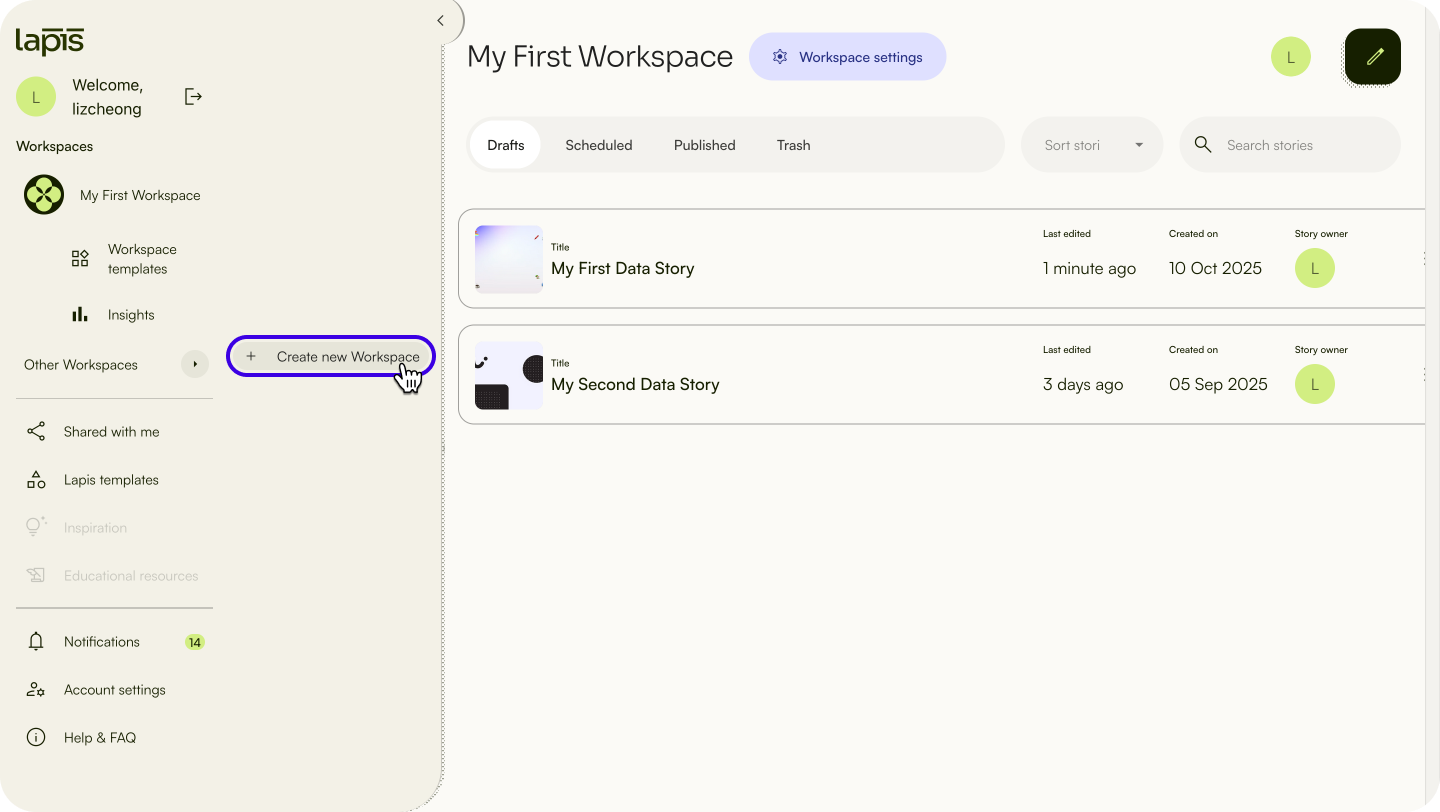
- To create a Workspace, click
Other workspaceson the sidebar. - Click
+ Create workspace. - Name your new Workspace.
✨ Can't find the Other workspaces button? Expand your sidebar by clicking the arrow icon at the top right of the sidebar.Drafts
All of your draft stories will be stored in Drafts.
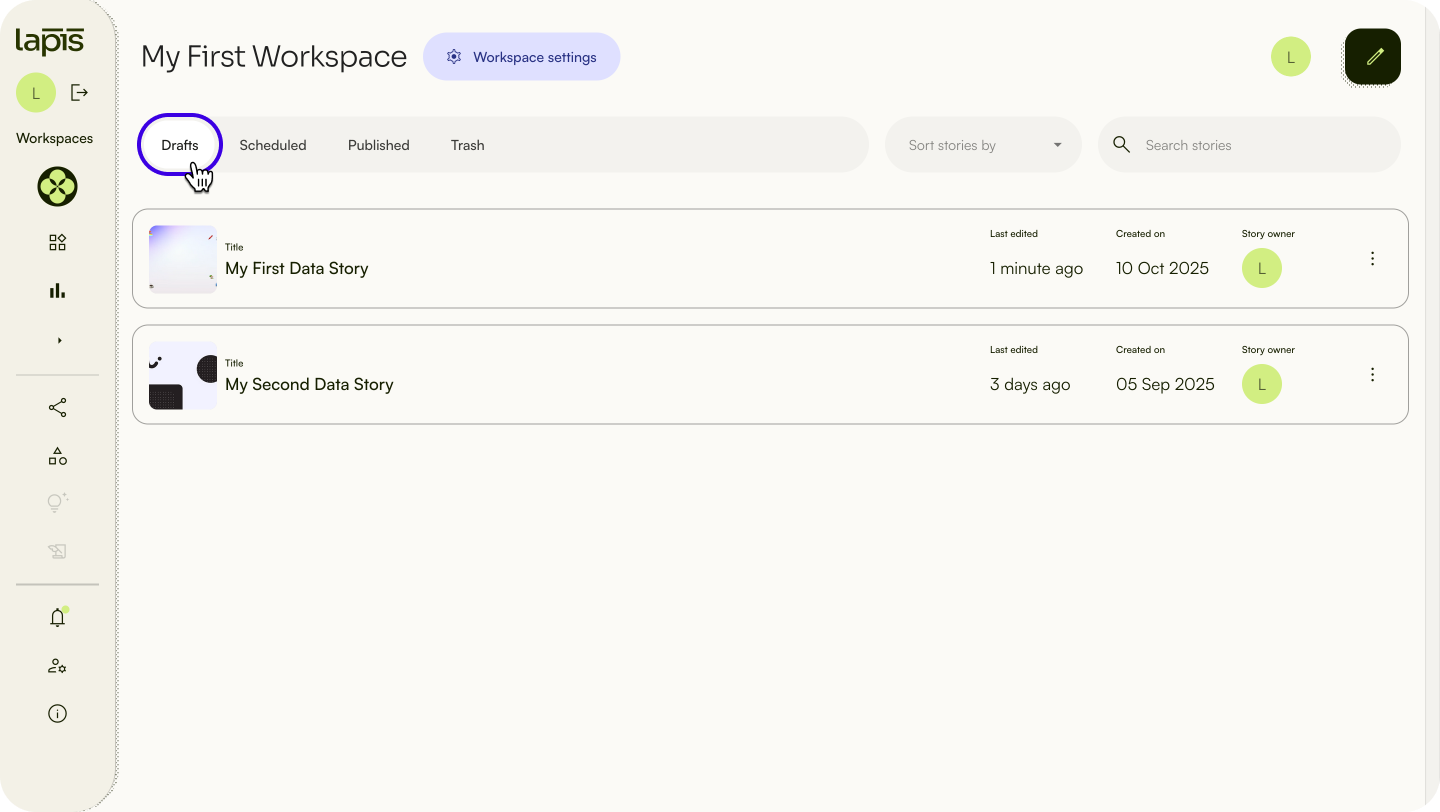
Navigate to Drafts
To locate your drafts, click on the Drafts tab at the top of the Workspace.
Search for a draft story
You can search for your published stories by title or keyword.
- To search for a published story, click on the
Publishedtab in your Workspace. - Type the story's title or keyword into the search bar at the upper right.
Sort draft stories
To sort your draft stories, click Sort stories by on the the upper right of your Workspace. You can sort stories by title, story owner, last modified, and date created.
Duplicate draft stories
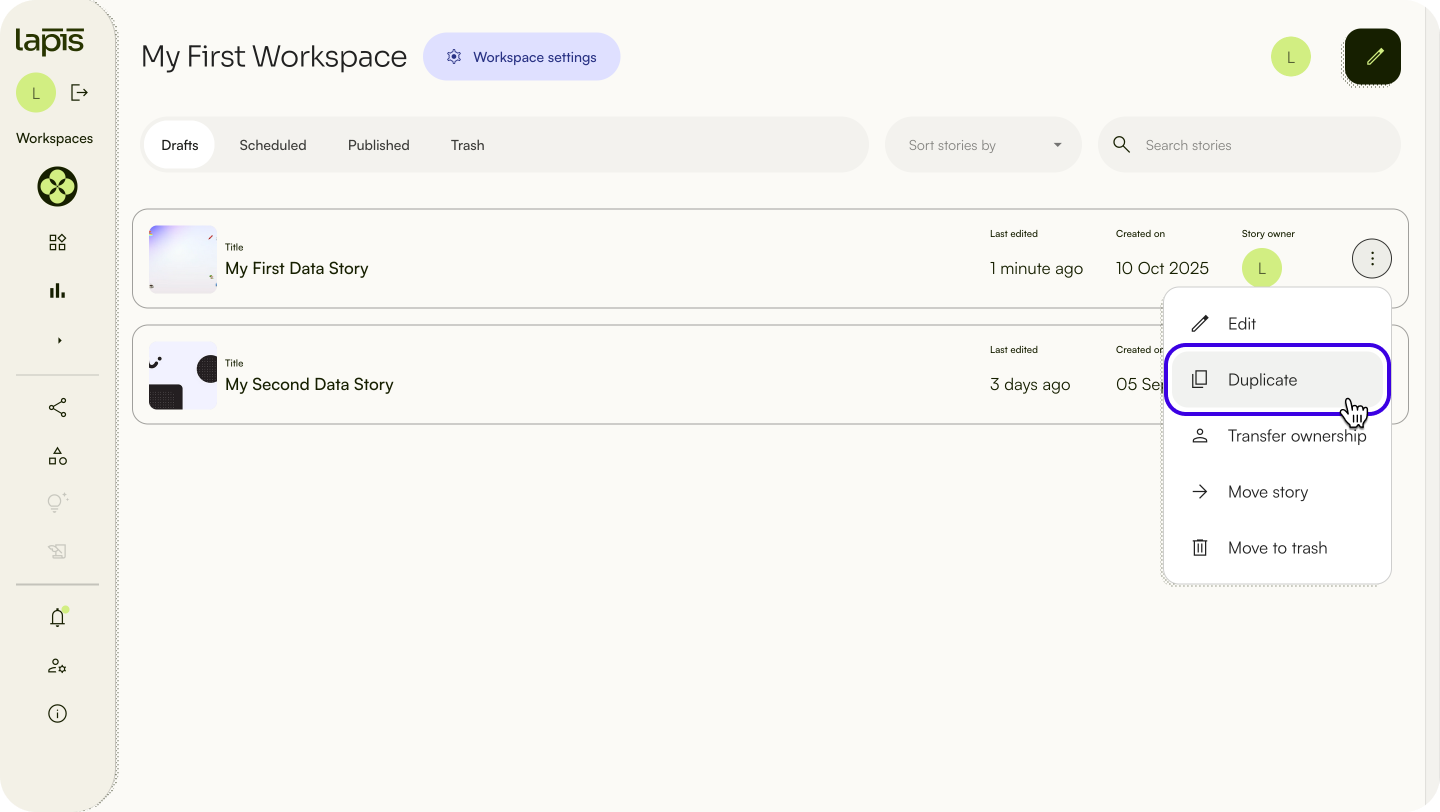
- To duplicate an existing draft or story, click
⋮on your selected story and selectDuplicate. - Rename the duplicated draft story.
- You may choose if you want to share with the same guests and copy comments from the original story.
✨ Use consistent naming conventions for your drafts (e.g. "GoogleDoodles_Version1_Draft") to make searching and sorting effortless as your Workspace grows.Edit draft stories
To edit your drafts, click the menu button ( ⋮ ) to the right of the story and select Edit, or click the draft itself to edit.
Transfer ownership of draft stories
You can only transfer ownership of your drafts if you are the Workspace owner.
- To transfer ownership of a draft, go to your Workspace and click
the menu button (on your draft, and select⋮)Transfer ownership. - Select the member you want to transfer the story to. You can only transfer ownership of stories to an existing member of your Workspace.
✨ Before transferring ownership of important stories, duplicate them first as a backup.Move draft stories to other Workspaces
You can only transfer ownership of your drafts to another Workspace if you are the Workspace owner.
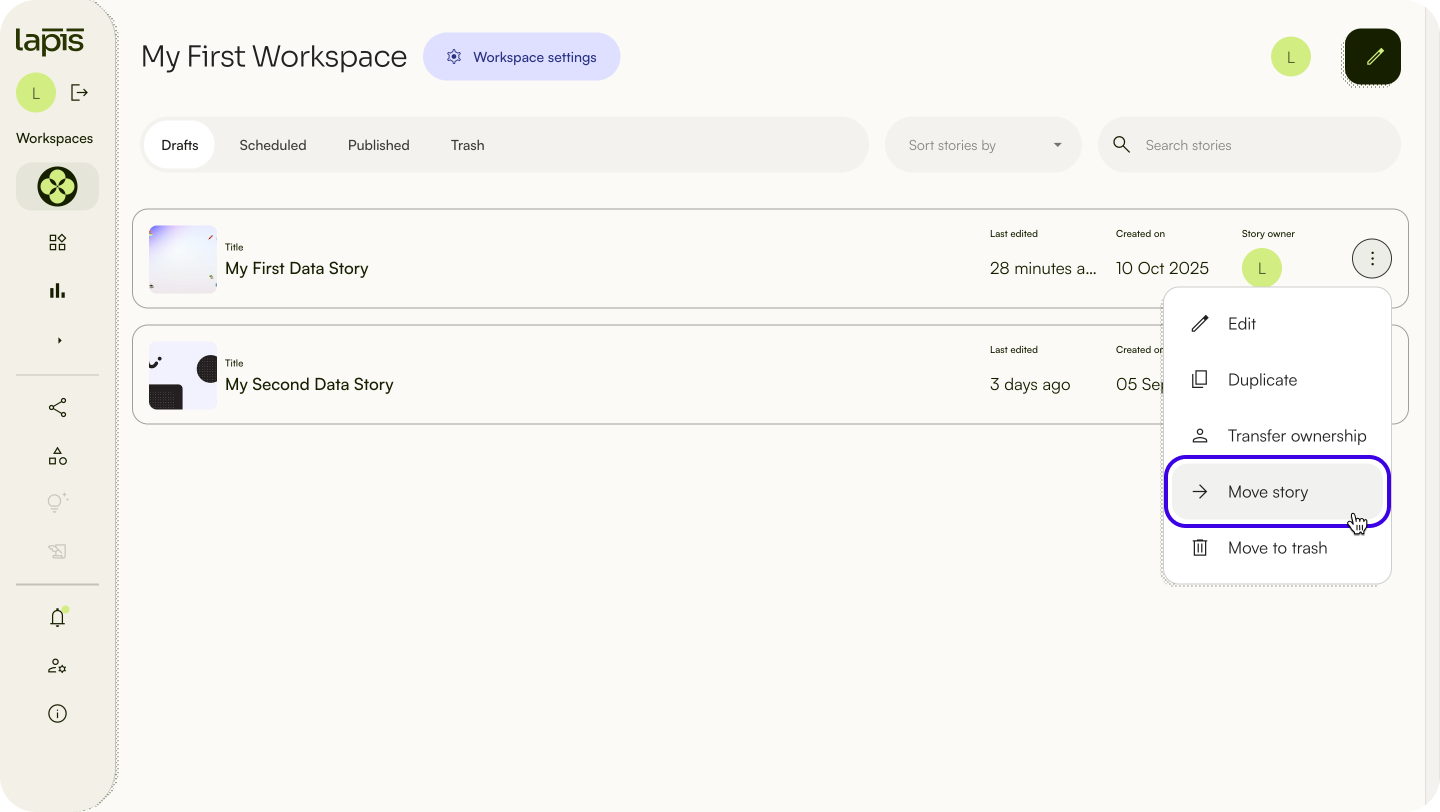
- In your Workspace, click
the menu button (to the right of your draft, and select⋮)Move story. - Select the Workspace that you want to move the story to.
Delete draft stories
You can only delete drafts in your Workspace if you are the Workspace owner.
- To do so, go to your Workspace and click the menu button (
⋮) on your chosen draft. - Select
Move to trash.
⚠️ Drafts will remain in your Trash folder for 60 days before they are permanently deleted.
Published stories
Navigate to published stories
To find your published stories in your Workspace, click on the Published tab at the top of your Workspace.
Search for a published story
You can search for your published stories by title or keyword.
To search for a published story, click on the
Publishedtab in your Workspace.Type the story's title or keyword into the search bar at the upper right.
Sort published stories
You can sort your published stories by title, story owner, last modified and date created.
To sort your published stories, click
Sort stories by.Click the option you want to sort by.
Duplicate published stories into Drafts
If you are the Workspace owner, you can duplicate published stories and convert them into drafts. This is great for situations where you want to rework an existing story into a new one with a similar layout and format.
- To duplicate a story, go to your Workspace and click
the menu button (on your selected story.⋮) - Select
Duplicate. - Title the duplicated draft story.
- Choose if you want to share it with the same guests and copy comments from the original story.
Transfer ownership of a published story
You can only transfer ownership of your published stories if you are the Workspace owner.
- To transfer ownership of a published story, go to your Workspace and click
the menu button (on the story. Select⋮)Transfer ownership. - Select a member you want to transfer the story to.
Delete published stories
✨ You can only delete published stories in a Workspace if you are the Workspace owner.- To delete a published story, go to your Workspace and click
⋮on your selected story. - Select
Move to trash.
⚠️ Deleted stories will remain in your Trash folder for 60 days before they are permanently deleted.Add a published story as a template
There are two ways to add a published story to a template: immediately after publishing the story or directly from the Storybuilder.
1. From the Storybuilder
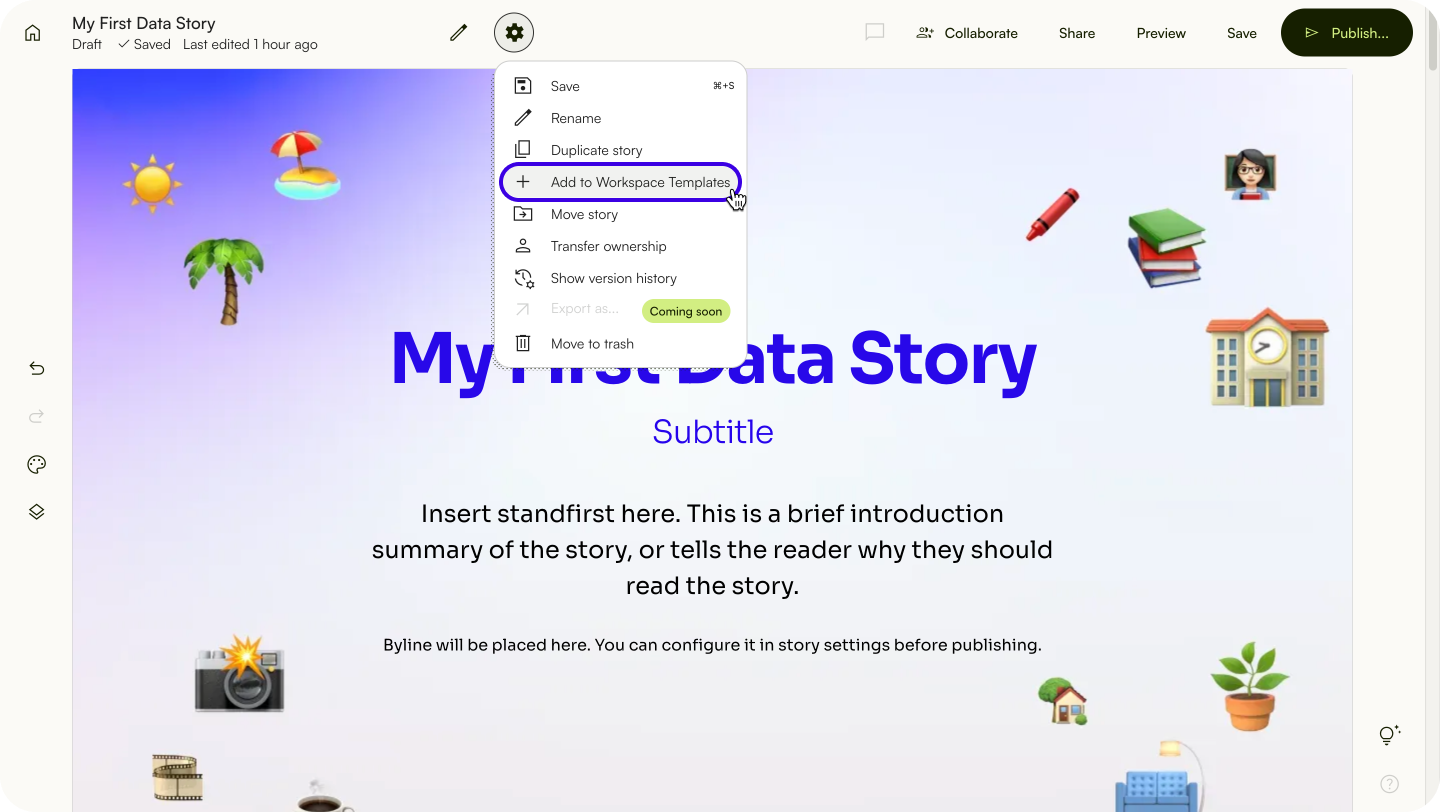
Click on the gear icon next to your story's title.
Click
Add to Workspace Templates.Name your new template.
Click
Add to template.
2. Immediately after publishing a story
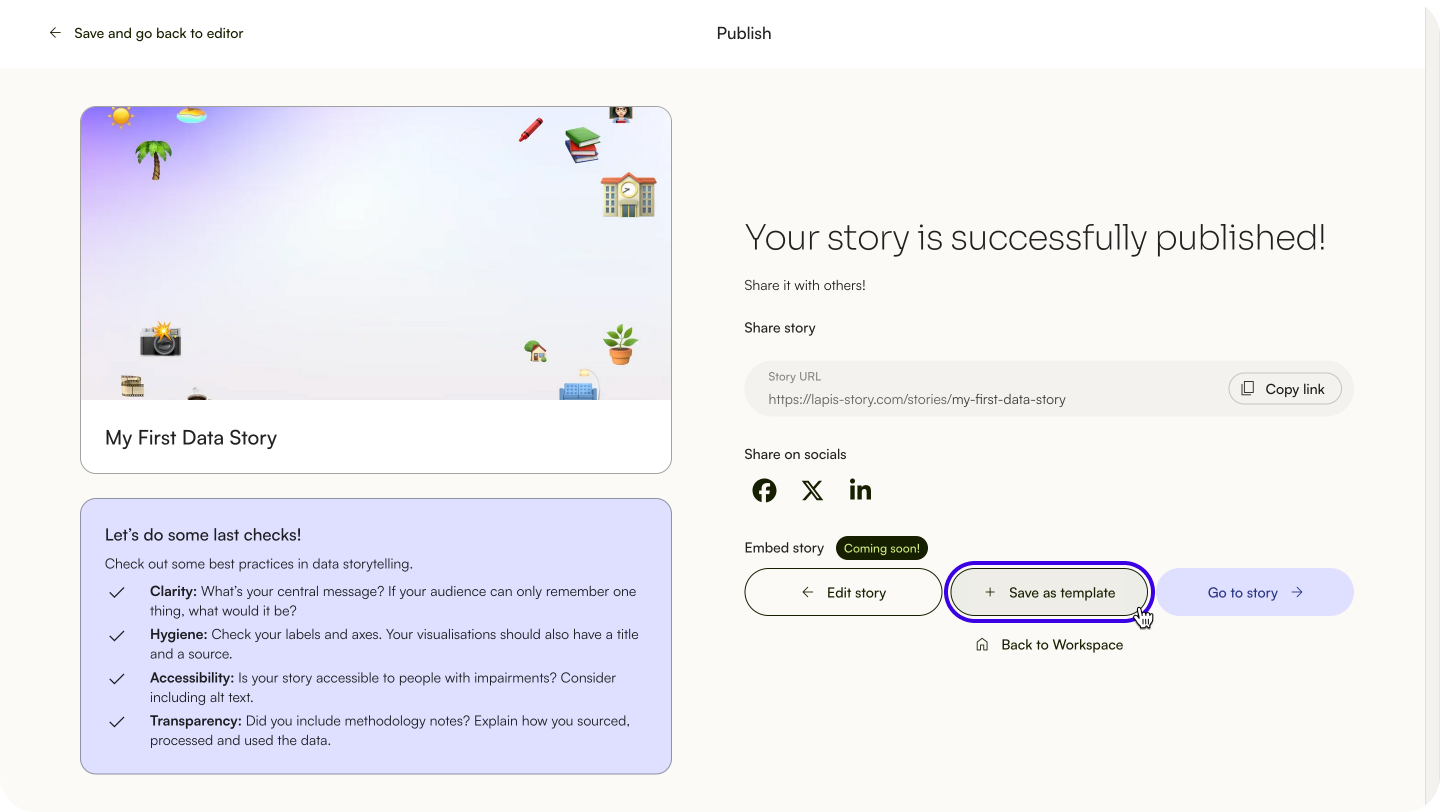
Click
Save as template.Name your new template.
Click
Add to template.
Edit published stories
- In your Workspace, click
the menu button (on your selected story.⋮) - Click ‘Edit’.
- Edit your published story.
- Click ‘Update’ on the upper right to save your changes.
Un-publish a story
- In your Workspace, click
the menu button (on your selected story.⋮) - Click ‘Un-publish’.
Trash
Deleted drafts and published stories will be stored in the trash for 60 days. After 60 days, any drafts or stories in the trash will be permanently deleted.
Navigate to trash
To locate recently deleted drafts or stories, click on the Trash tab at the top of the Workspace.
Search for a story in your trash folder
You can search for deleted drafts or published stories by title or keyword.
To search for a deleted story, click on the
Trashtab in your Workspace.Type the story's title or keyword into the search bar at the upper right.
Sort stories in trash folder
You can sort your deleted drafts and published stories by title, story owner, last modified and date created.
To sort your published stories, click
Sort stories by.Click the option you want to sort by.
Delete a story permanently
All stories and drafts in the trash folder will be automatically deleted after 60 days. You can also delete stories and drafts permanently.
- Click
the menu button (on your selected story.⋮) - Select
Delete permanently.
Delete all stories permanently
You can delete all the drafts and stories in your trash folder.
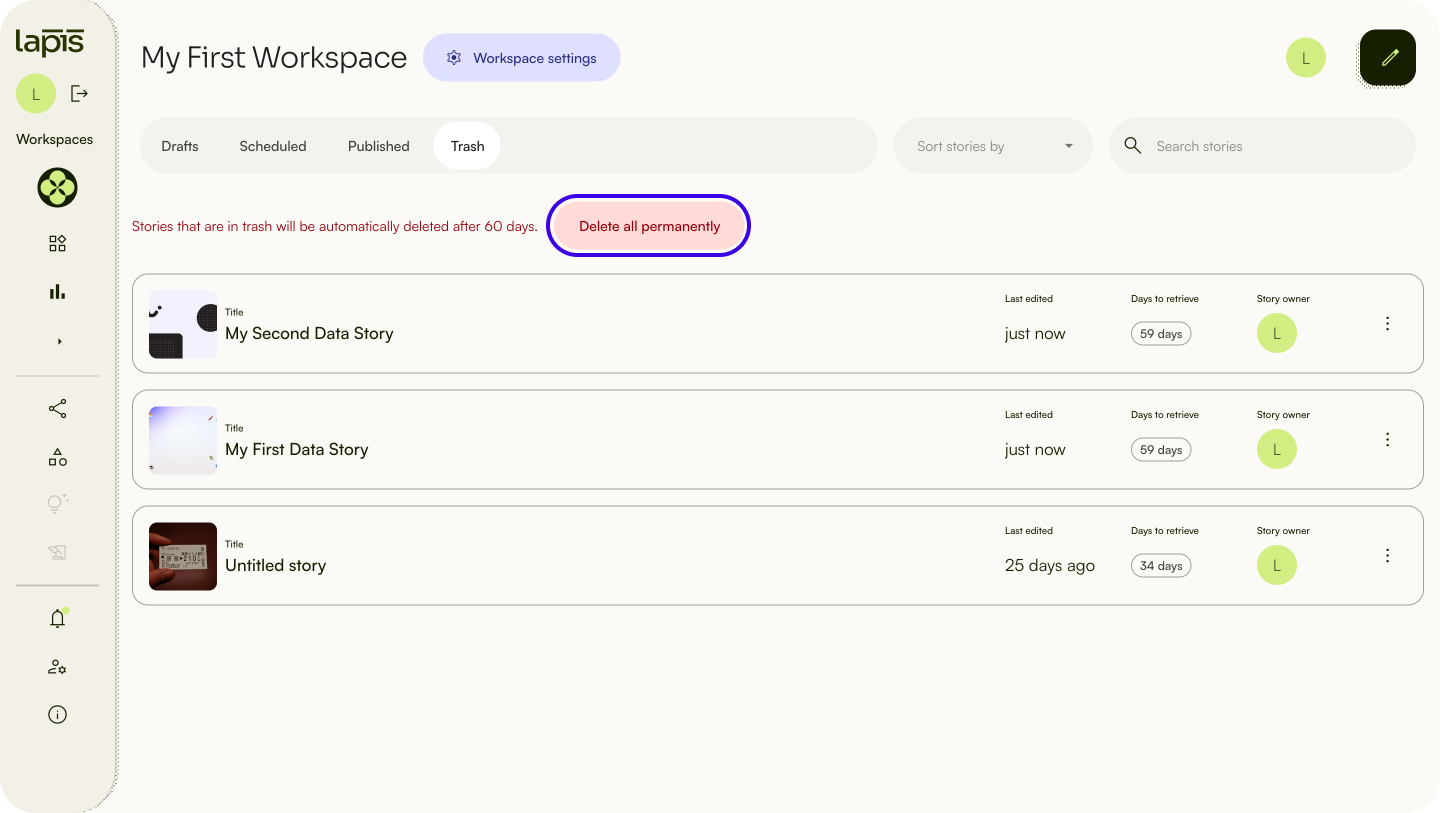
In your Workspace, click on the
Trashtab.Click
Delete all permanently.Click Delete all stories.
Retrieve a story from trash
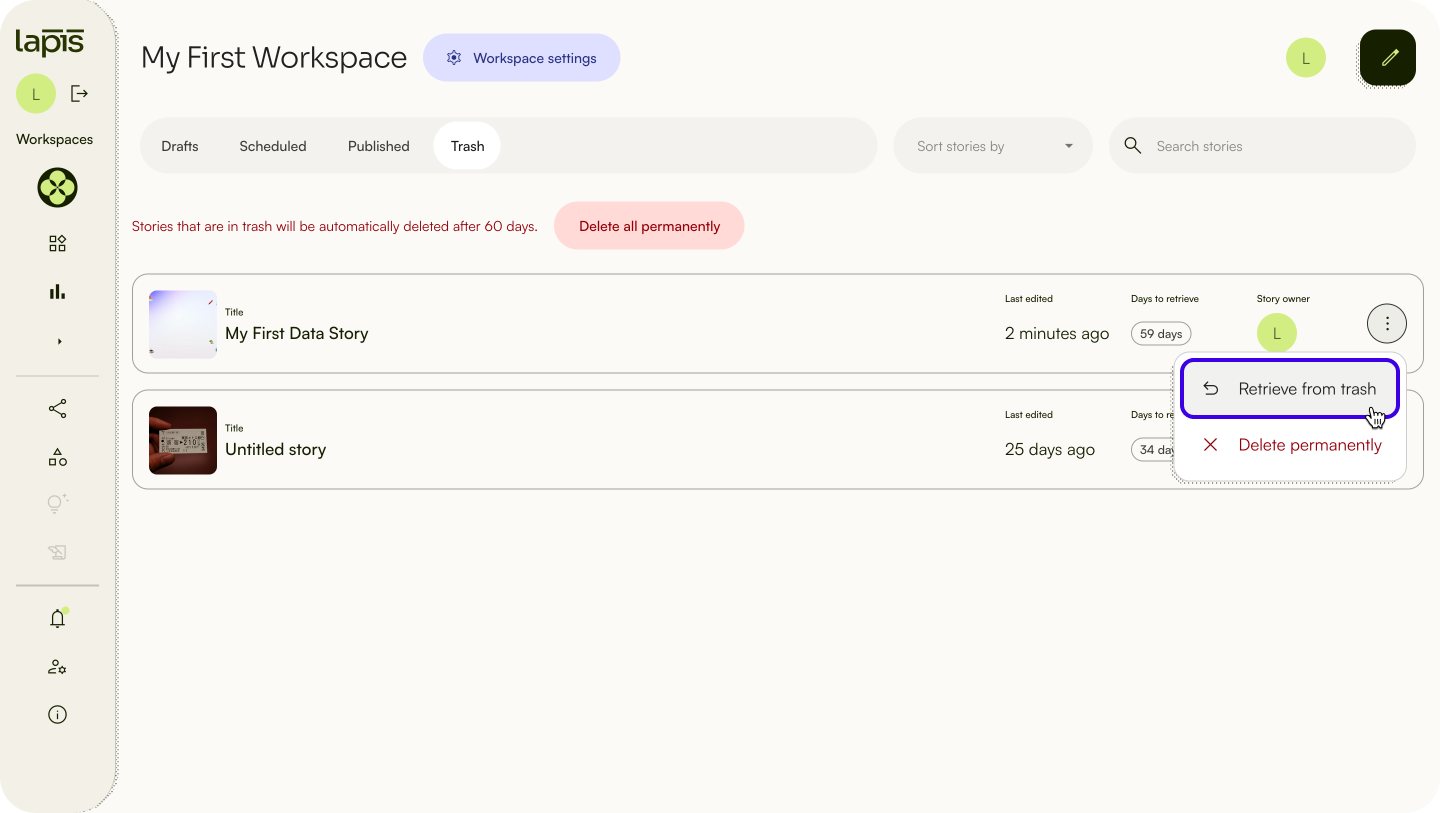
In your Workspace, click on the
Trashtab.Click
the menu button (on your selected story.⋮)Click
Retrieve from trash.
Your story should appear under the Drafts tab of your Workspace.
Leave your Workspace
If you are the Workspace owner
If you are the Workspace owner, you can transfer the Workspace to others before leaving the Workspace in order to keep existing drafts and stories.
You can also delete the Workspace, and all drafts or published stories will be also be deleted.
⚠️ Deleting your Workspace will permanently delete all existing drafts and stories. Transfer the Workspace ownership to another user or save a backup of your stories before deleting your Workspace.If you are a Workspace member
If you are a Workspace member, you can leave at any time. To leave a Workspace, click ⋮ on your Workspace settings and select Leave workspace.
Learn more about what you can do in Workspaces in “Workspace & Sidebar”.
| Last article: Workspaces & Sidebar | Next article: Intro to Sidebar |
Lapis is built by Kontinentalist↗, a data storytelling studio in Singapore.
Was this article helpful?
That’s Great!
Thank you for your feedback
Sorry! We couldn't be helpful
Thank you for your feedback
Feedback sent
We appreciate your effort and will try to fix the article