Quick Links
- Sign up for Lapis
- Edit your profile picture
- Account security
- Deactivating your account
- Deleting your account
- Account preferences
Sign up for Lapis
You can sign up for Lapis or log into an existing account here.
Edit your profile picture
Your profile picture will be visible to the other members of your Workspace.
Set your profile picture
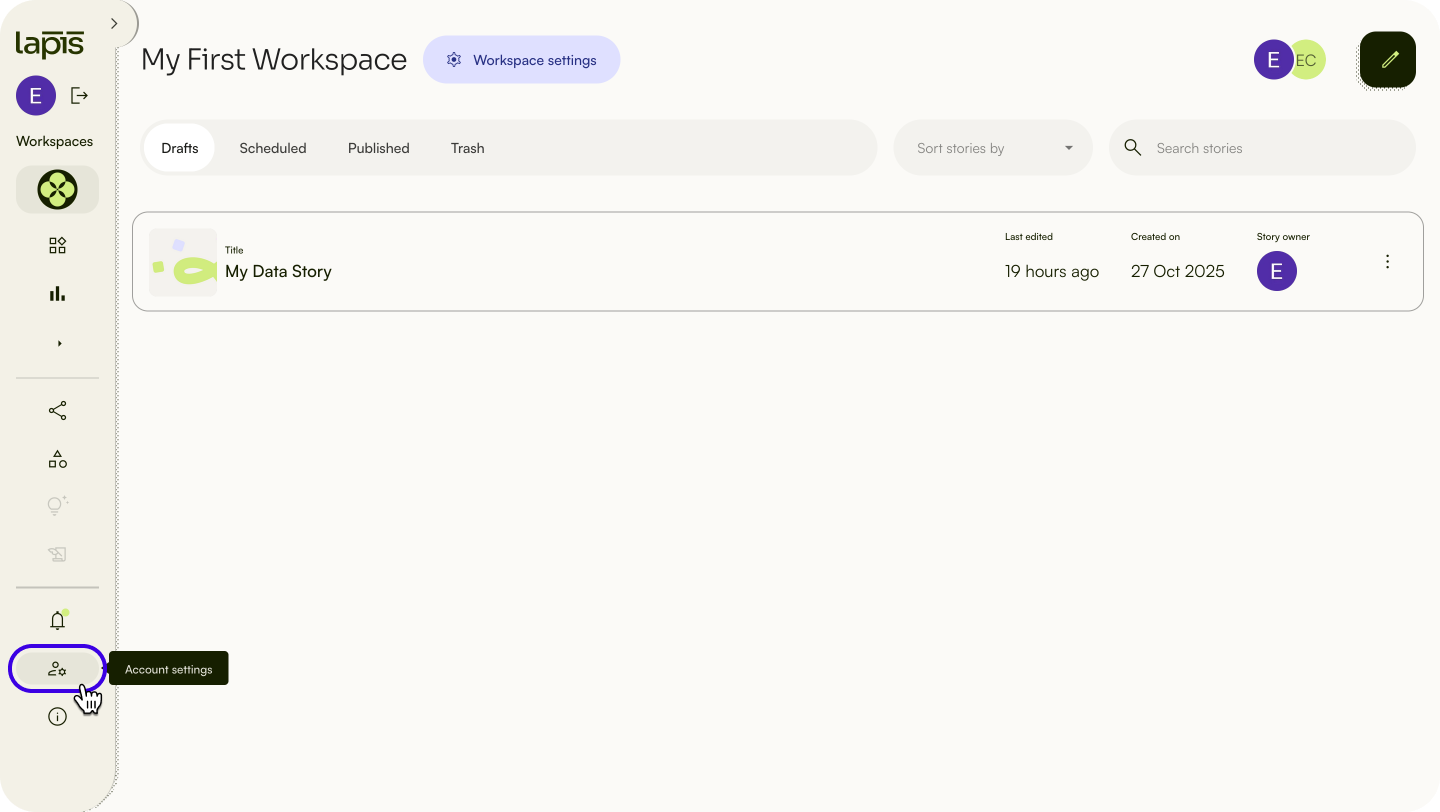
- To set your profile picture, click on
Account settingson the sidebar. - Click
Set profile picture. - Upload a photo.
Replace your profile picture
- To replace an existing profile picture, click on
Account settingson the sidebar.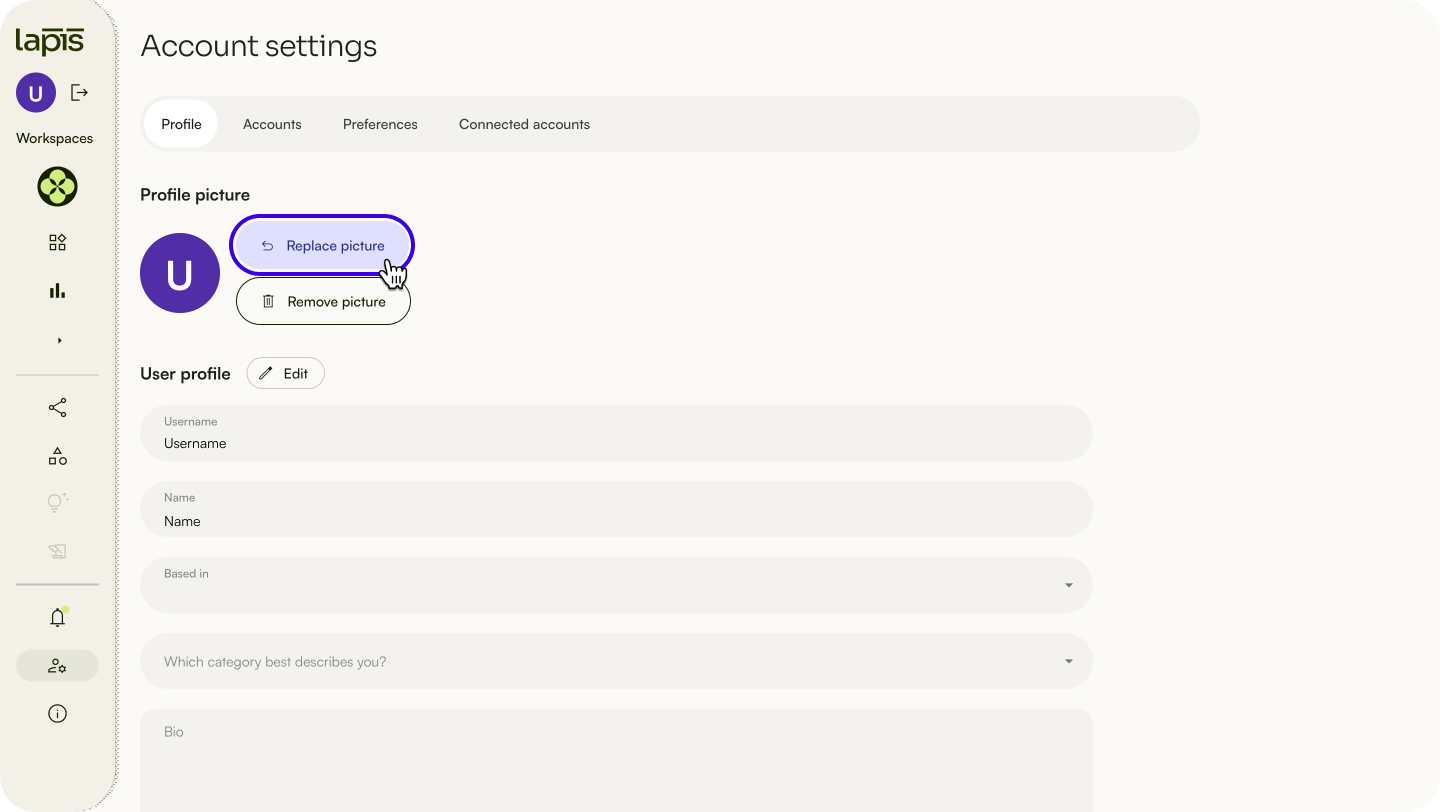
- Click
Replace picture. - Upload a new photo.
Remove your profile picture
- To remove an existing profile picture, click on
Account settingson the sidebar.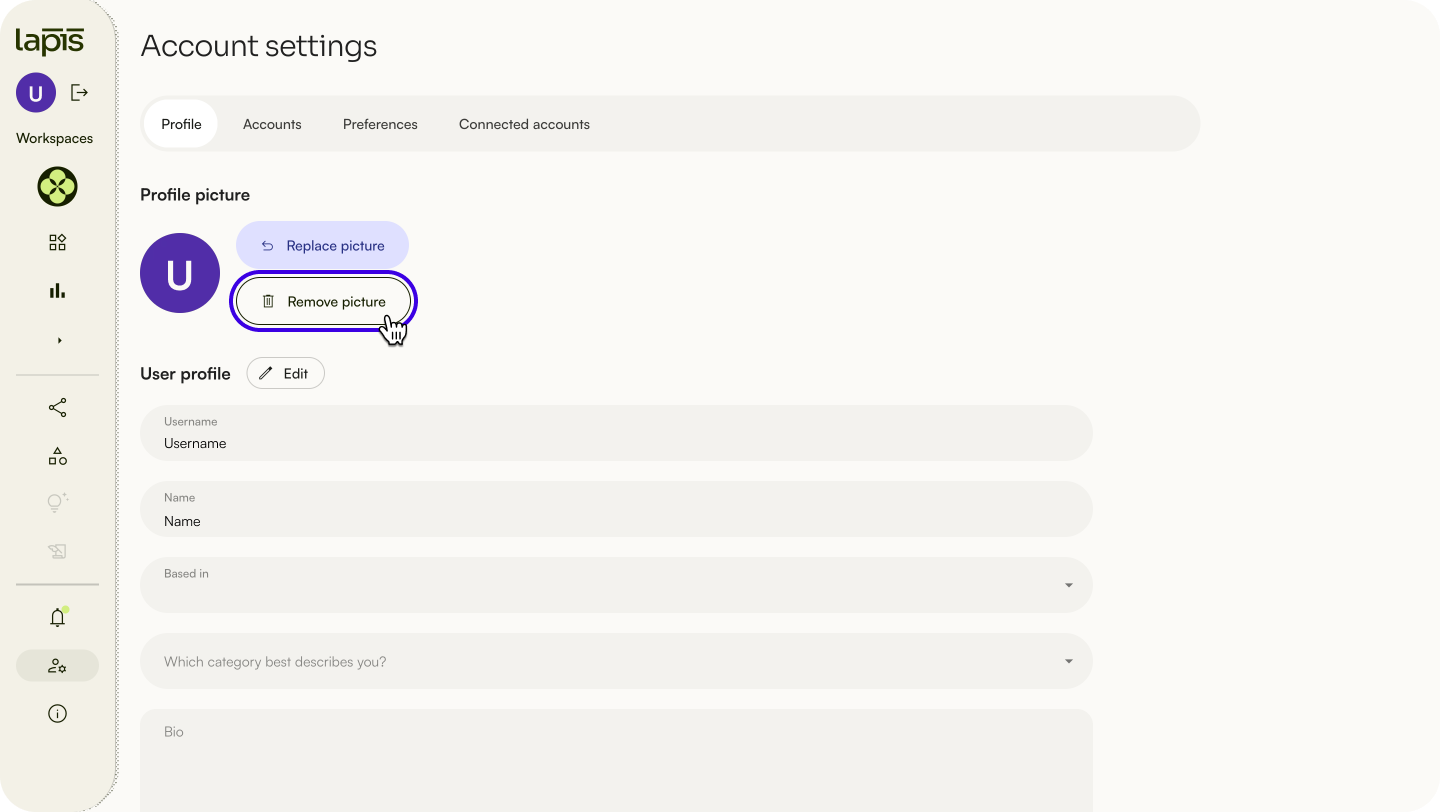
- Click
Remove picture.
Edit your profile information
Your username, name and bio are publicly visible on your profile page.
Edit your username
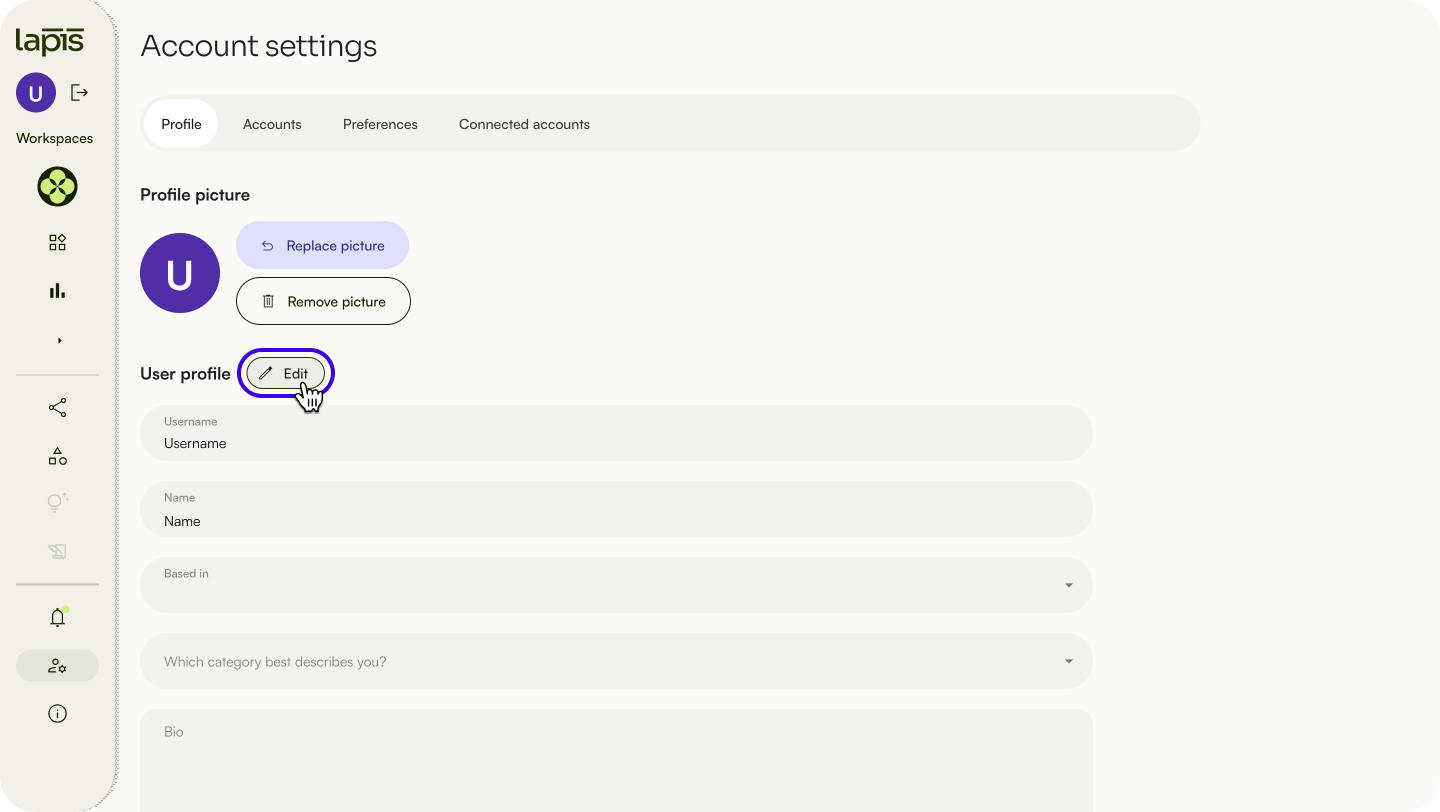
- To edit your username, click on
Account settingson the sidebar. - Click
Editnext to ‘User profile’. - Type in a new username under ‘Username’.
- Click
Save changesat the bottom of the page.
⚠️ Your username cannot be empty.Edit your name
Your name is how you’ll be credited in any Lapis stories you publish. If you leave the ‘Name’ section empty, you’ll be credited by your username instead.
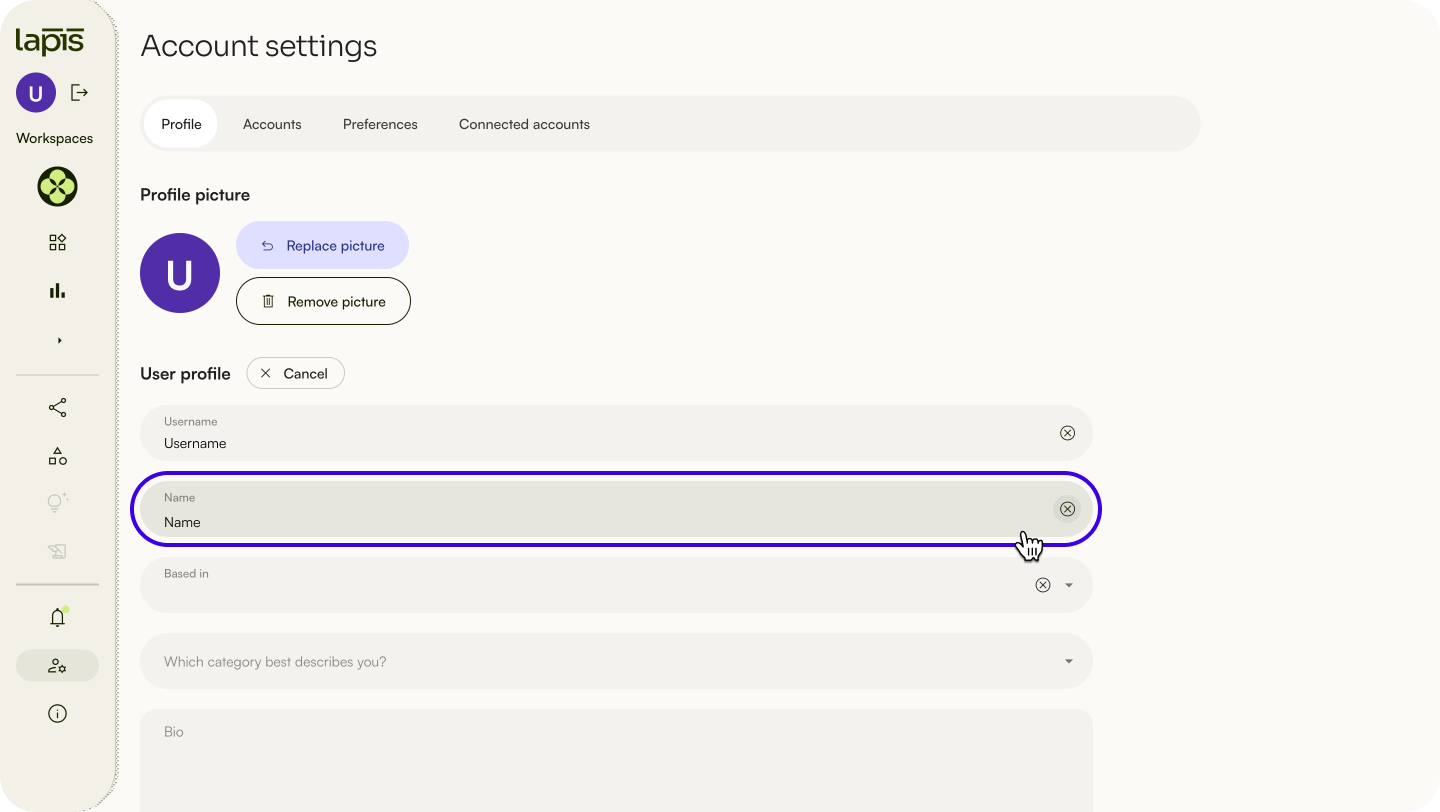
- To edit your name, click on
Account settingson the sidebar. - Click
Editnext to ‘User profile’. - Type in a new name under ‘Name’.
- Click
Save changesat the bottom of the page.
Edit your bio
Your bio will be visible on your profile page.
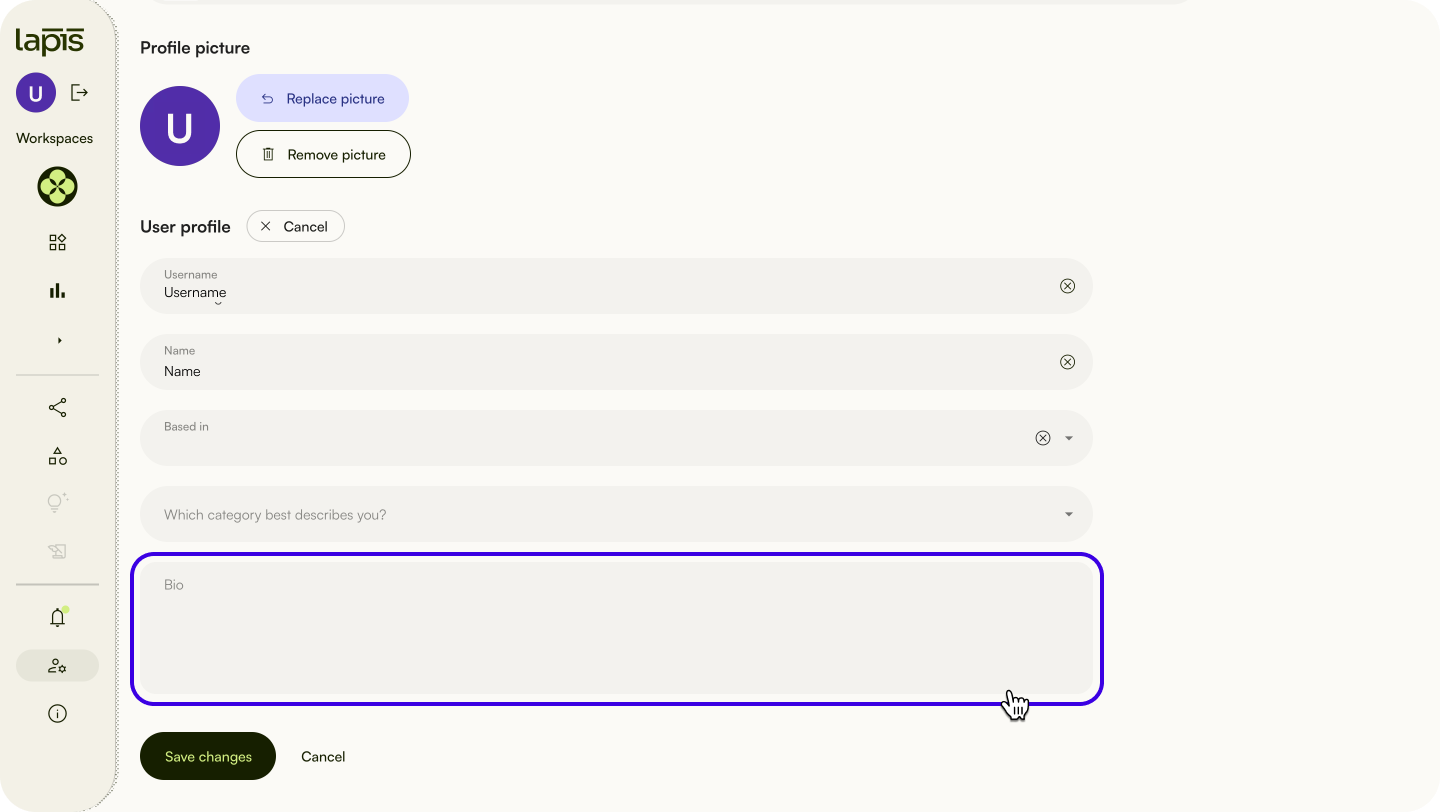
- To edit your bio, click on
Account settingson the sidebar. - Hover over the ‘Email’ section. A pencil icon will appear to the right of the ‘Email’ section.
- Click
Editnext to ‘User profile’. - Type in a bio under ‘Bio’.
- Click
Save changesat the bottom of the page.
Account security
Change your email address
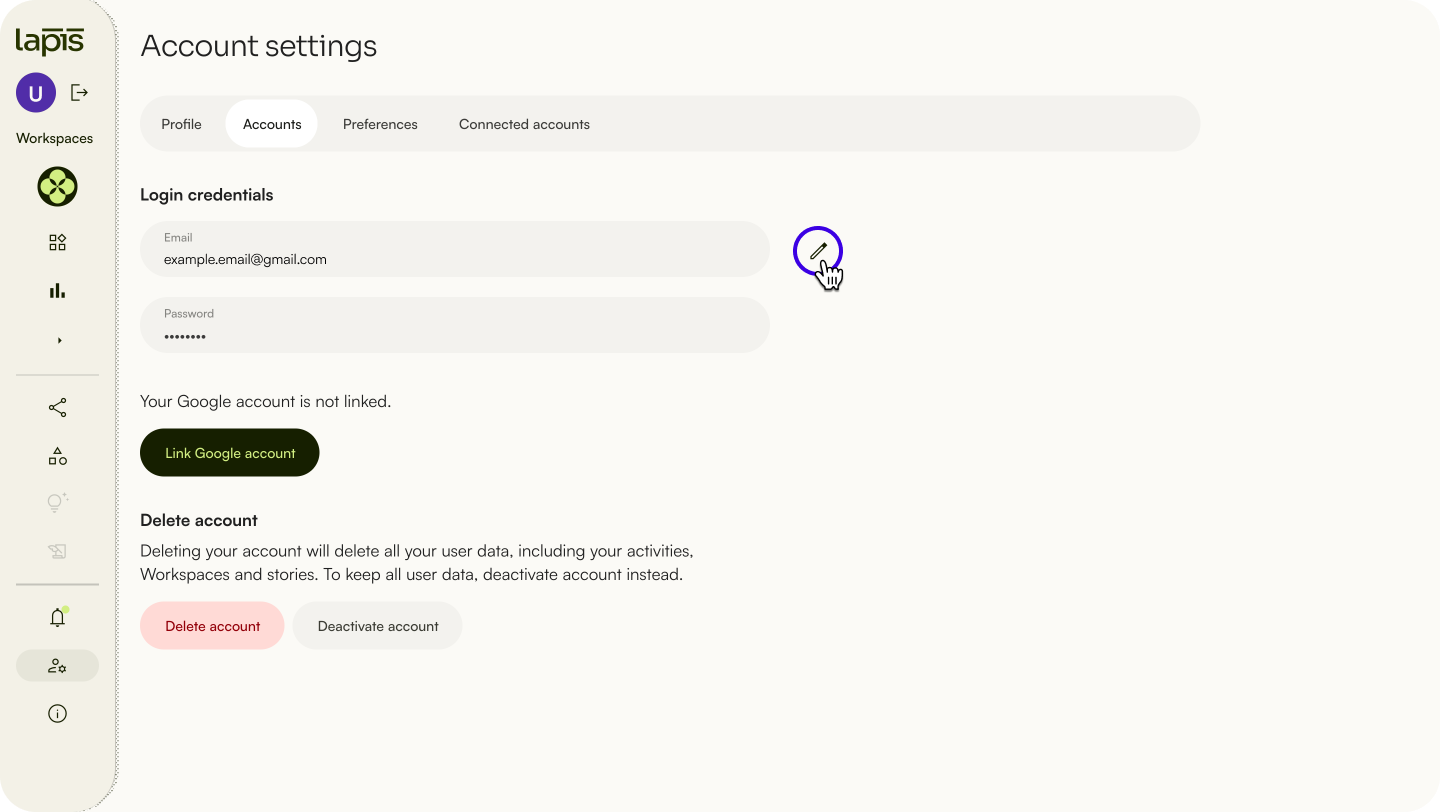
- To change your email address, click on
Account settingson the sidebar. - Click on the
Accountstab. - Hover over the ‘Email’ section. A pencil icon will appear to the right of the section.
- Click the pencil icon.
- Type in your new email address.
- Click
Verifyto the right of the ‘Email’ section. An email will be sent to the new address. - Click the
Change email addresslink in the email.
⚠️ If your verification link has expired, your email address will not be changed.Change your password
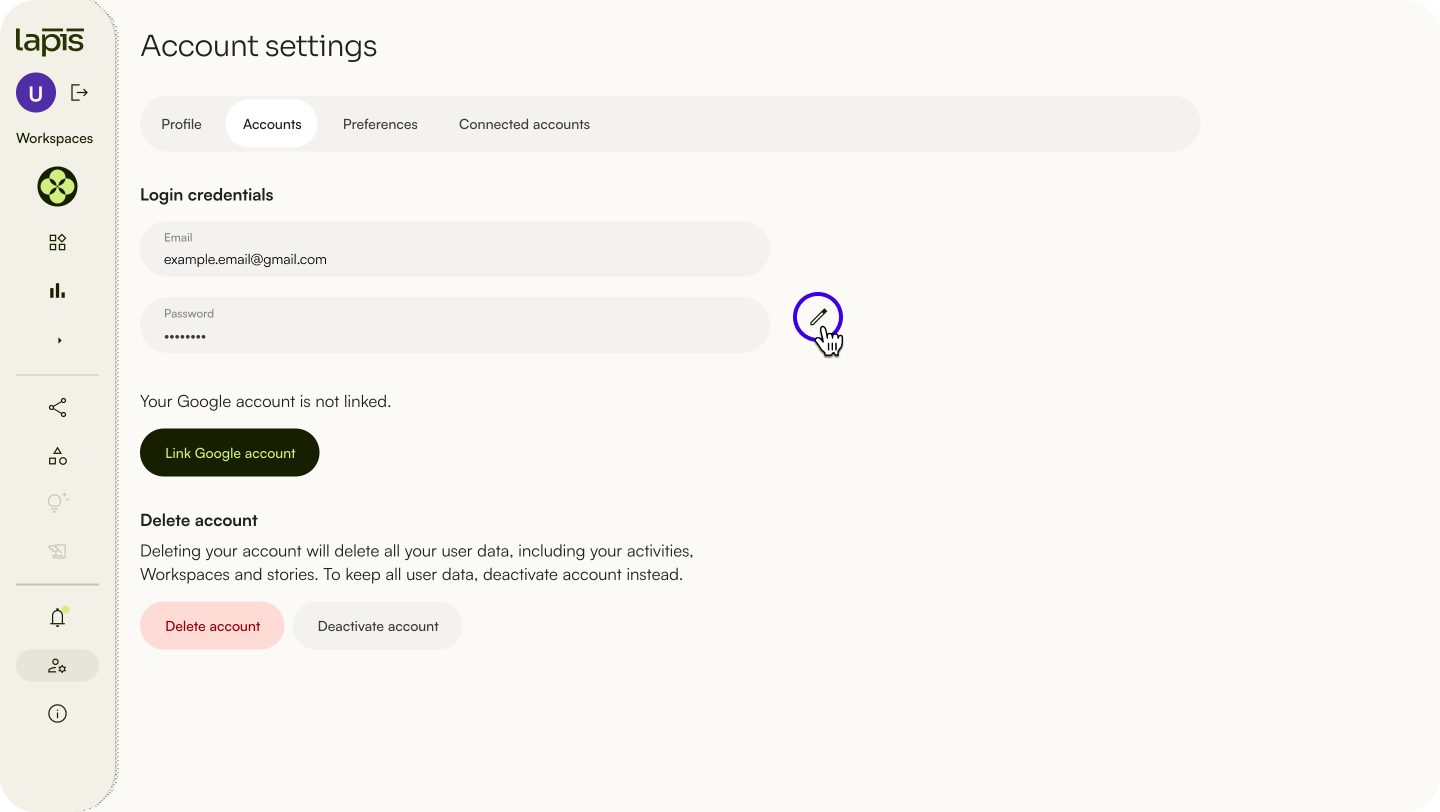
- To change your password, click on
Account settingson the sidebar. - Click on the
Accountstab. - Hover over the ‘Password’ section. A pencil icon will appear to the right of the section.
- Click the pencil icon.
- Type in your new password.
- Type in your new password again in the ‘Confirm password’ section.
- Click
Saveto the right of the ‘Password’ section.
Link your Google account
If you link your Google account to Lapis, you can log into Lapis using your Google account.
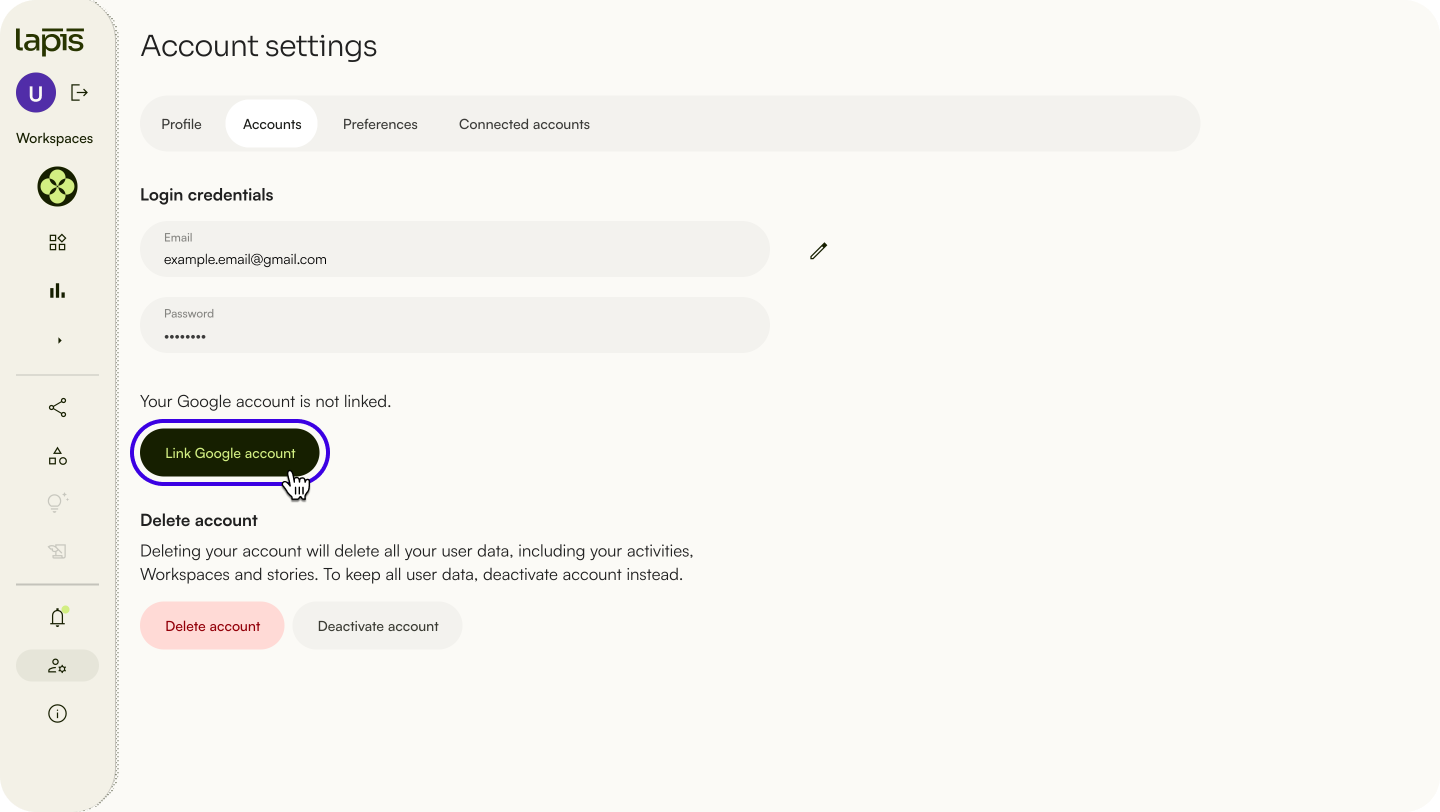
- To link your Google account, click on
Account settingson the sidebar. - Click on the
Accountstab. - Click
Link Google account. You will be prompted to log into your Google account. - Log into your Google account.
- Click
Accept and continue.
Unlink your Google account
If you have linked your Google account to Lapis, you can unlink it.
- To unlink your Google account, click on
Account settingson the sidebar. - Click on the
Accountstab. - Click
Unlink Google account.
Deactivating your account
If you no longer want to keep an active Lapis account, but want to keep any stories you have published, you can deactivate your account.
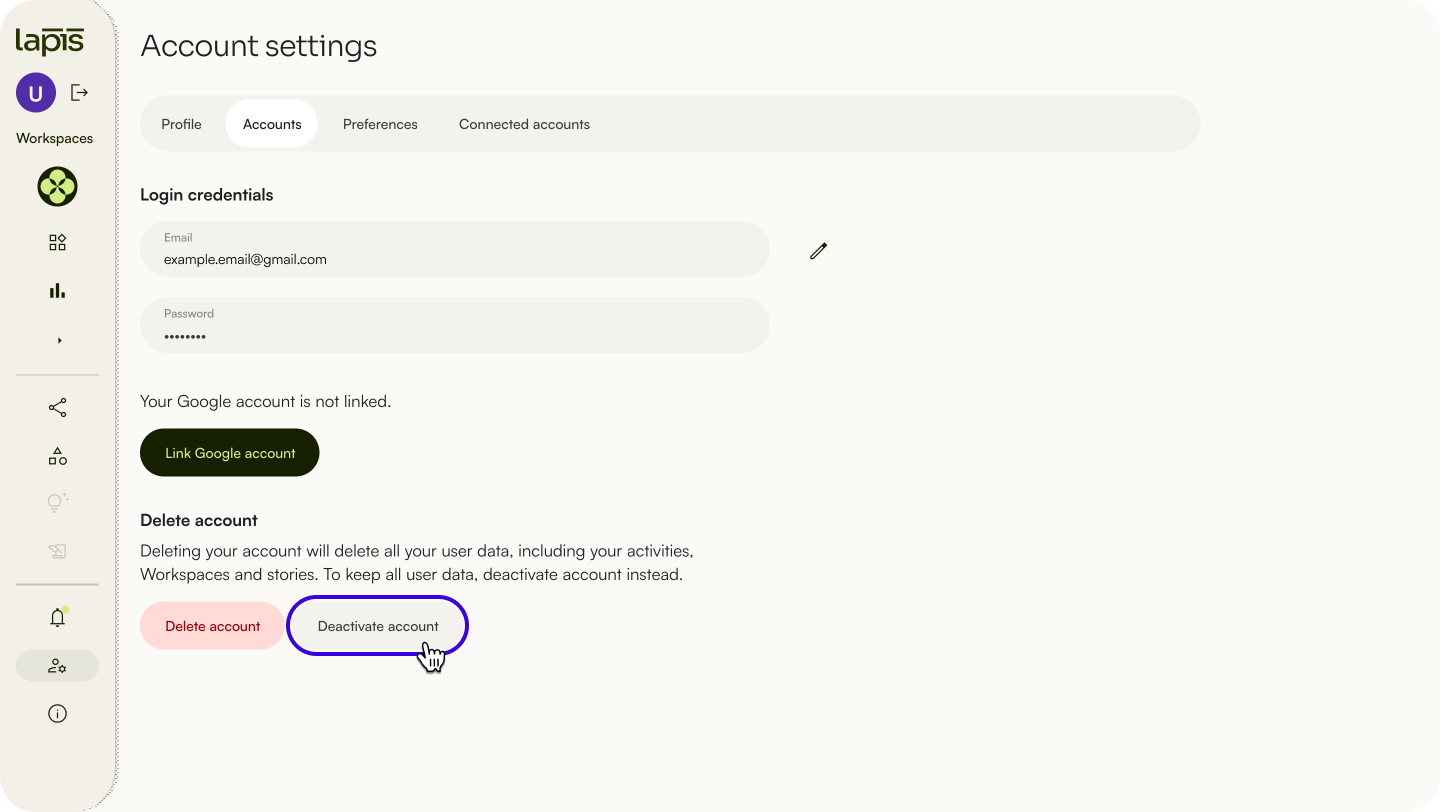
- To deactivate your account, click on
Account settingson the sidebar. - Click on the
Accountstab. - Click
Deactivate account. - A pop-up will ask you to confirm your choice. Click
Deactivate account.
⚠️ If you have deactivated your account and want to reactivate it, contact Lapis Support here.Delete your Mapbox access token
If you have added a Mapbox access token, you can edit or delete it.
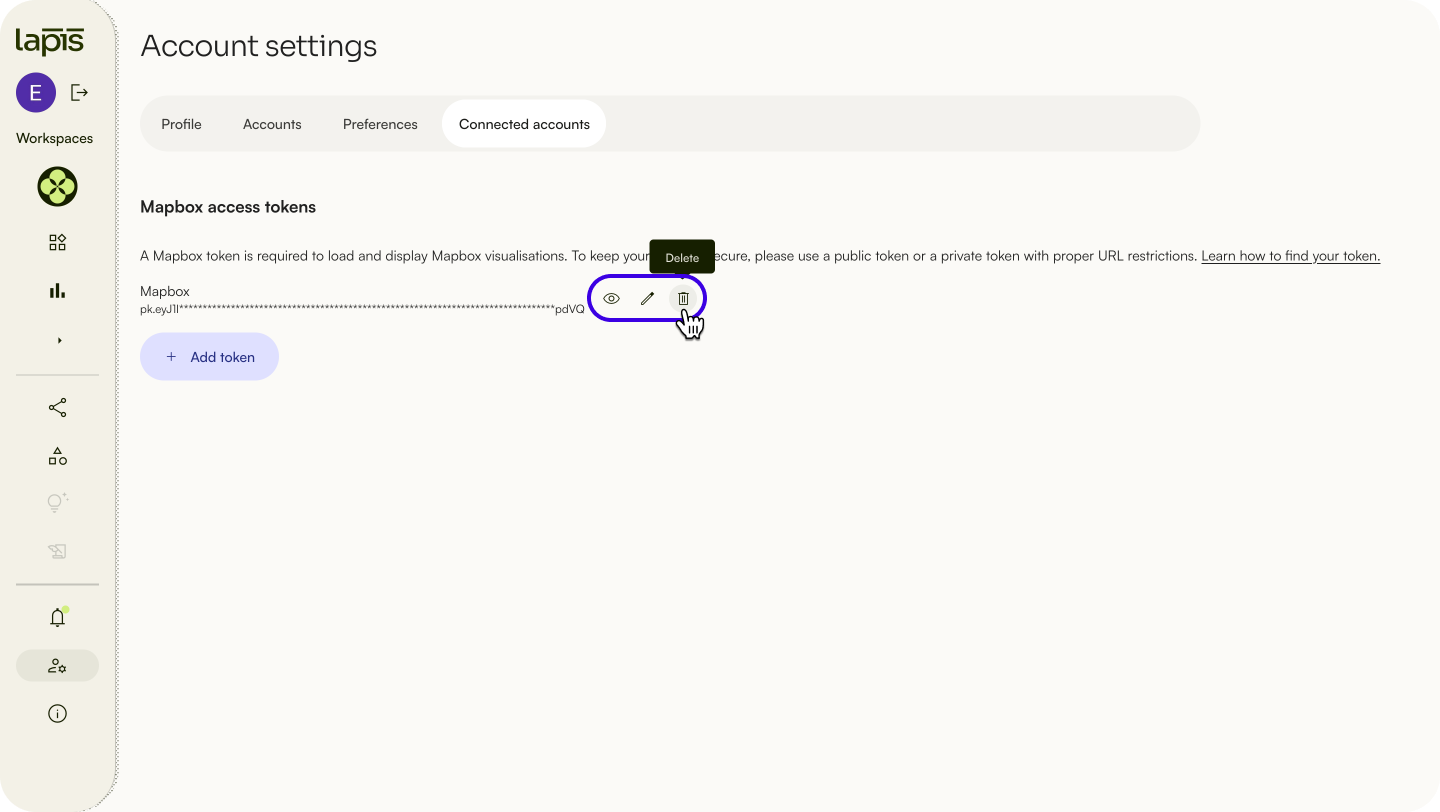
- To edit or delete your Mapbox access token, click on
Account Settingson the sidebar. - Click on the
Connected Accountstab. - Hover your mouse over the Mapbox access token. Three icons should appear: an eye, a pencil and a bin.
- Click on the pencil icon to edit your token.
- Click on the bin icon to delete your token.
Deleting your account
Deleting your account will delete any Workspaces you are the owner of, including all drafts and published stories that you have authored. Workspaces you are a member of will not be affected. Published stories that you are a collaborator on will not be deleted.
To delete your account but keep the Workspace active, you must first transfer the ownership of the Workspace to another user.
To remove your account but keep the stories you’ve published, deactivate your account instead.
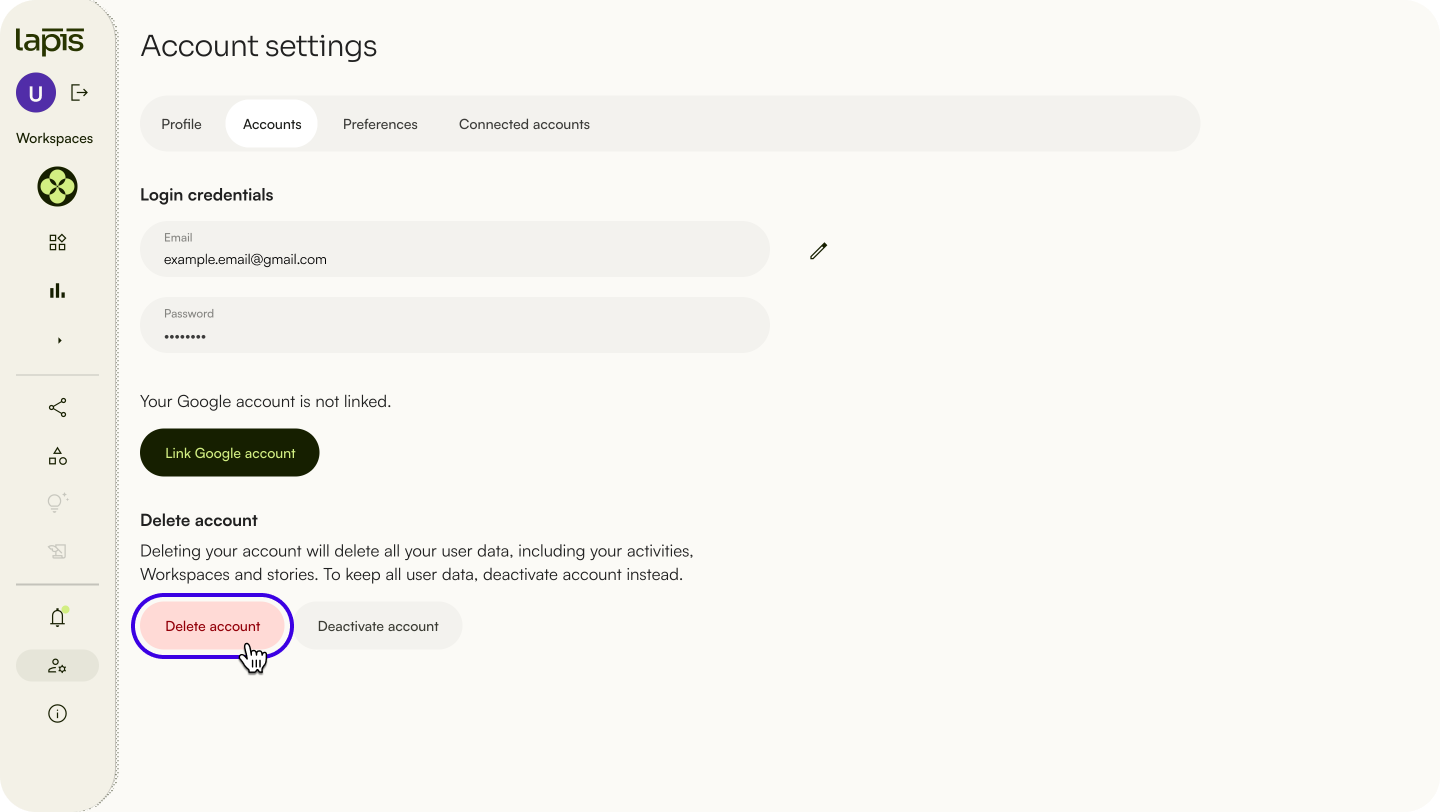
⚠️ Deleting your account is an irreversible action. To save your Workspaces, transfer ownership to another member.Delete your account
- To delete your account, click on
Account settingson the sidebar. - Click on the
Accountstab. - Click
Delete account. - A pop-up will ask you to confirm your choice. Select
Delete accountfrom the dropdown. - Click
Next. - Select your reason for deleting your account.
- Click
Confirm.
Account preferences
'Suggestions' preferences
Our onboarding questions are used to set customised guidance and suggestions. Edit your responses if you would like to revise your current preferences.
- To set your
Suggestionspreferences, click onAccount settingson the sidebar. - Click on the
Preferencestab. - Toggle the switch under
Create story preferences.
'Create story' preferences
If you prefer to start every new story with a blank canvas, you can permanently dismiss the template prompt.
- To set your
Create storypreferences, click onAccount settingson the sidebar. - Click on the
Preferencestab. - Toggle the switch under
Create story preferences.
| Last article: Embed data visualisations from external sites | Next article: Plans & Pricing |
Lapis is built by Kontinentalist↗, a data storytelling studio in Singapore.
Was this article helpful?
That’s Great!
Thank you for your feedback
Sorry! We couldn't be helpful
Thank you for your feedback
Feedback sent
We appreciate your effort and will try to fix the article