Aside from creating your own, you can also integrate third-party data visualisations into your Lapis stories.
QUICK LINKS
- Embed a Flourish visualisation
- Embed a Datawrapper visualisation
- Embed an Observable Notebook visualisation
- Embed a Tableau Public visualisation
- Embed a Mapbox map
Embed a Flourish visualisation
- Publish your Flourish visualisation: In Flourish, click the "Export and Publish" button at the top right of the visualisation editor. Only published visualisations can be embedded into your data story.
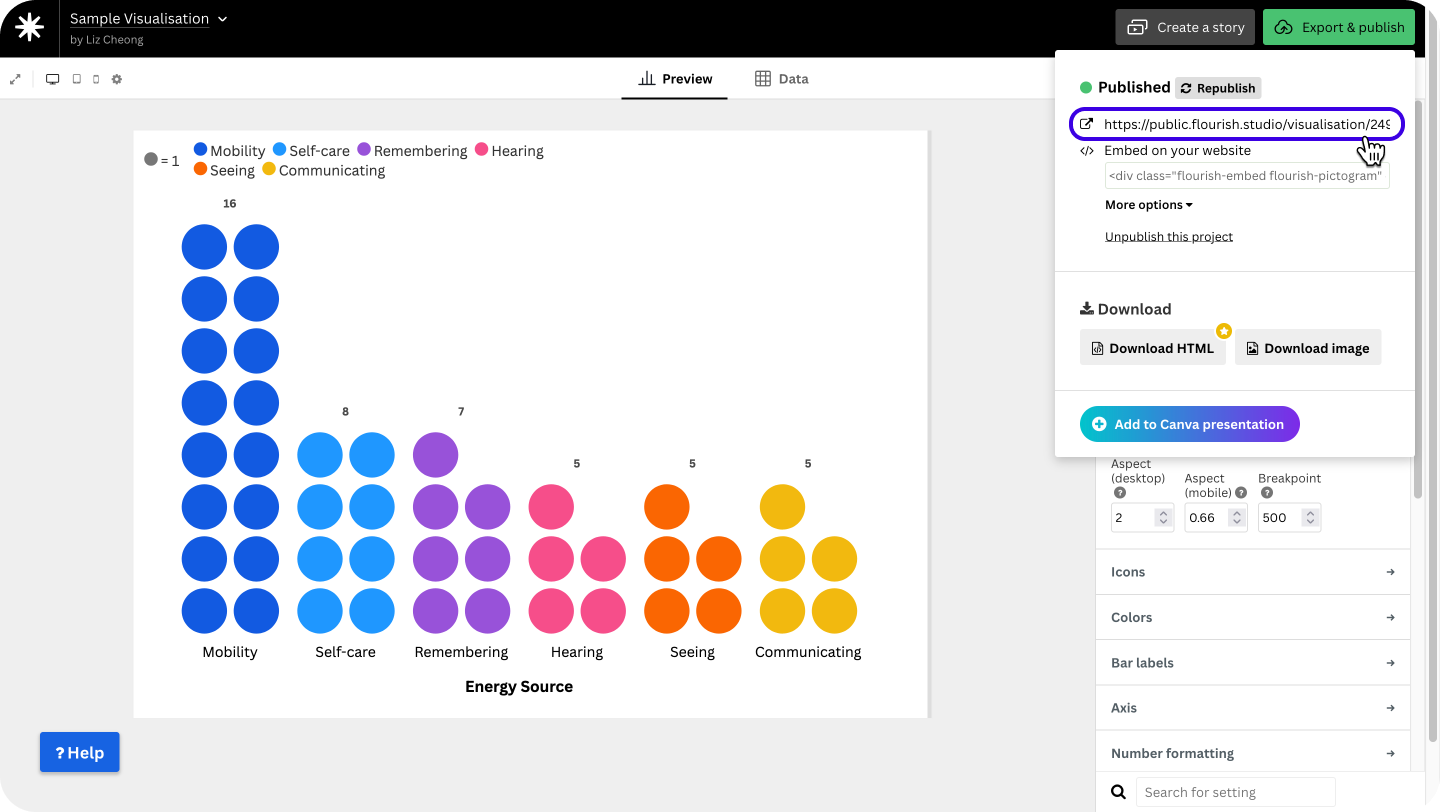
- Copy your Flourish visualisation link: Click the "Export and Publish" button at the top right of the visualisation editor. Copy and paste the visualisation sharing link.
Add the Flourish Visualisation Content Block in Lapis: In Lapis, add the Flourish visualisation content block by clicking the
+button or type/flourishin an empty text content block in your Lapis story.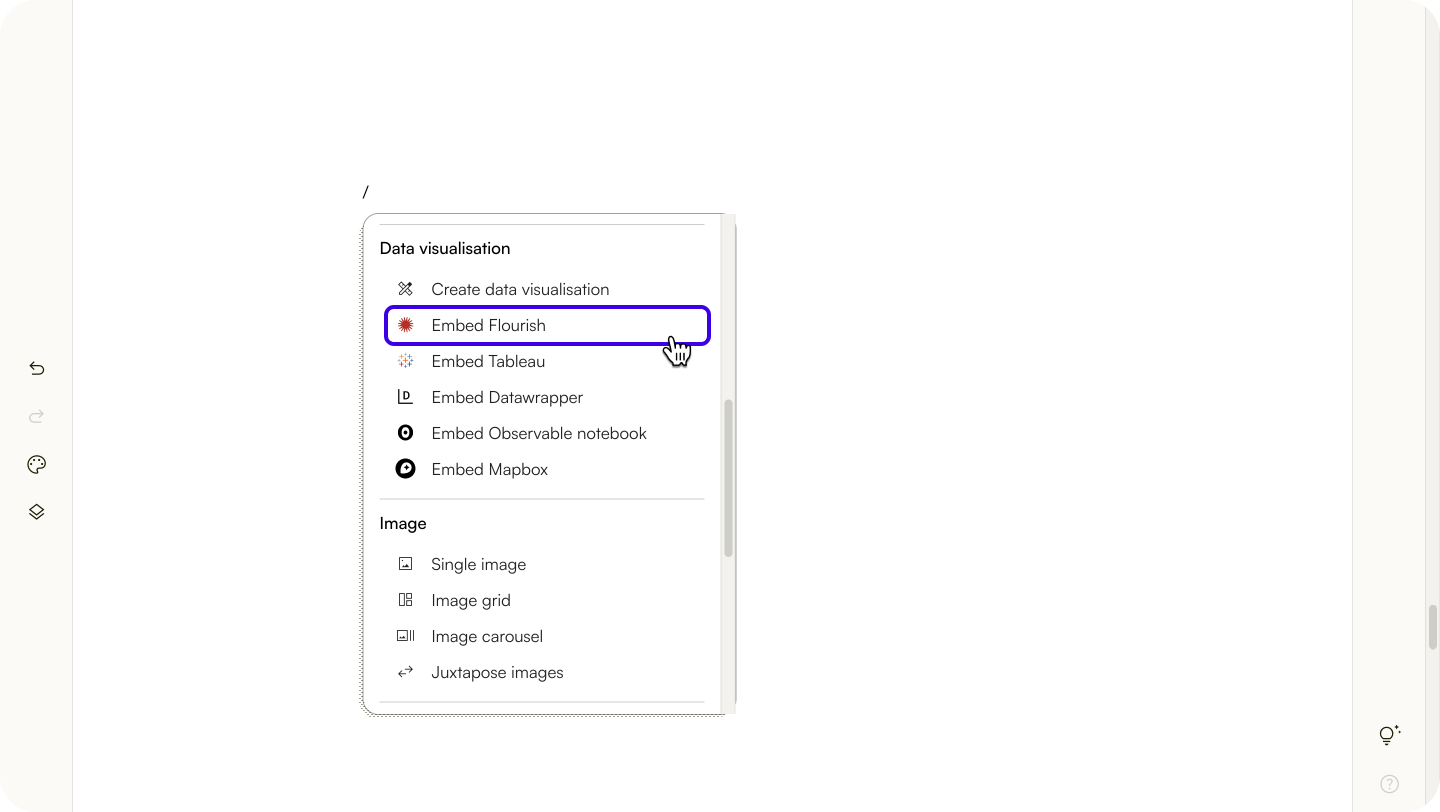
Insert Your Flourish Visualisation link or ID: Copy and paste your Flourish visualisation link or ID and click 'Embed'. Your Flourish visualisation should appear as a content block in your story.
✨ Not sure where to find your Flourish link? Click the 'Export and Publish' button in the Flourish editor. Your Flourish visualisation link is the first link under the 'Export and Publish' menu.Embed a Datawrapper visualisation
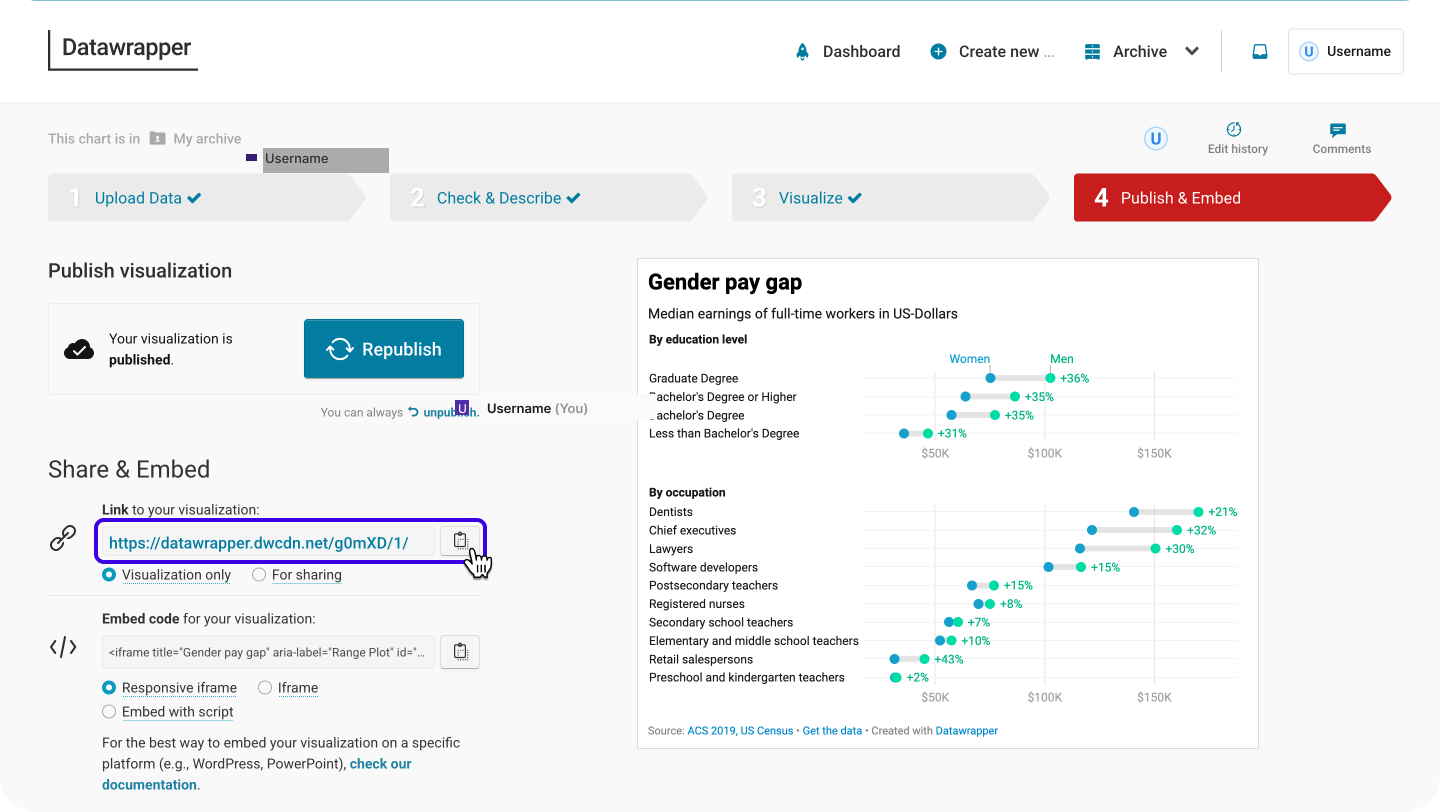
Retrieve your URL from Datawrapper:
- Open your Datawrapper visualisation.
- On the Publish & Embed page, navigate to the “Share & Embed” menu.
- Select 'Visualisation only'.
- Copy the link displayed.
Add the Datawrapper Visualisation Content Block: In Lapis, click the
+button or type/Datawrapperin any empty text content block in your Lapis story.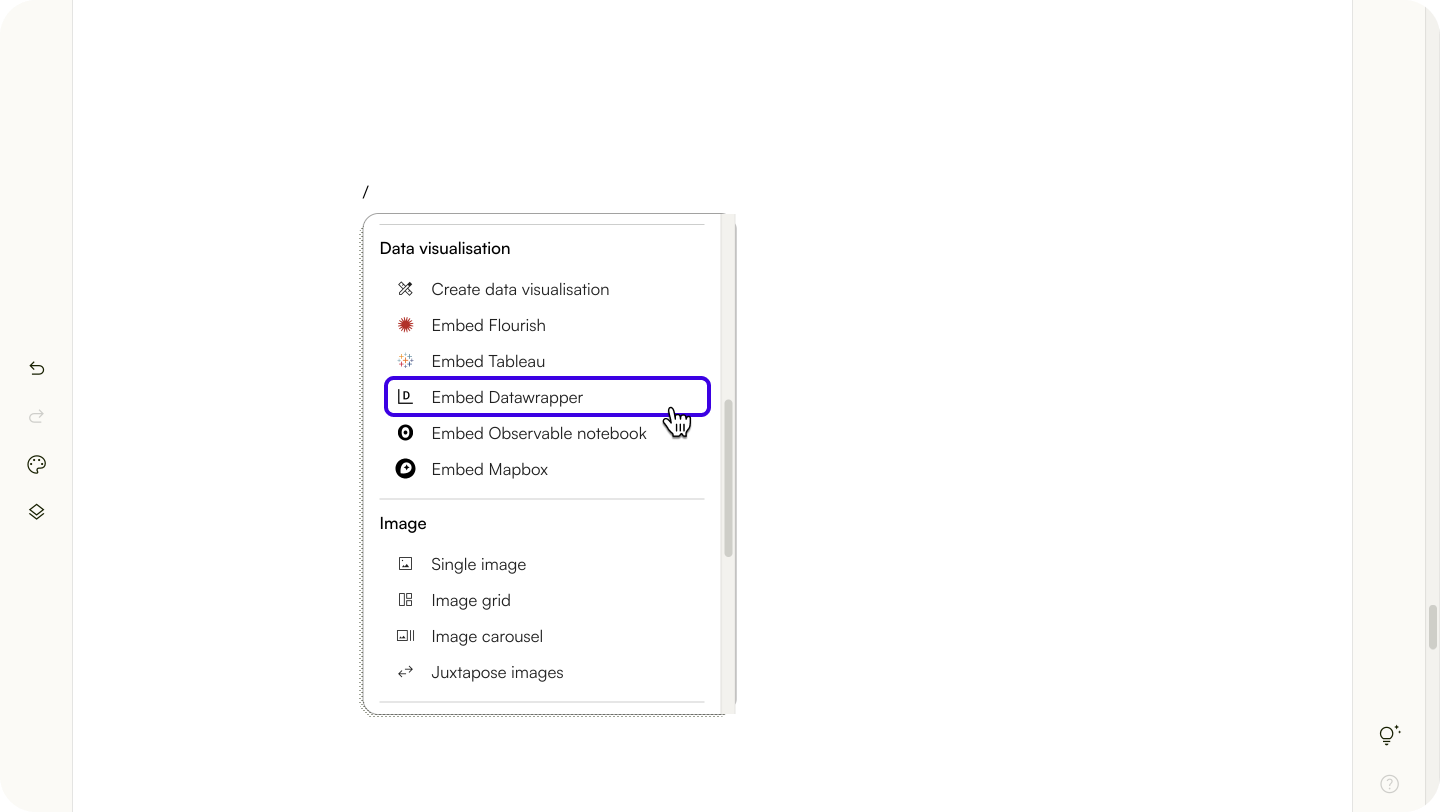
Insert Your Datawrapper Visualisation Link: Paste the Datawrapper visualisation link and click 'Embed'.
Embed an Observable Notebook visualisation
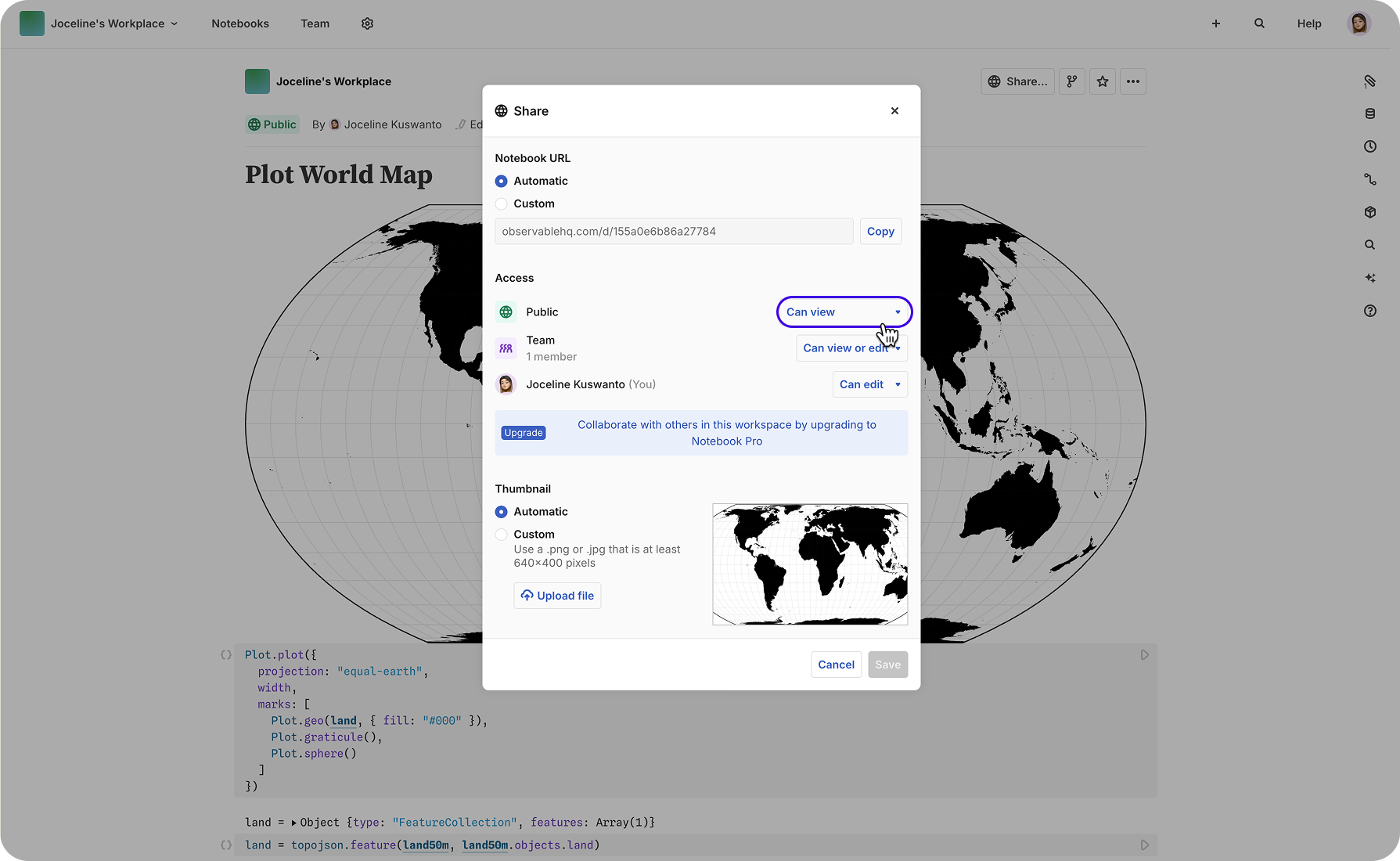
Update your Share settings in Observable Notebook:
- Open your Observable Notebook.
- Click the Share… button on the top right corner of the visualisation.
- Set the Public setting to “Can view” or “Can view (unlisted)”
- Export selected cells only:
- Exit the Share settings.
- Click the three dots on the top right of the visualisation.
- Select Export → Embed Cells.
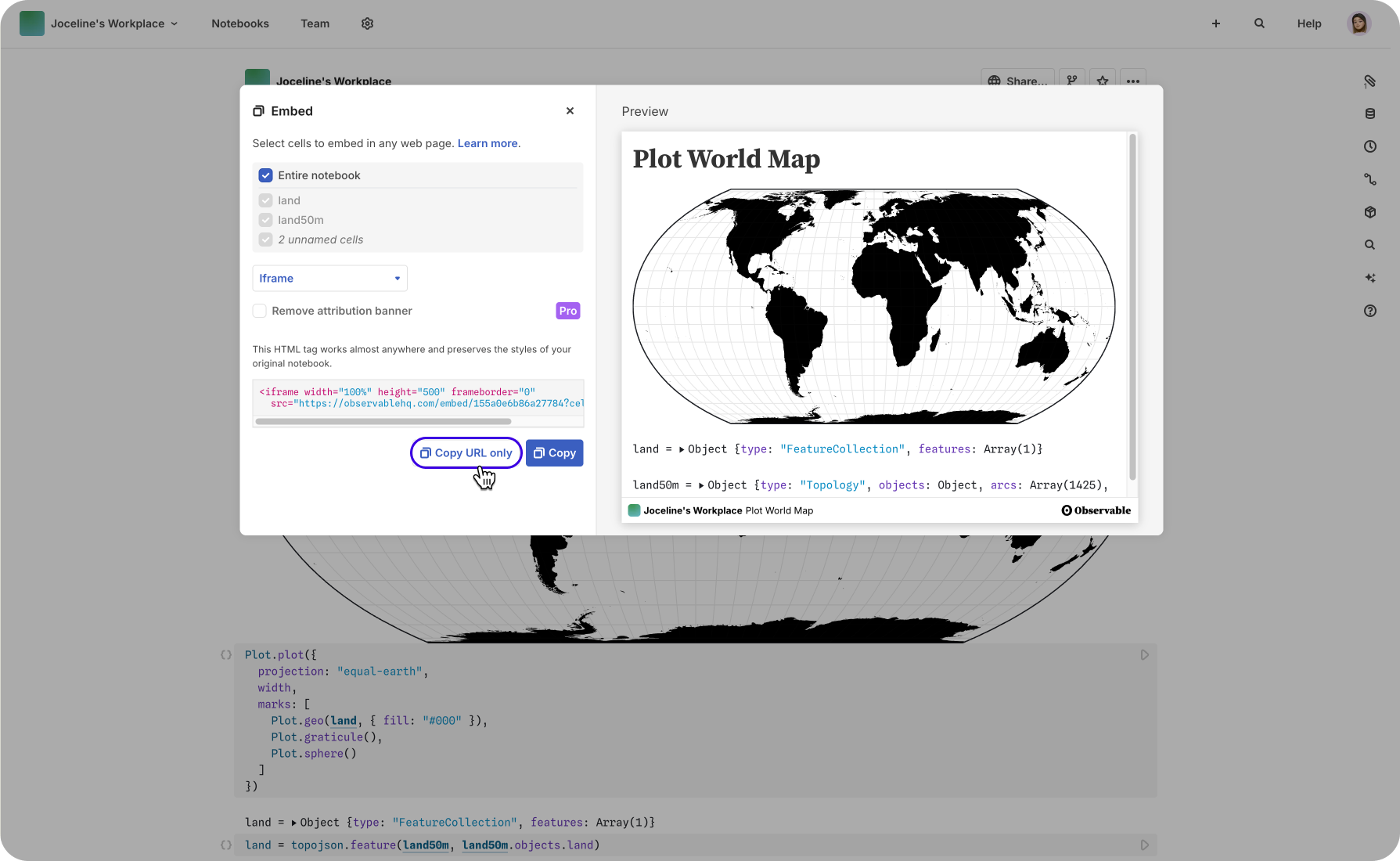
Retrieve the Notebook link: Next, go to Export -> Embed cells, select “Entire notebook” to embed the entire notebook or check your preferred cells to embed selected variables, and then click “Copy URL only”.
Add the Observable Notebook Content Block: In Lapis, click the
+button or type/Observablein any text content block in your Lapis story.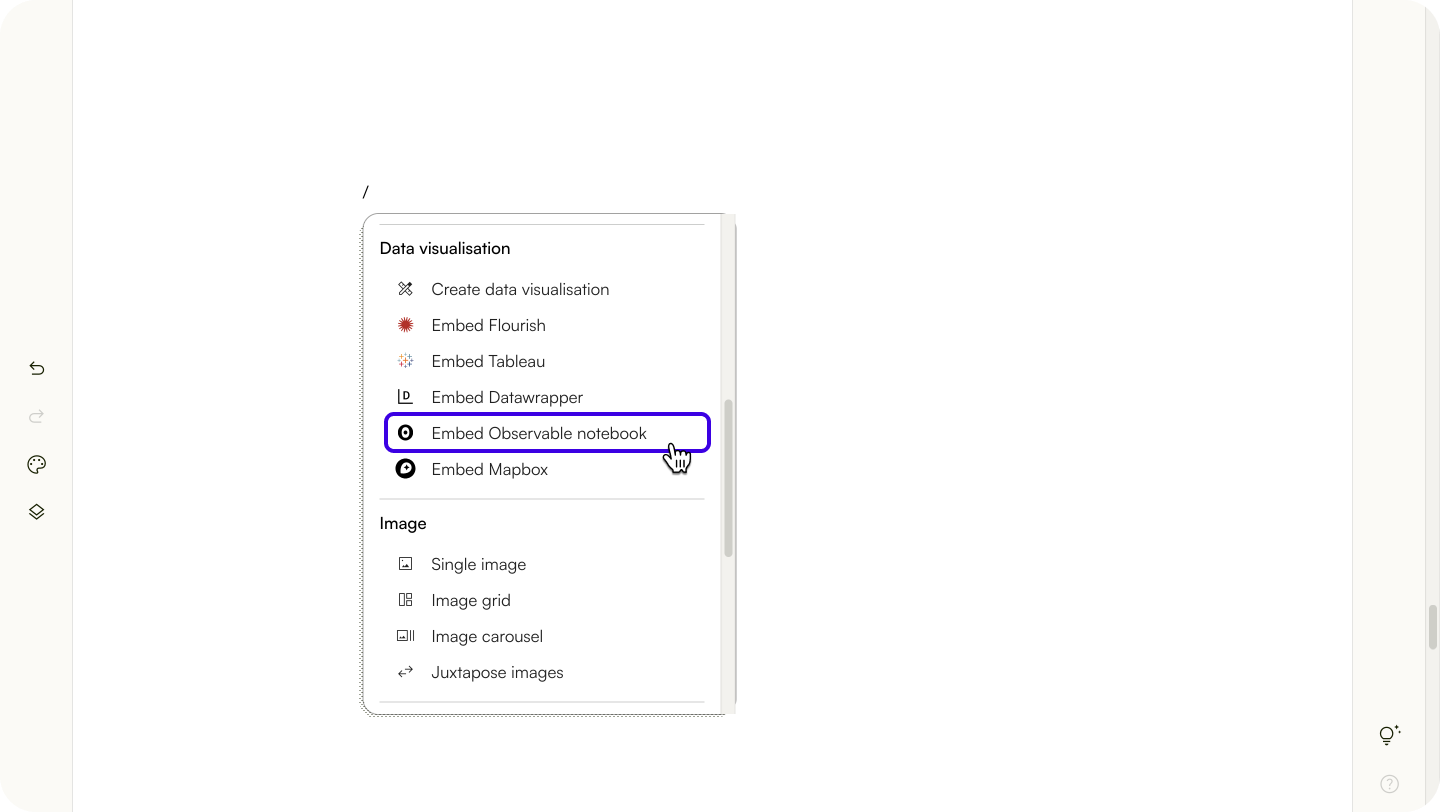
Insert Your Observable Notebook Visualisation Link: Paste your Observable Notebook URL and click 'Embed'.
Embed a Tableau Public visualisation
✨ Only Tableau Public visualisations can be embedded on Lapis.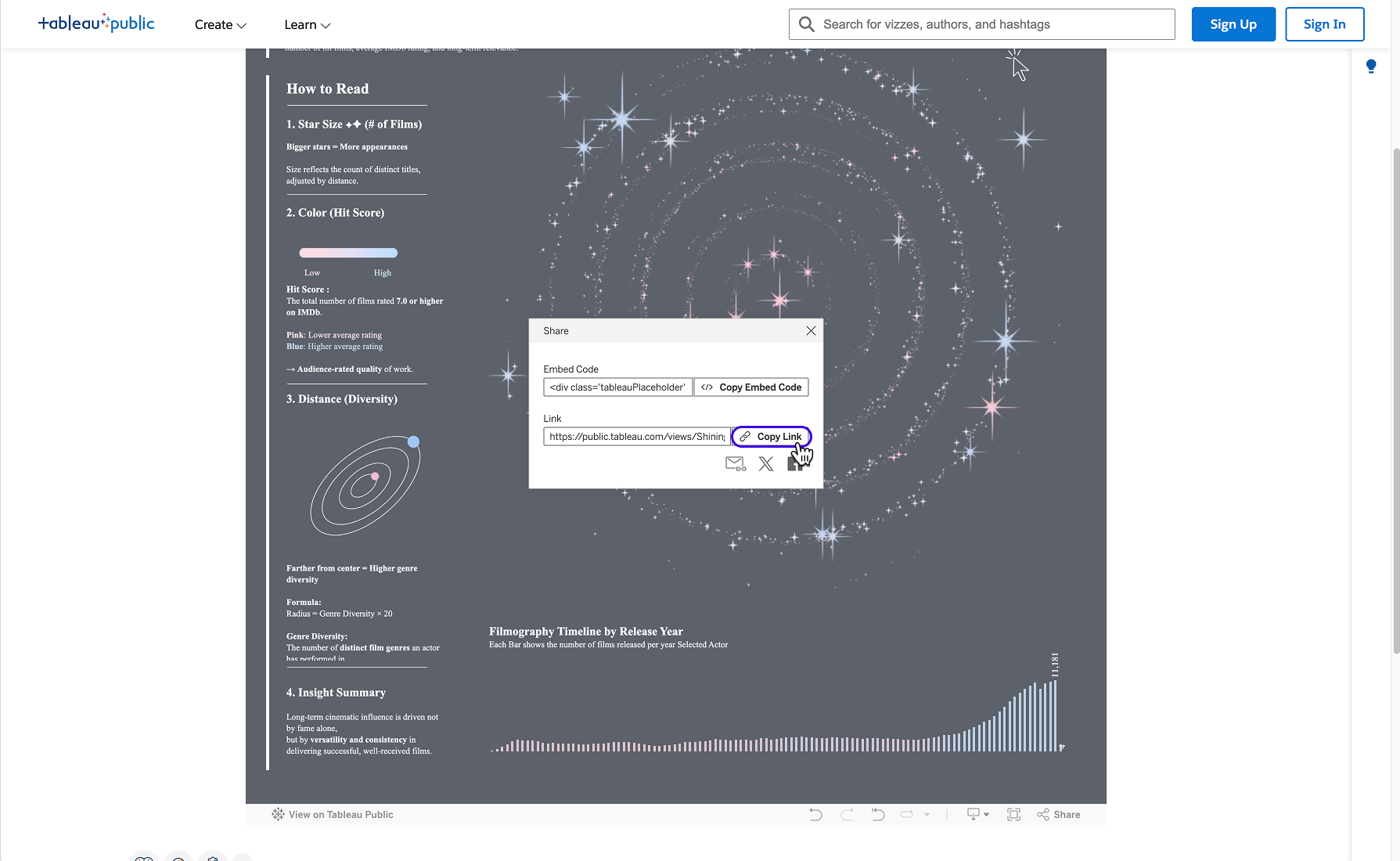
Copy your Tableau Visualisation link:
- Open your Tableau Public visualisation.
- Click Share at the top right corner of the visualisation to open the
Sharemenu. - Click Copy Link.
Add the Tableau Content Block: In Lapis, click the
+button or type/Tableauin any text content block in your Lapis story.Insert Your Tableau Visualisation Link: Paste your Tableau Visualisation link and click
Embed.Adjust the Size of Your Tableau Visualisation: To adjust the view of your Tableau Visualisation, click the pencil icon at the bottom right corner, and select the appropriate content area size.
All embedded visualisations will have the “Contained” size by default. To adjust this, click the pencil icon button at the bottom right corner of your visualisation.
✨ To make sure your visualisation is responsive, set the size to “Automatic” on your Tableau visualisation.Embed a Mapbox map
Mapbox lets you build custom interactive maps that you can embed directly into your Lapis story as a content block. Readers can pan, zoom, and rotate the map to explore location-driven data.
Get Mapbox token and style URL
- Sign in to your Mapbox Studio account (https://console.mapbox.com/)
- Navigate to Studio Editor (https://console.mapbox.com/studio/)
- Open a Map style.
- Click Share at the top right corner of the toolbar.
- Copy Style URL and Access Token on your share modal.
Set up your Mapbox access token
To embed a Mapbox map, you will need a Mapbox access token and a Mapbox style URL. You can save your access token to your account settings for reuse across multiple stories, or enter a custom token directly in the content block.
✨ To save a token to your account settings before you begin, see Manage your Mapbox access tokens in Account Settings below.Add a Mapbox embed content block
- Add the Mapbox content block: In the story builder, click the + button or type /mapbox in an empty text content block. Select Mapbox embed from the list. The content block will be added to the canvas.
- Select your access token: In the content block settings, choose a pre-saved access token from the dropdown, or select Custom to enter a new token manually. If entering a custom token, you can optionally check Save to account settings to save the token for future use.
- Enter your Mapbox style URL: Enter your Mapbox style URL (for example, mapbox://styles/your-username/your-style-id).
- Initialise the map: Once both inputs are validated, the map will be displayed on the canvas with zoom and rotation controls by default.
If the map fails to load, an error message will appear on the input fields. Check that your access token is valid and that your style URL is correct.
Configure the map view
After the map has been initialised, open the settings panel (gear icon at the top right of the content block) to customise how the map appears to readers.
Adjust the content area width
Under Content area size, choose from:
- Contained: The map will be the same width as the text content block width.
- Full-width: The map will span the width of the browser.
- Custom: Set your preferred width and height.
Set the default map view (desktop)
Under Default map view, input your preferred values for:
| Setting | Description |
|---|---|
| Longitude & latitude | The centre coordinates of the map |
| Zoom level | A value from 1–22 |
| Pitch | The vertical tilt of the camera |
| Bearing | The rotation of the map |
The map will update to reflect your input.
Note: Only numerical values are accepted for map view settings. Values outside the accepted range will not be applied.
Configure the map view for mobile
You can set a separate default map view for mobile devices, which overrides the desktop settings on smaller screens.
- Open the settings panel.
- Scroll down to Default map view.
- Select the Mobile tab.
- Input your preferred values for longitude, latitude, zoom level, pitch, and bearing.
If the mobile map view is left empty, the map will follow the desktop settings on mobile.
Adjust map interactions
Under Map interactions in the settings panel, you can control what readers are able to do with the map.
| Settings | Description |
|---|---|
| Allow panning | Allow the reader to drag the map |
| Allow zoom | Enable or disable all zoom interactions |
| Allow scroll to zoom | Allow zooming with the mouse scroll wheel |
| Show zoom controls | Display the on-screen zoom buttons |
| Allow rotation | Allow the reader to rotate the map view |
| Show rotation control | Display the on-screen rotation button |
Manage your Mapbox access tokens in Account Settings
You can save, edit, and remove Mapbox access tokens in your account settings so they are available across all your stories.
View your saved access tokens
- Go to Account Settings.
- Navigate to Connected Accounts.
Your saved tokens will be listed with their names. Tokens are partially concealed by default. If no token has been saved yet, you will see: "You don't have any access tokens."
Add a new access token
- On the Connected Accounts page, click Add token.
- Enter your access token and assign it a name. Click Save. The new token will appear in your list. Each token must have a unique name and token value. If a duplicate is detected, an error will be shown and the token will not be saved.
Edit an existing access token
- On the Connected Accounts page, hover over the token you want to edit.
- Click the Edit button.
- A warning will appear to let you know that editing the token may affect any Mapbox embed content blocks that use it. Confirm to proceed.
- Update the name or token value and click Save. A confirmation message will appear.
Note: Editing a token that is in use by existing content blocks will affect those blocks. If an access token is deleted and a content block depends on it, you will need to reconfigure the content block with a new token.
Remove an access token
- On the Connected Accounts page, hover over the token you want to remove.
- Click the trash icon.
- A warning will appear to let you know that removing the token may affect Mapbox embed content blocks that depend on it. Confirm to delete.
- A confirmation message will appear, and the token will be removed from the list.
Show or hide an access token
- On the Connected Accounts page, hover over the token.
- Click the visibility toggle to reveal the token in full.
- Click the toggle again to conceal it.
- The same visibility toggle is available when adding or editing a token in the input field.
Was this article helpful?
That’s Great!
Thank you for your feedback
Sorry! We couldn't be helpful
Thank you for your feedback
Feedback sent
We appreciate your effort and will try to fix the article