Images can help to illustrate your points and pace your story. Lapis provides various image content blocks, including grid, carousel, and juxtaposed image galleries.
Single image
Edit image caption
Click on the image caption under your image to edit it. Adding image captions can improve understanding for readers that are unable to see the image.
Add alternate text
Click the pencil icon at the bottom right of the image and type in alternate text.
✨ Including alternate text allows screen reader users to understand the images in context of your story. Adding alt text will also improve your story's search-engine optimisation (SEO).Image gallery
Add an image gallery
- To add an image gallery, add a new content block and select
Image gallery. - Select
GridorCarouselfromImage galleryin the drop-down menu. - Upload images.
Style an image gallery
- To style an image gallery, click the settings icon at the top right of the gallery to open the ‘Customise settings’ menu.
- In the 'Customise settings' menu, you can
- change the size of the gallery.
- Contained: The image gallery will be the same width as the text content block width.
- Full-width: The image gallery will span the width of the browser.
- Custom: Set your preferred width and alignment for the image gallery.
- change the format of the gallery.
- Format: Switch between a grid or a carousel format.
- No. of slides: Set the number of images in your image gallery.
- Style of arrows: Choose your preferred style of navigation arrows.
- change the size of the gallery.
✨ To add alt text, replace images, or customise the individual image on the image gallery, click the pencil icon on the individual images.Juxtapose
Juxtaposing two contrasting elements can help to highlight key points.
Add juxtaposed images
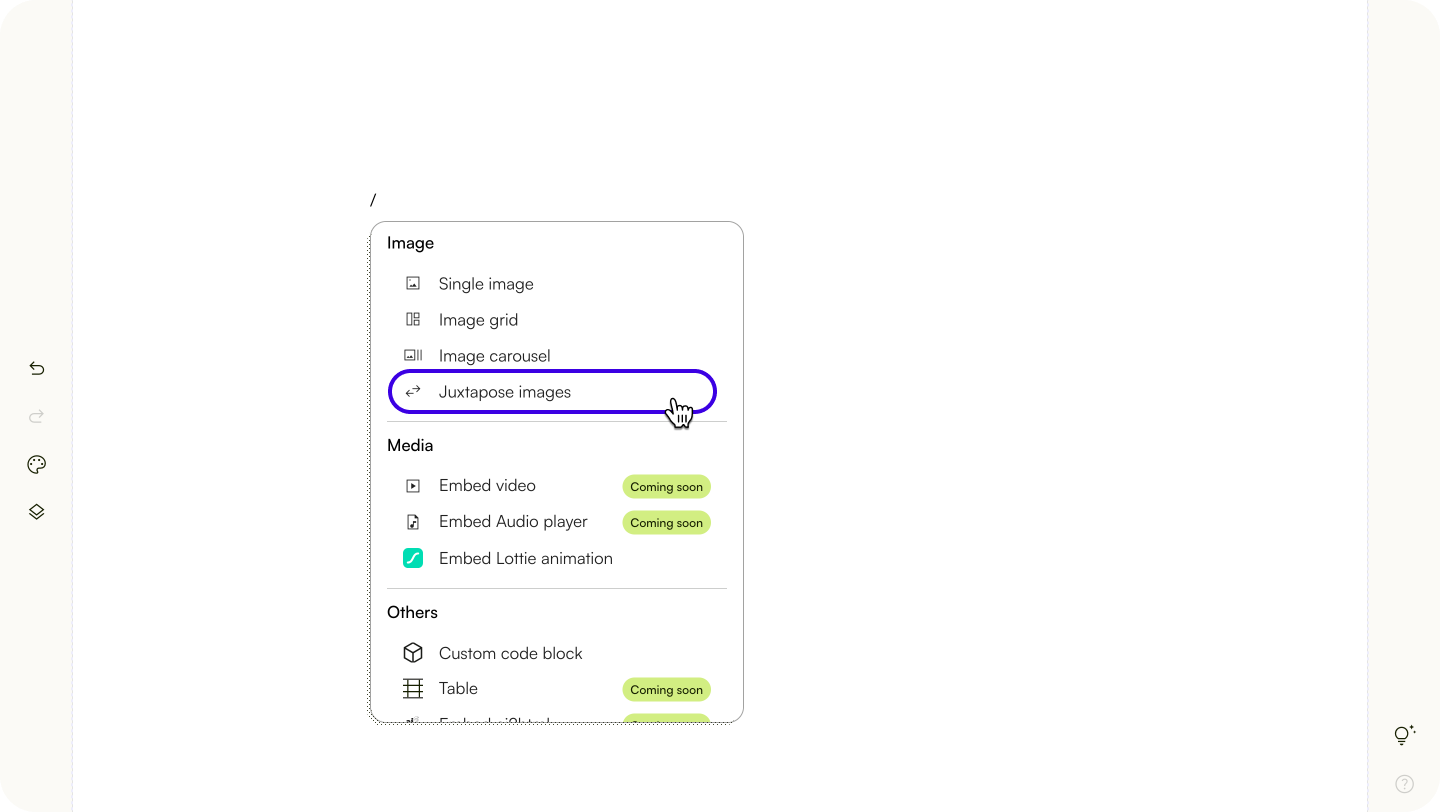
- To add juxtaposed images, add a new content block and select
Juxtapose images. - Upload images.
Edit juxtaposed images
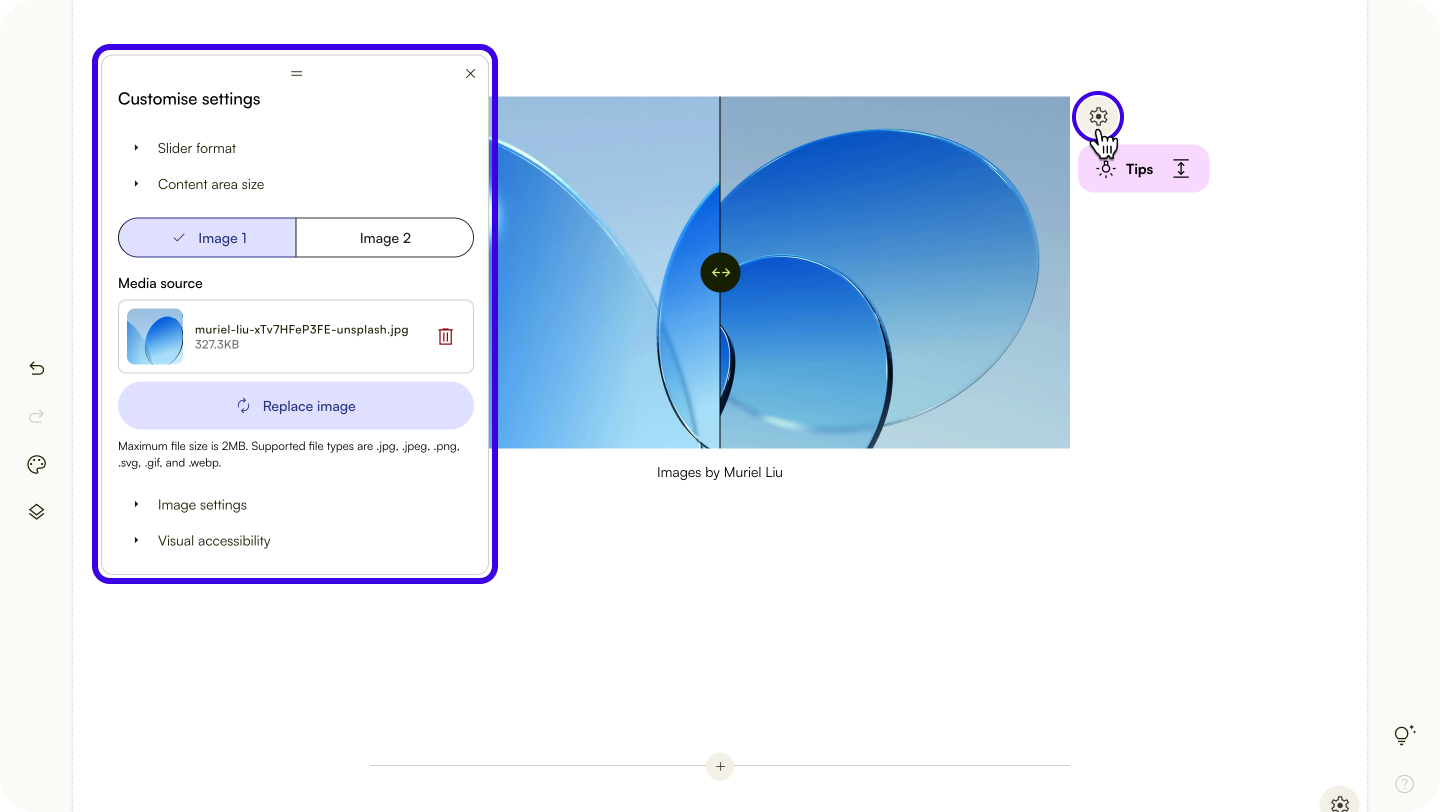
- Click the settings icon at the top right of the block.
- In the 'Customise settings' menu, you can
- replace existing images.
- choose between a vertical or horizontal slider.
- change content area size.
- Contained: The image gallery will be the same width as the text content block width.
- Full-width: The image gallery will span the width of the browser.
- Custom: Set your preferred width and alignment for the image gallery.
- change the image settings, including image fit and position.
- add alt text.
Next, learn about multimedia content blocks.
Was this article helpful?
That’s Great!
Thank you for your feedback
Sorry! We couldn't be helpful
Thank you for your feedback
Feedback sent
We appreciate your effort and will try to fix the article