Quick Links
- View the 'Style your visualisation' menu
- Visualisation size
- Background
- Legend
- Title, subtitle, caption, and source
- Colour
- Bars
- Lines and symbols
- Slices and segments
- Axes and gridlines
- Axis Ticks
- Prefix, suffix, decimals, and date format
- Tooltips
- Accessibility
- Save and exit data visualisation editor
- Edit an existing data visualisation
View the 'Style your visualisation' menu
To style your data visualisation, open the 'Style your visualisation' menu.
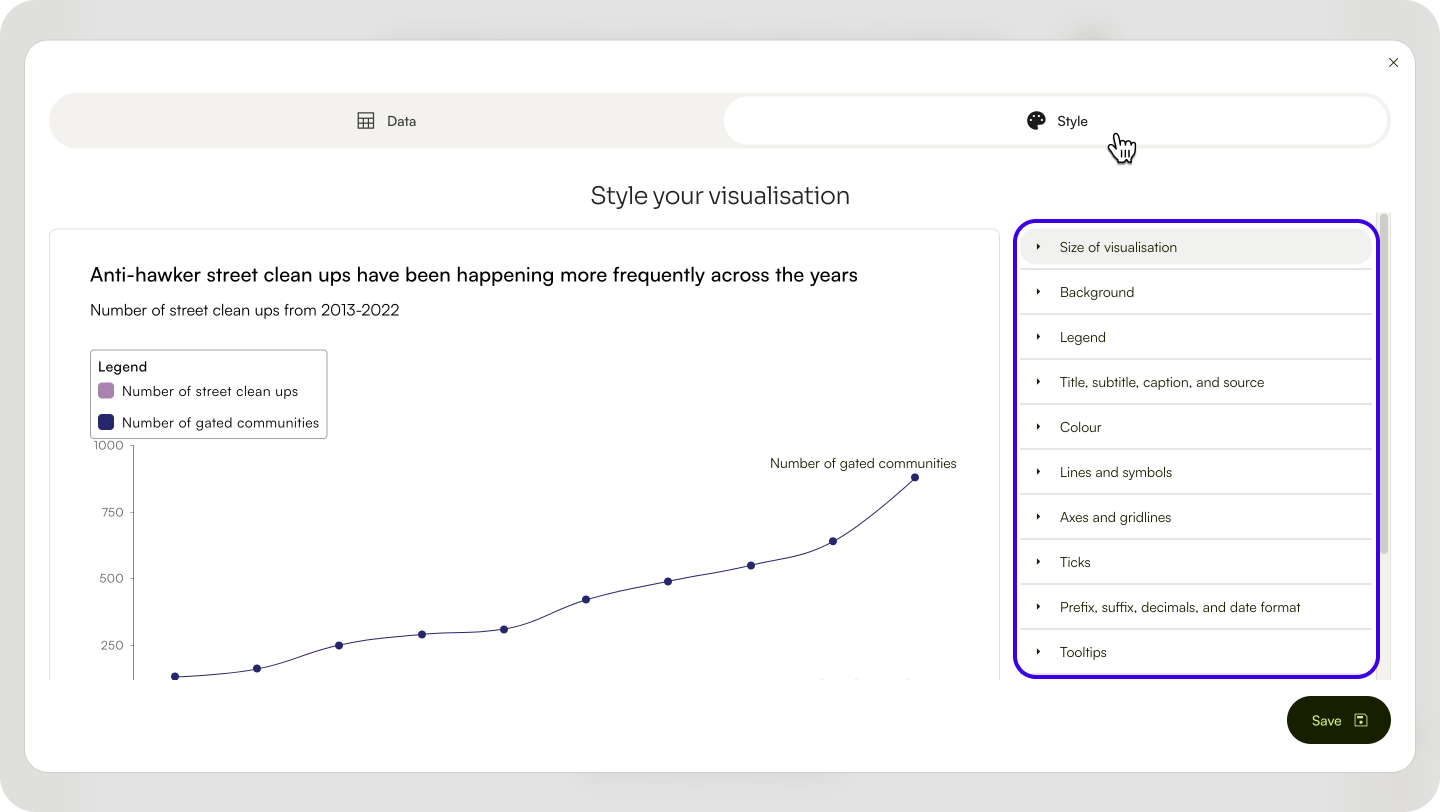
From an existing data visualisation content block
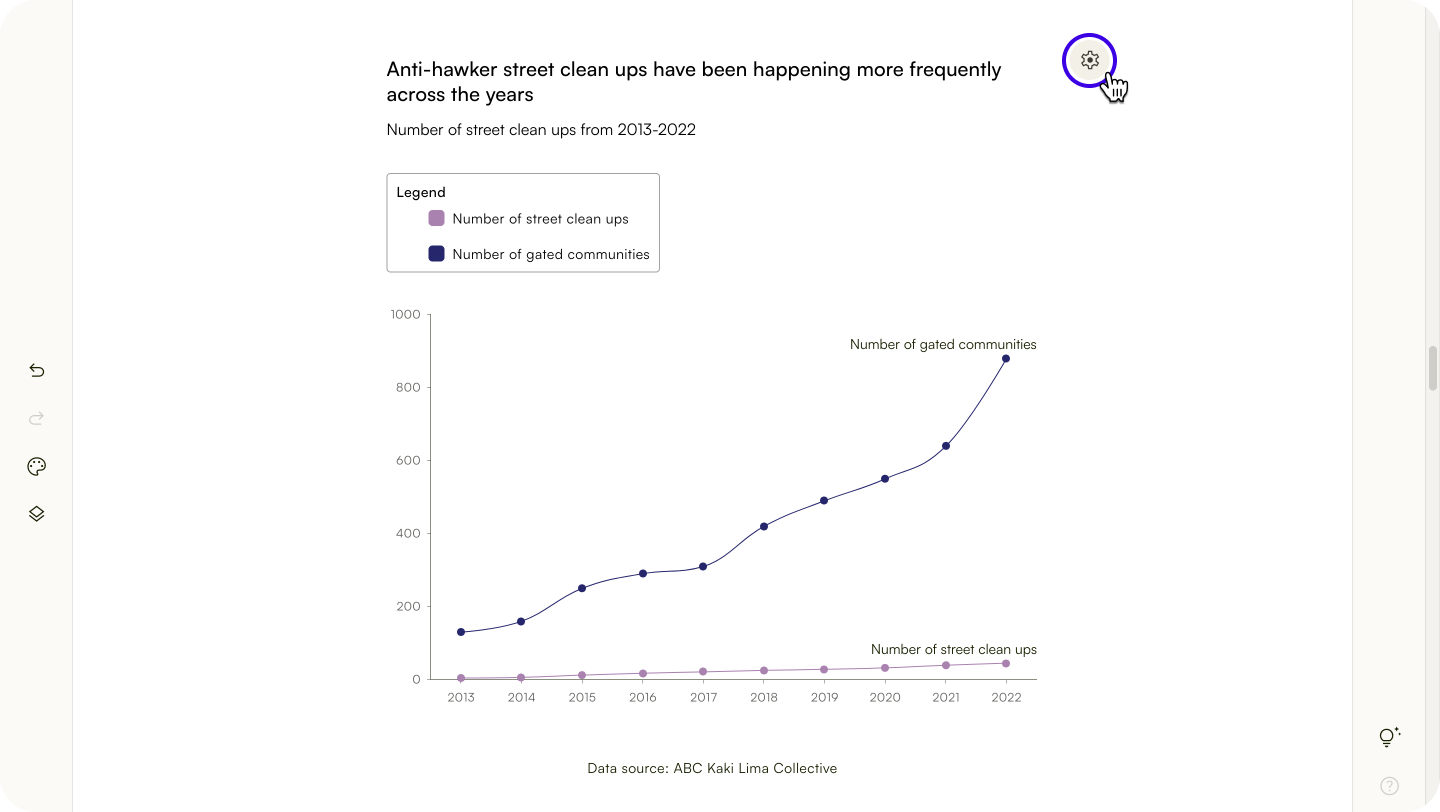
Click the settings icon at the top right of the content block.
In the 'Set up your visualisation' menu, click the 'Style your visualisation' button at the bottom right.
Visualisation size
- In the 'Style your visualisation' menu, click
Size. - Select the size of your visualisation:
- Contained
- Full-width
- Custom
Background
Style the background
- Click 'Background' to expand the styling menu.
- Click 'Background fill'.
- Select the background fill style.
- Background image: upload an image for the visualisation background.
- Solid colour: select a solid colour for the visualisation background.
- No fill: leave the visualisation background transparent. The story's background colour will be visible behind the visualisation.
Style the border
- Click 'Background' to expand the styling menu.
- Select border style.
- Set a line width.
- Set an optional border radius to round the corners of your border.
- Set the stroke colour.
Legend
- Click
Legendto expand the styling menu. - In
Legend, you can- change the legend position.
- change legend orientation.
- style legend text: font, colour, size, bold, italics, underline.
- show/hide the legend.
Title, subtitle, caption, and source
- Click
Title, subtitle, caption, and source. - You can:
- insert the title, subtitle, caption, and name of your data source.
- style the text's colour, size, bold, italics, underline.
- show or hide the title, subtitle or caption.
- add a link to the source.
Colour
You can customise the colour palette of your visualisation. For visualisations that use area to represent data—like area charts, bar graphs, and pie charts—you can choose a pattern fill.
- Click
Colourto expand the styling menu. - Click
Colour paletteand choose a theme.For light background: this theme suits stories with a light background.For dark background: this theme suits stories with a dark background.
⚠️ Pattern fill designs are auto-generated and cannot be customised. Only the colour palette of the pattern can be changed.Change a colour in the palette
- Select the colour you want to change in the colour strip to open the styling menu.
- Enter new HEX codes or use the colour picker to select a new colour.
Change the colour order in the palette
To change the order of colours, click the Edit button to the right of the colours.
Click and drag the
=icon beside a colour to change its order.
Add a colour to the palette
To add a colour to the palette, click the Edit button to the right of its colours.
Click the 'Add colour' button.
Set the new colour using the colour picker or by changing the HEX code.
Bars
You can adjust the width of the bars in a bar chart.
Click
Barsto expand the styling menu.Adjust the bar width using the slider.
Lines and symbols
You can customise the lines and symbols in a line chart.
Change line width or style
Click
Lines and symbolsto expand the styling menu.Type in the new line width.
Click
Line style. You can choose from three line styles:
- None: Remove the line connecting your data points.
- Solid: A solid line connects your data points.
- Dashed: A dashed line connects your data points.
Change data symbol styling
You can change the shape and size of your data symbols. You can also add an outline for each symbol.
Slices and segments
You can change the spacing between slices for pie and donut charts. For donut charts, you can also adjust the size of the donut hole.
Change spacing between slices
Click
Slices and segmentsto expand the styling menu.Use the slider to adjust spaces between slices for pie and donut charts.
Change the size of the donut hole
Click
Slices and segmentsto expand the styling menu.Use the slider to adjust the size of the donut hole.
Axes and gridlines
You can change the styling of the visualisation's axes and gridlines.
- Click
Axes labels and gridlines. - Select the X-axis or Y-axis tab to edit that axis.
- You can:
- insert an axis label.
- hide/show the axis.
- style the axis text by changing its font, colour or size. Add bold, italics or an underline.
- show or hide gridlines. Gridlines are hidden by default.
- style the gridline's colour, line style, and line width.
Axis Ticks
Add axis ticks to your visualisation
You can add ticks along the axes for better readability.
Click
Ticksto open the styling menu.Select the X-axis or Y-axis tab to edit that axis.
Type in the frequency and length of ticks.
Set a colour for the axis ticks.
Optional: Set a minimum and maximum value for the ticks.
Style the ticks
You can customise the tick label's font, size, colour, rotation and text fitting.
Prefix, suffix, decimals, and date format
You can add a prefix, suffix or decimals to clarify your data. Adding the date format used can also help to avoid misunderstanding.
- Click
Prefix, suffix, decimals, and date formatto expand the styling menu. - You can:
- Add a prefix or suffix.
- Select a decimal place for your data.
- Select the date format your data follows.
Tooltips
Tooltips can provide additional context for specific data points, giving your readers a more detailed view of your data. In Lapis, you can customise tooltips for your visualisation.
- Click
Tooltips. - You can:
- style the tooltip's header and body text: font, colour, size, bold, italics, underline.
- show or hide tooltips.
- type in the column name (e.g. A, B, C) to assign tooltip header and tooltip content.
- style the tooltip box: background colour, stroke style, stroke width, border radius, stroke colour.
Accessibility
Providing an alternate text description for your visualisation helps screen reader users to understand the impact of your data.
- Click
Accessibilityto expand the styling menu. - Type in alt text for your visualisation.
Save and exit data visualisation editor
Click Save at the bottom right to save your changes and exit to Storybuilder.
Edit an existing data visualisation
Click the settings icon on the top right of the data visualisation to continue to edit the visualisation.
Besides creating data visualisations in Lapis, you can also embed third-party data visualisations in your story.
| Last article: Set up your visualisation | Next article: Embed external visualisations in your story |
Lapis is built by Kontinentalist↗, a data storytelling studio in Singapore.
Was this article helpful?
That’s Great!
Thank you for your feedback
Sorry! We couldn't be helpful
Thank you for your feedback
Feedback sent
We appreciate your effort and will try to fix the article