Quick Links
- Create a data visualisation
- Types of data visualisations
- Comparison
- Change over time
- Distribution
- Part to whole
Create a data visualisation
You can create and style data visualisations right in the Storybuilder.
Add a data visualisation content block
- Press the slash key (
/). - Select or type in
Data visualisation. - Select
Create visualisation. - Select the type of data visualisation.
Types of data visualisations
You can select your visualisation type based on the aspect of data you want to highlight. Lapis provides 4 types of charts: Comparison, change over time, distribution and part-to-whole.
Not sure which data visualisation type suits your data? Read more about each at 'How to choose the right data visualisation'.
Comparison
Stacked column bar chart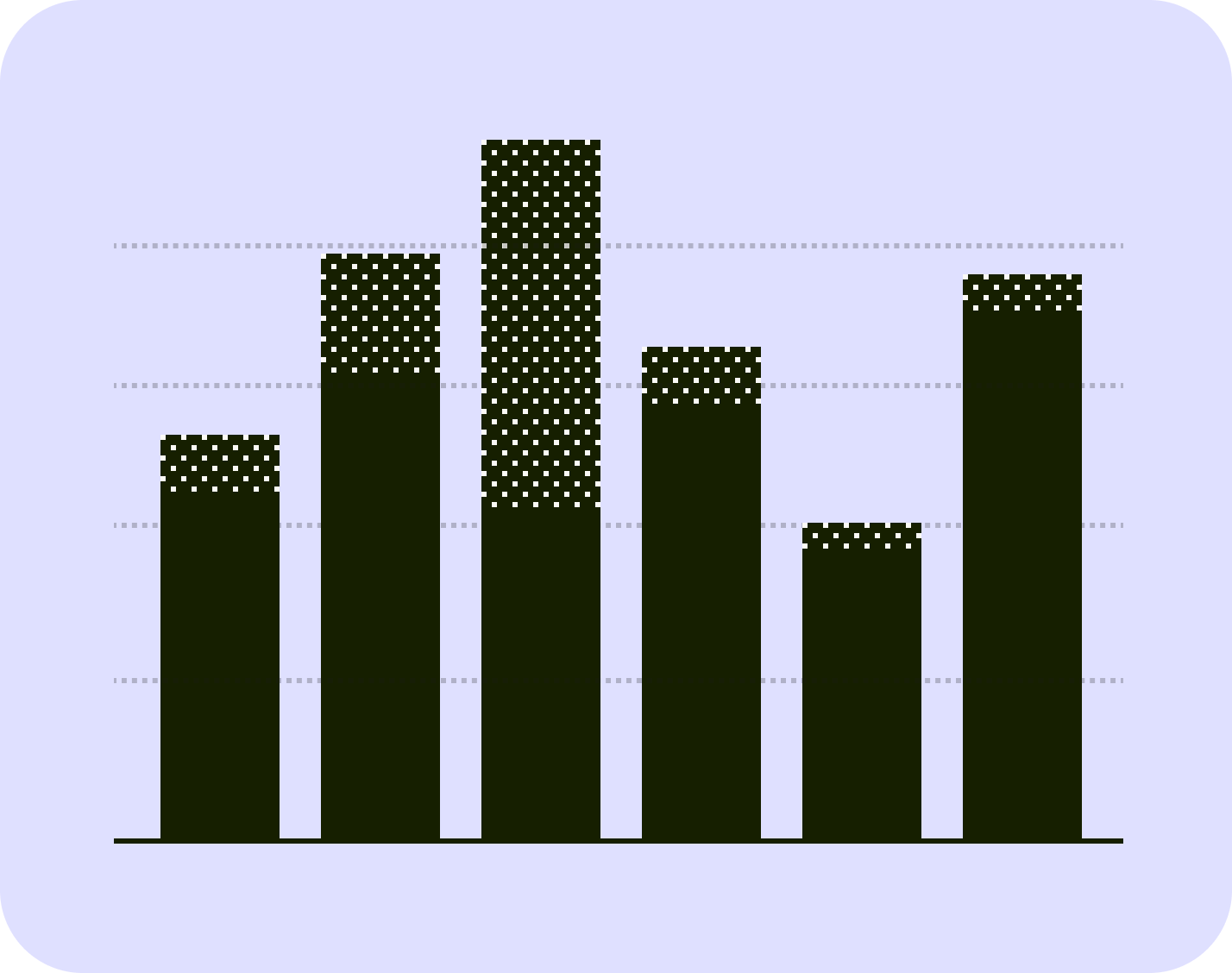
This chart stacks different data segments within each column. It lets viewers compare both individual components and the cumulative total across categories horizontally.
Stacked bar chart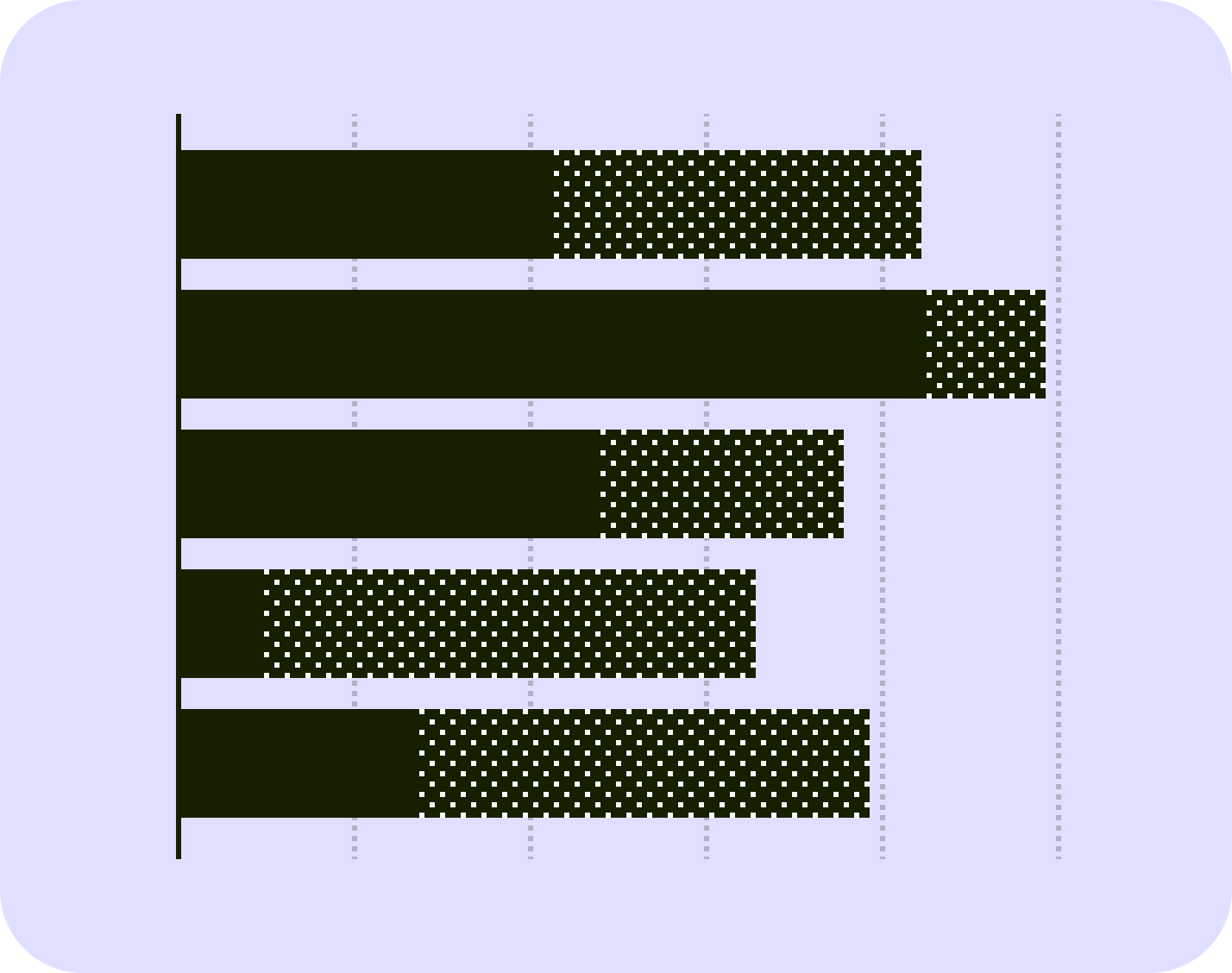
This chart stacks different data segments within each bar. It lets viewers compare both individual components and the cumulative total across categories vertically.
Column bar chart
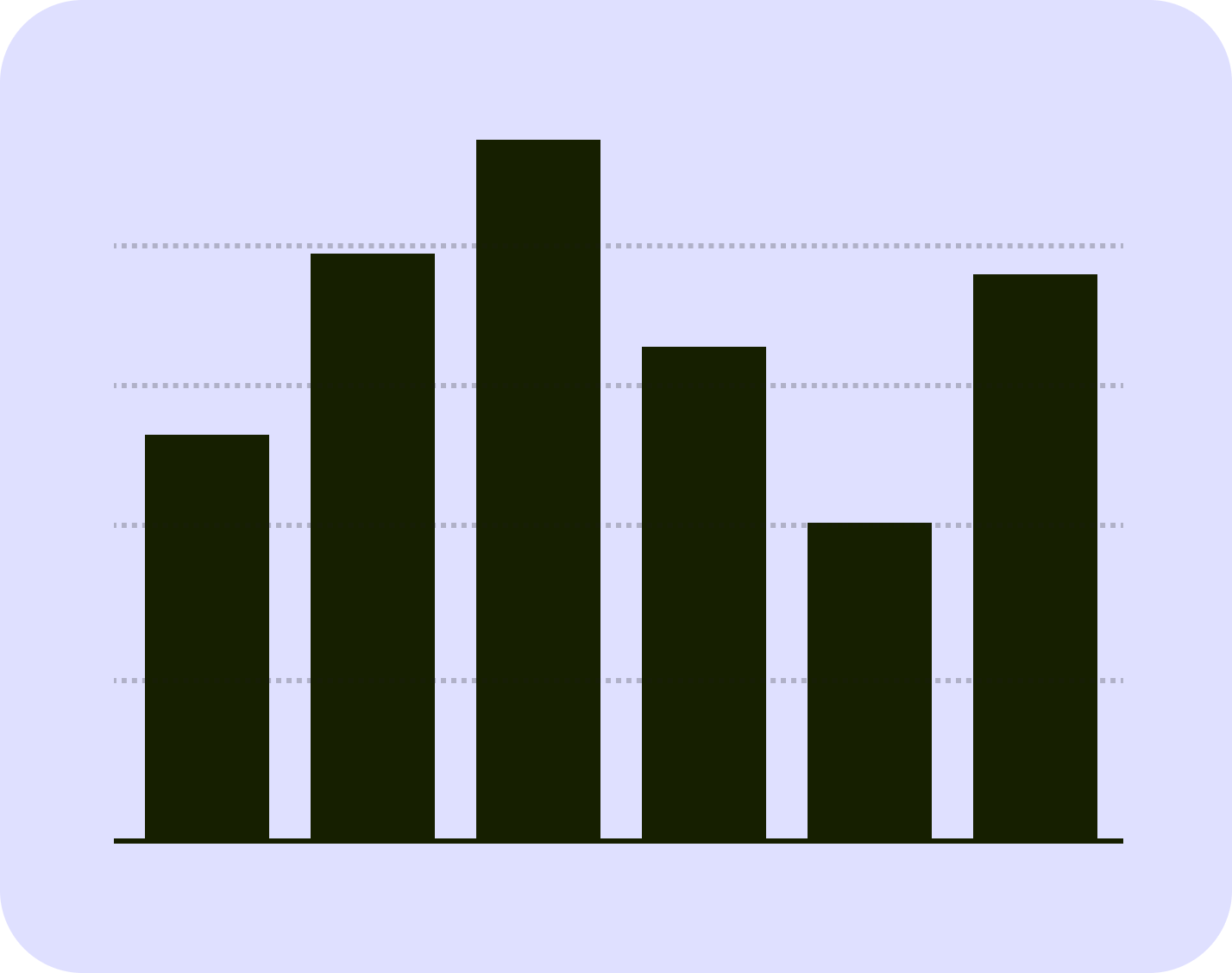
This chart displays individual column bars for each category, showing a straightforward comparison of values across multiple categories.
Radial bar chart

This chart displays bars along a circular axis. This chart lets viewers compare a wide range of values in a compact and visually distinct format.
Bar chart
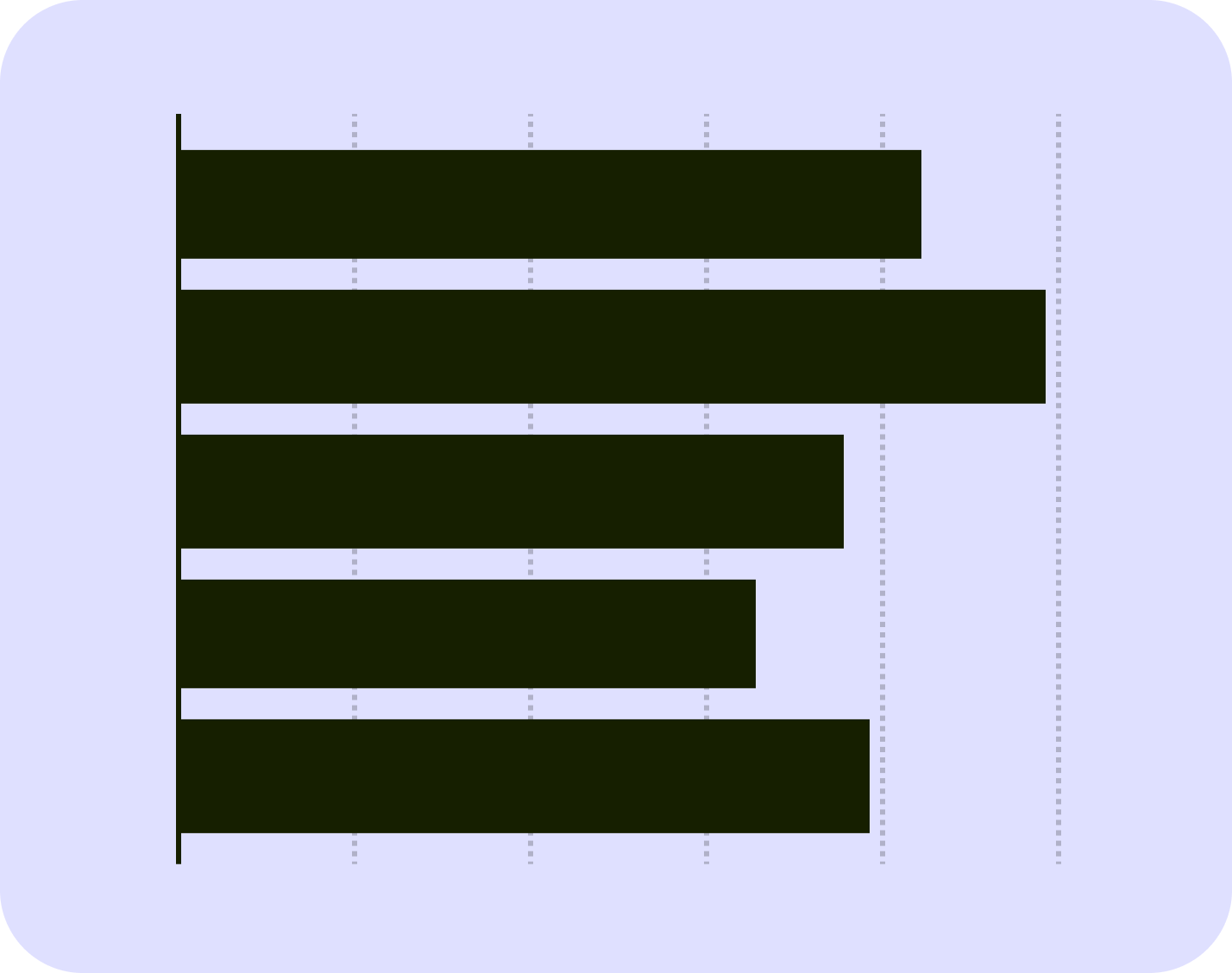
This chart displays individual bars for each category, for a straightforward comparison of values across multiple categories.
Change over time
Line chart
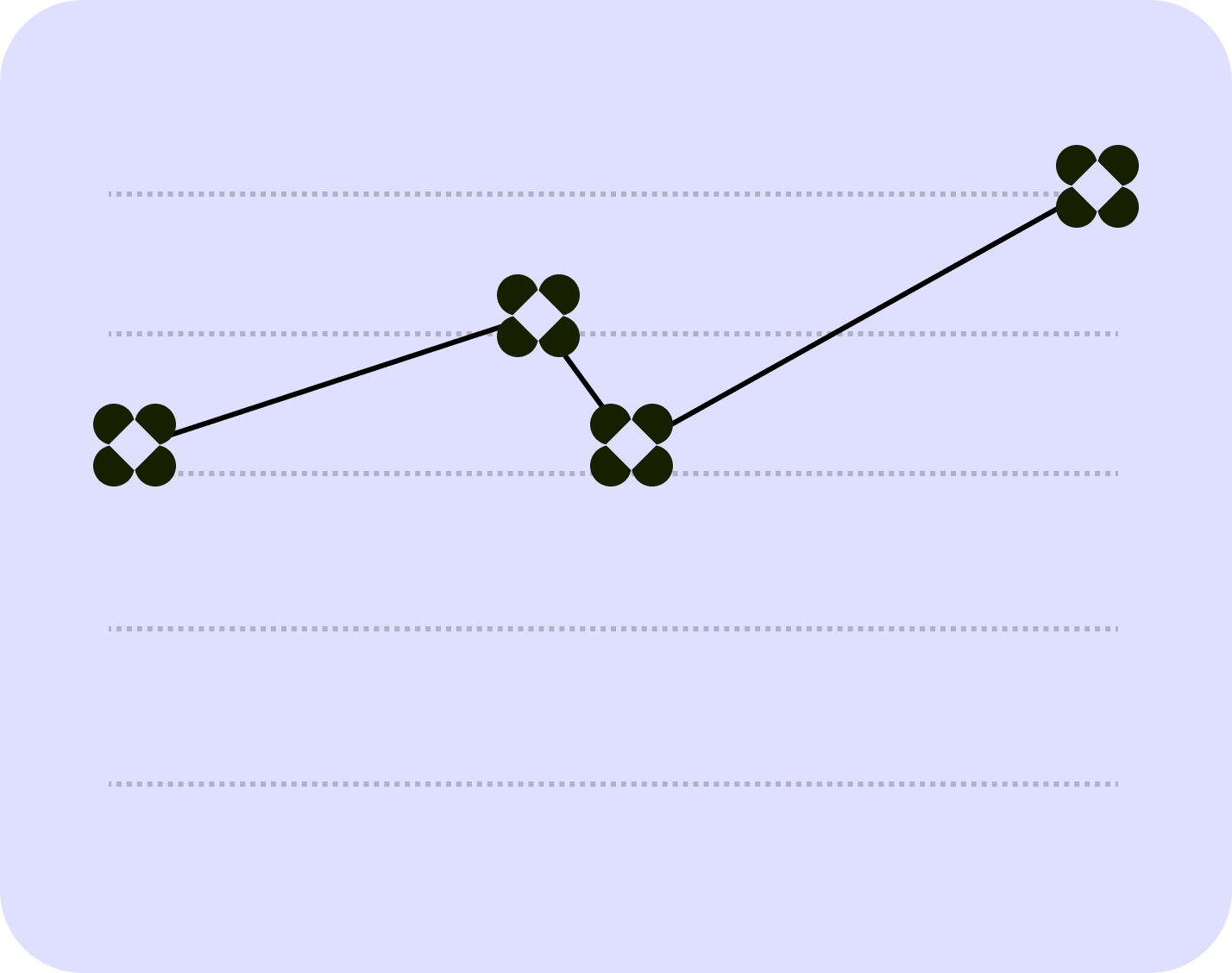
This chart is a line connecting each data point, showing general trends over time.
Area chart
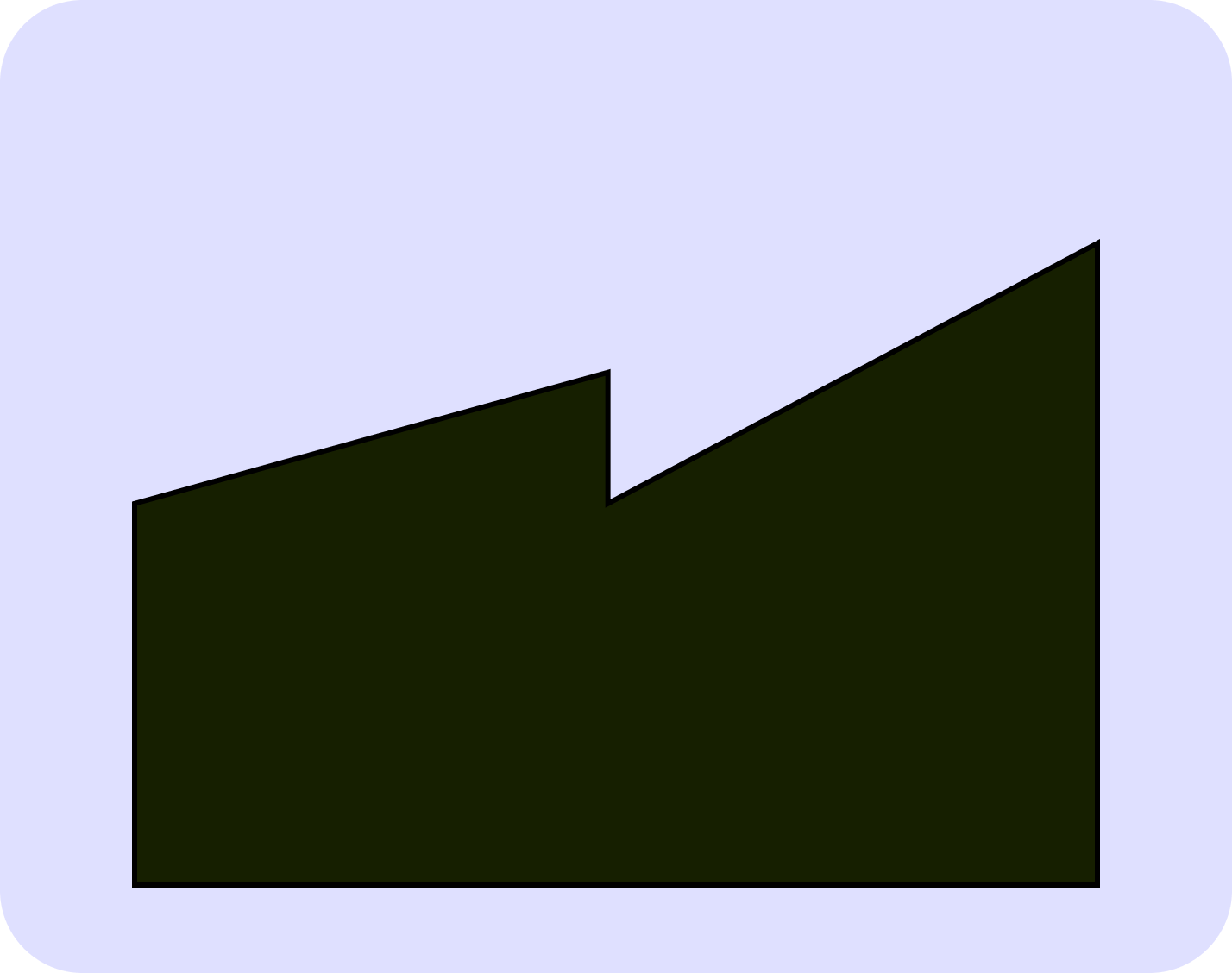
This chart colours the area below a line that represents values over time or categories, highlighting the magnitude of changes and the differences between multiple data series.
Distribution
Stacked column chart
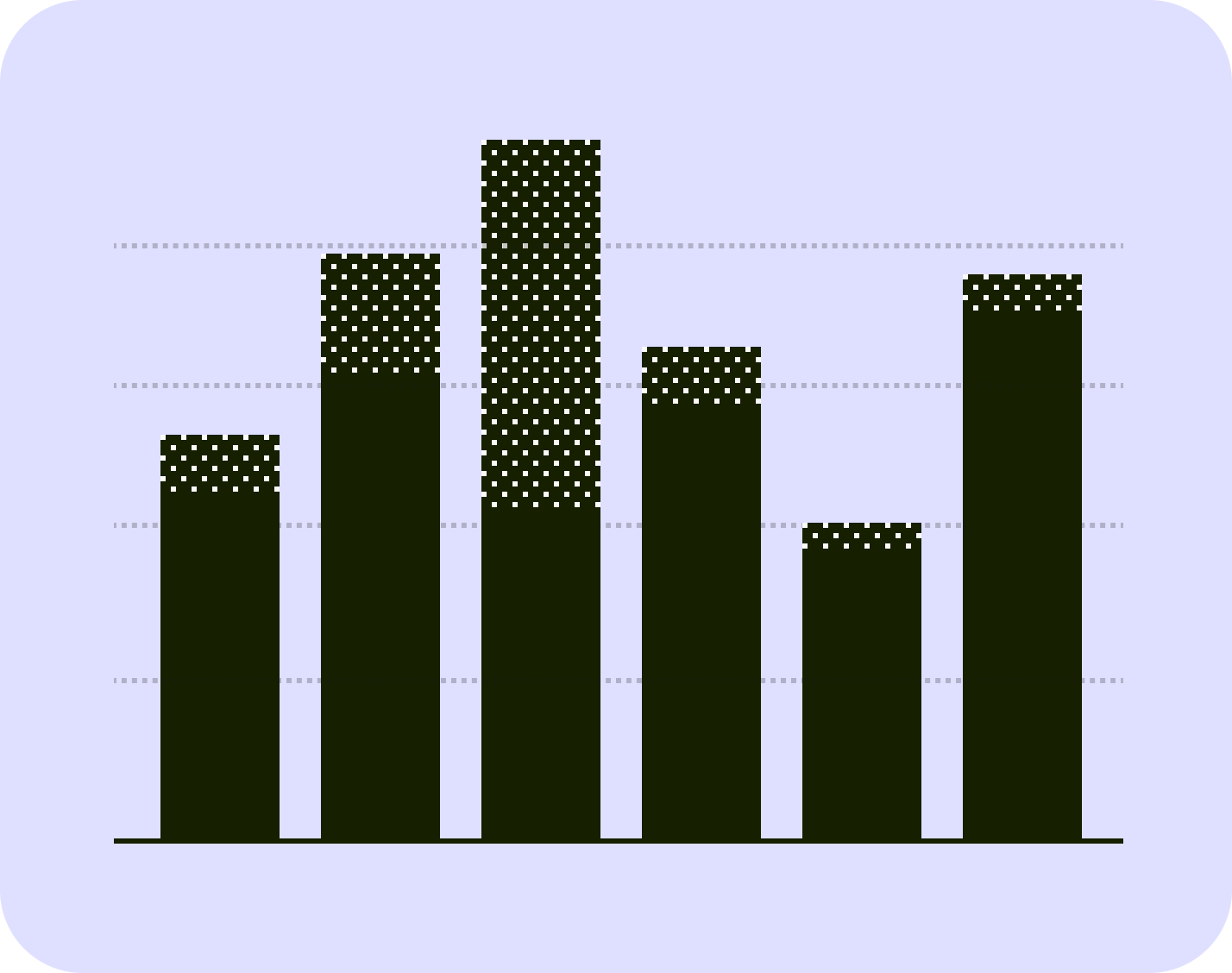
This chart stacks different data segments within each column. This chart shows the distribution of components in the individual column.
Stacked bar chart
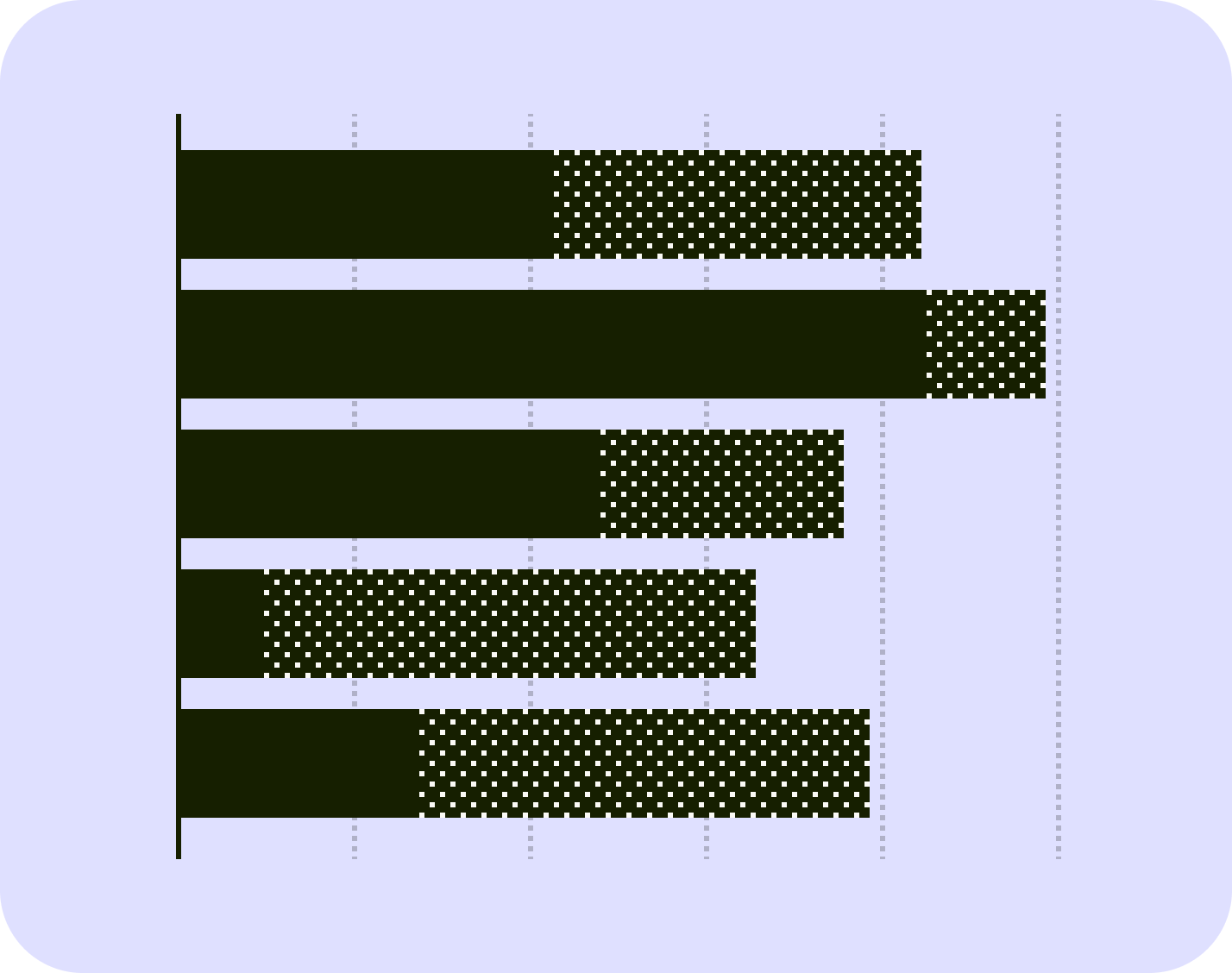
This chart stacks different data segments within each bar. This chart shows the distribution of components in the individual bar.
Column bar chart
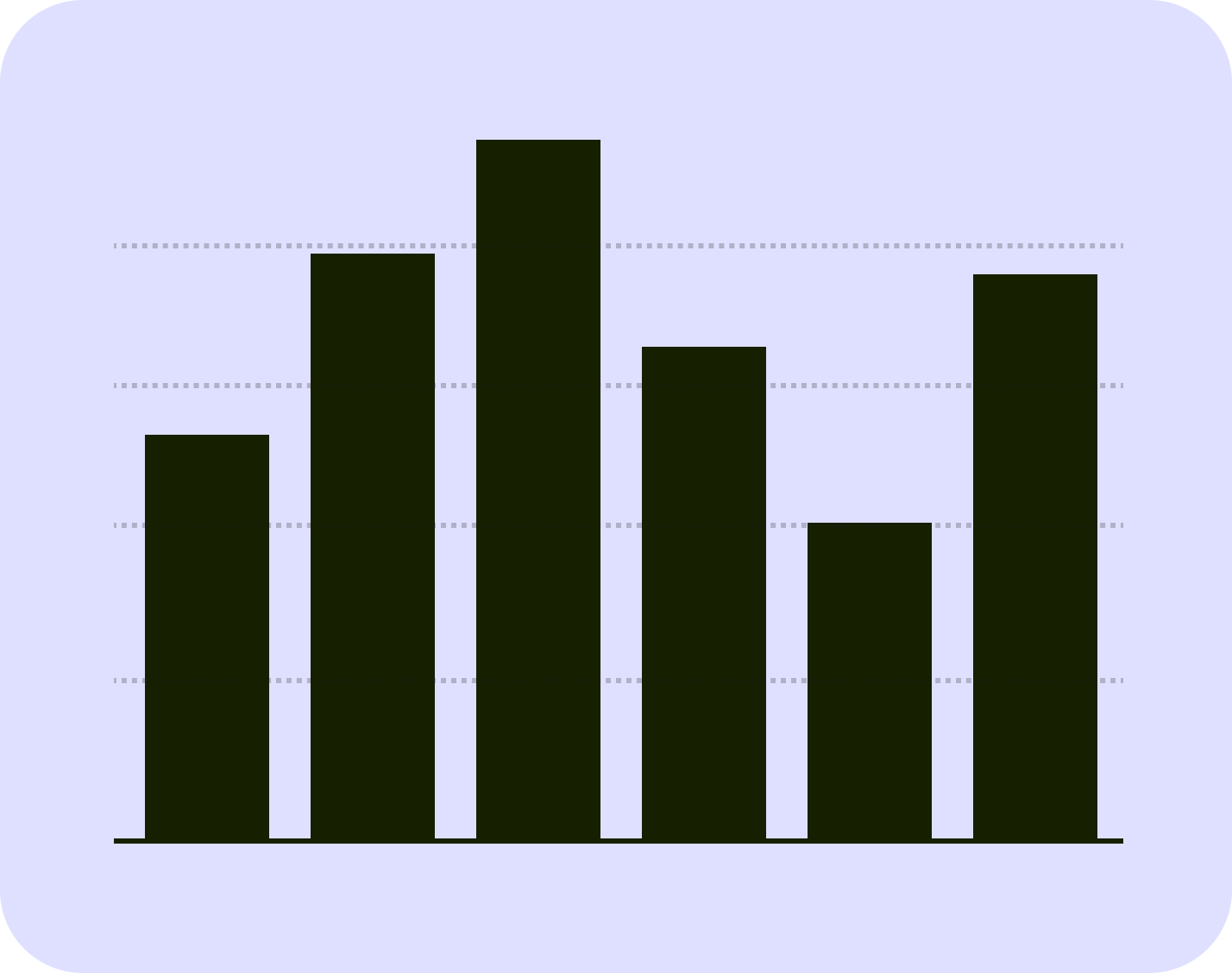
This chart displays vertical bars to represent the frequency or count of data points within different categories. This chart shows the distribution of values in those categories.
Bar chart
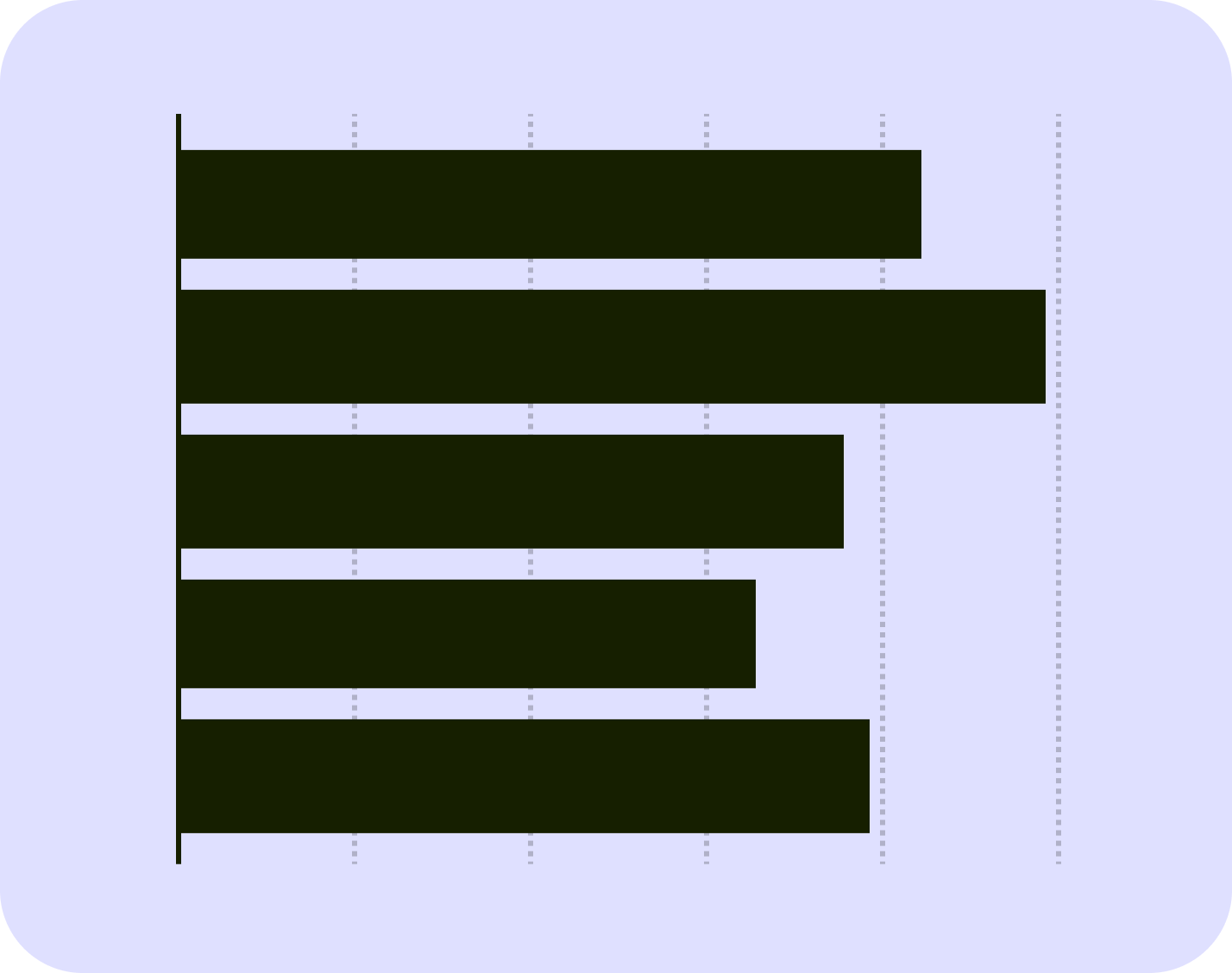
This chart displays bars to represent the frequency or count of data points within different categories. This chart shows the distribution of values in those categories.
Part-to-whole
Pie chart
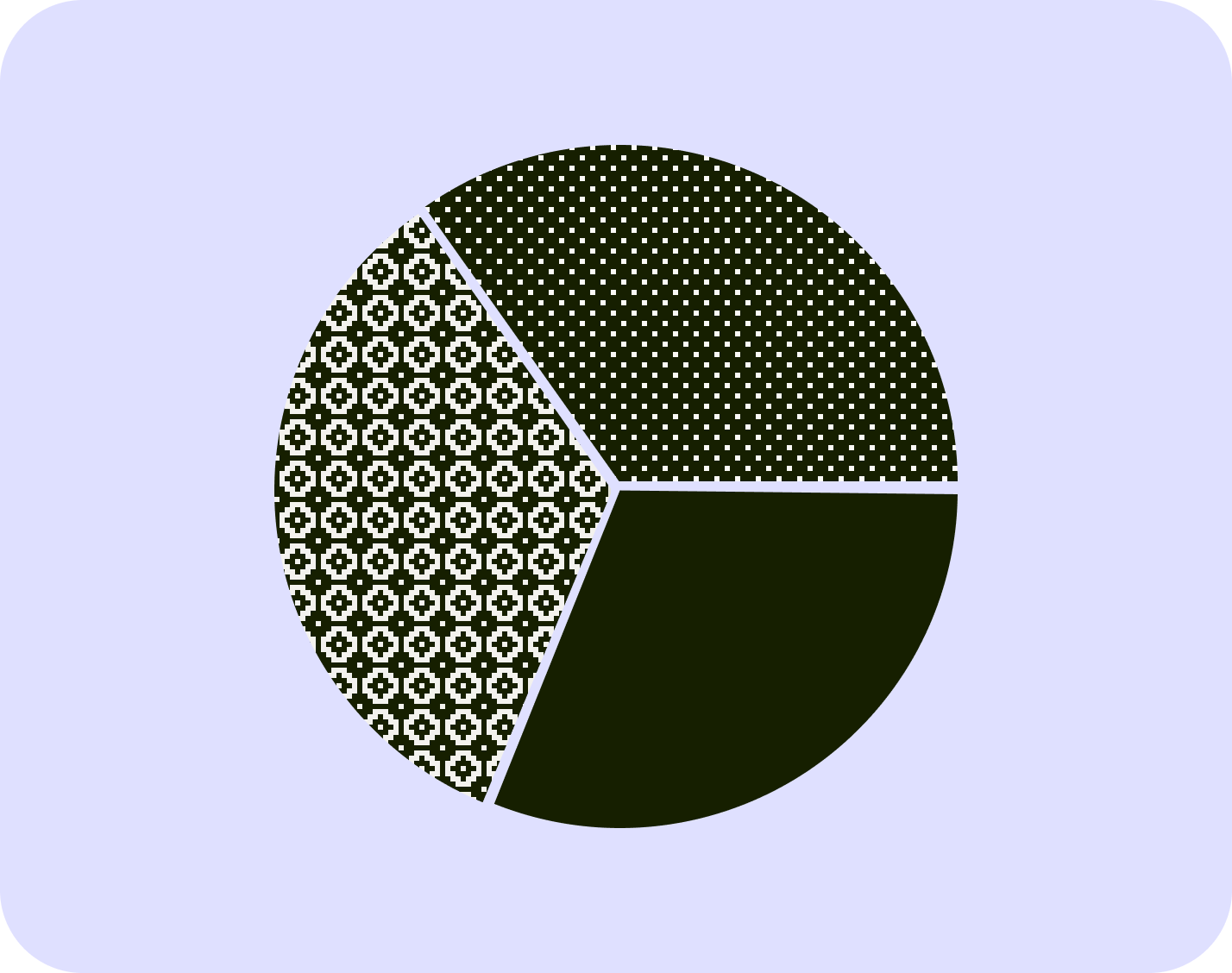
This chart displays a circle divided into segments to show proportion. It lets users view values as proportionally part of a whole.
Donut chart
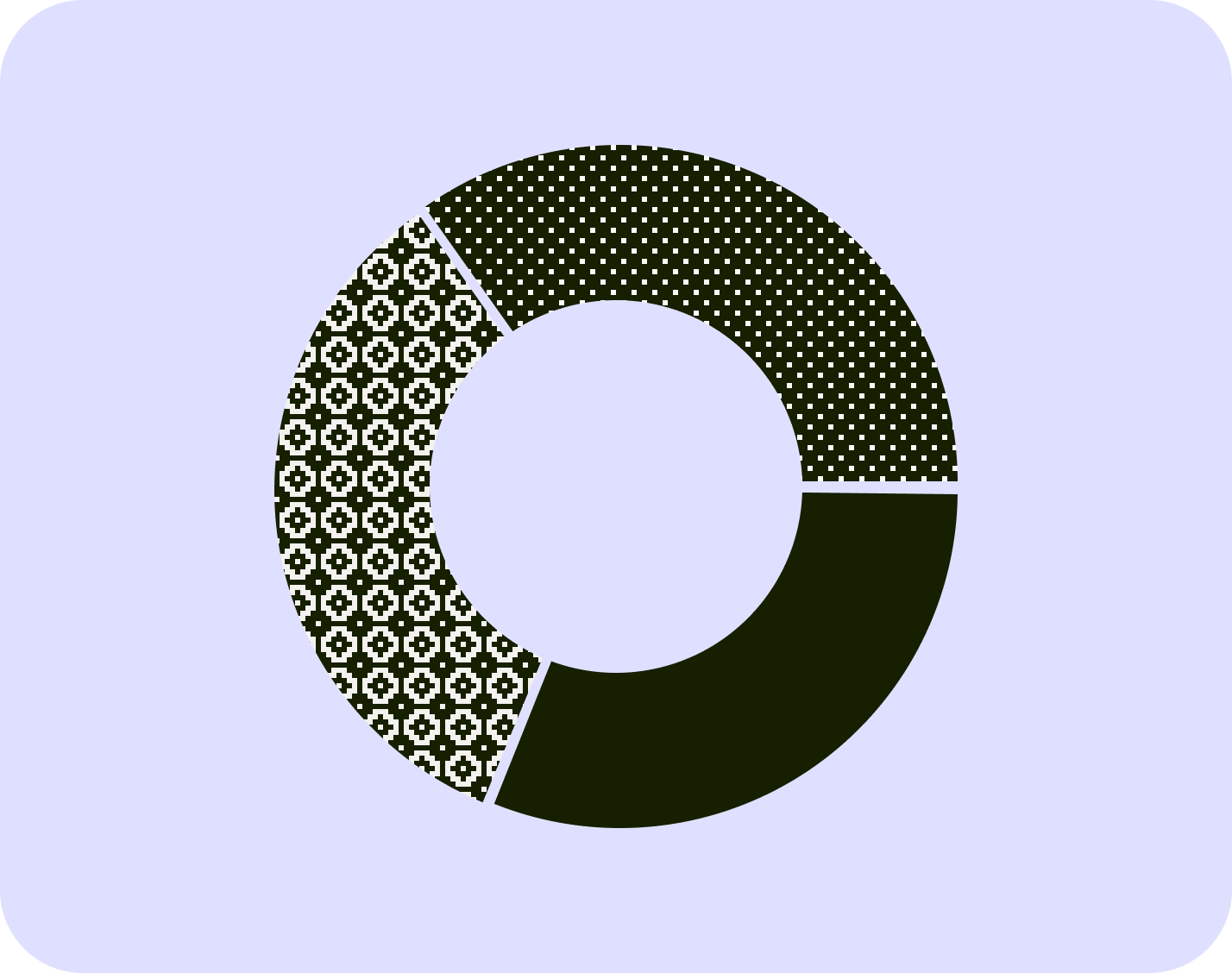
This chart is similar to the pie chart, displaying a hollow circle divided into segments to show proportion. Donut charts can contain multiple datasets.
Next, learn to import datasets and edit them in Lapis.
| Last article: Data visualisation | Next article: Import and edit datasets |
Lapis is built by Kontinentalist↗, a data storytelling studio in Singapore.
Was this article helpful?
That’s Great!
Thank you for your feedback
Sorry! We couldn't be helpful
Thank you for your feedback
Feedback sent
We appreciate your effort and will try to fix the article