
For thousands of years, people have turned to circles to represent how things are divided. Pie charts carry on that tradition, offering a clear and immediate sense of proportion, making complex data easy to grasp at a glance! In this newsletter, you’ll learn when to use a pie chart, when to skip it, and how to style one in Lapis with just a few clicks.
Is the pie chart really “bad”?
For over a century, critics have panned pie charts, yet research consistently shows they are highly effective in the right context. At Lapis, we believe every chart has its strengths.
Use a pie chart when …
- Slices make a full 100%.
- You want to spotlight the largest share at a glance.
- The story talks about “part of,” “percent of,” or “share of.”
Tips to help your pie chart shine:
- Arrange slices from largest to smallest to help readers quickly understand the hierarchy.
- Place labels outside the slices to improve readability.
- Our eyes tend to blur details outside the focus, so when all the slices are the same colour, they can visually to blend together (give it a try!). To avoid this, use distinct colours, add thin gaps between slices, and place a border around the slice you want to highlight.
When to skip the pie
Pie charts can be powerful, but they’re not perfect for every situation. Here’s when to reach for another visual:
- There are too many slices – often having more than five categories can make the chart hard to read. Group minor ones together into an “Other” category or consider using a bar chart instead.
- You need to show a precise ranking – the human eye judges lengths better than angles. Bar or column charts can help your audience see differences more clearly.
- You’re comparing several datasets – stacking several pie charts side by side makes comparison tricky. A bar chart can keep everything in view and is easier to follow in these instances.
So what does a well-used pie chart look like in action?
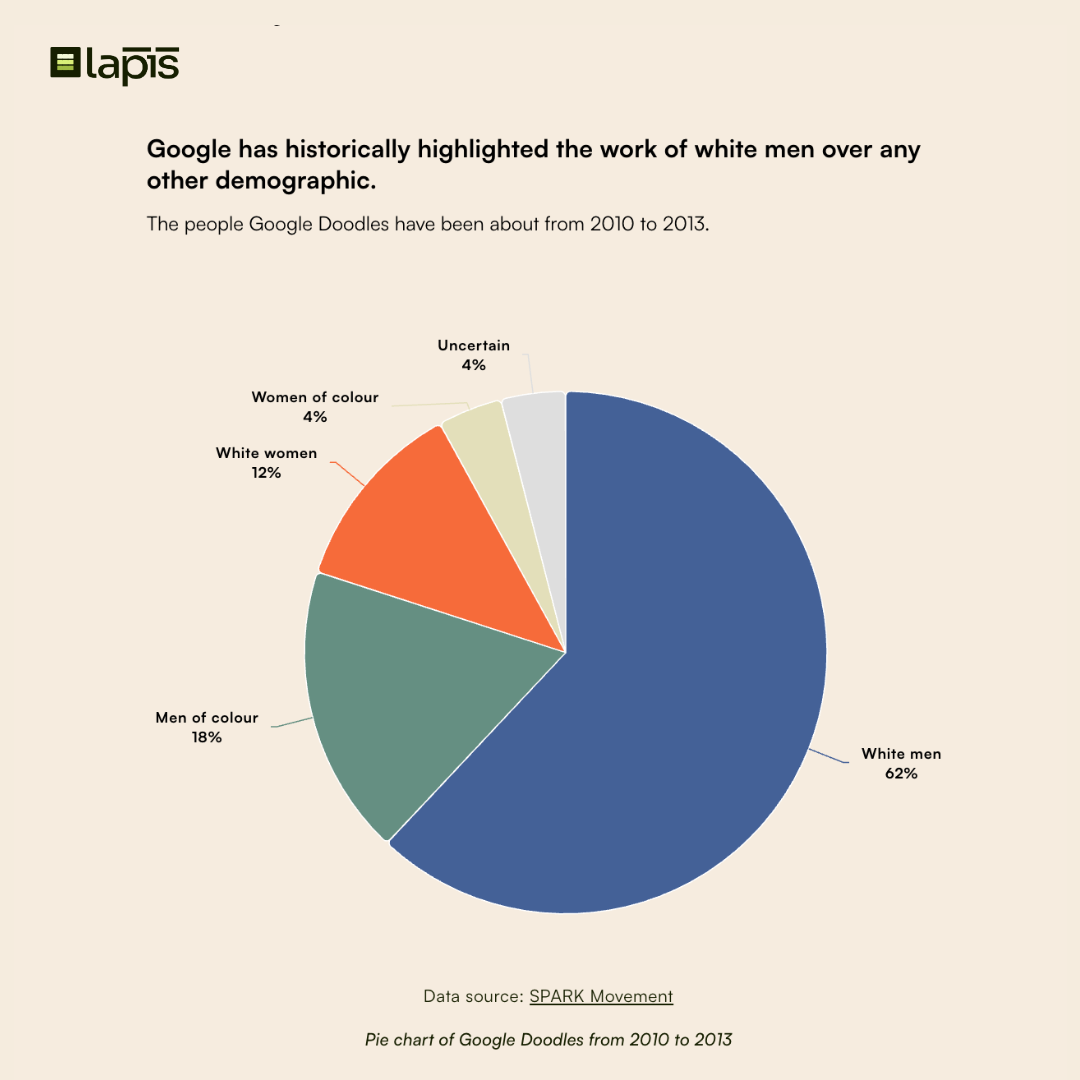
In The Google Doodles of Asia, we looked at who Google chose to celebrate between 2010 and 2013. Now, take a glance at the pie—can you spot who dominates the chart? Instantly, the imbalance is clear: 62% of Google Doodles spotlighted the achievements of white men. One simple visual makes the disparity impossible to miss—something that might’ve taken much longer to uncover in a table or bar chart.
Let’s apply these best practices in Lapis
Now let’s bring those tips to life—here’s where to find them in Lapis.
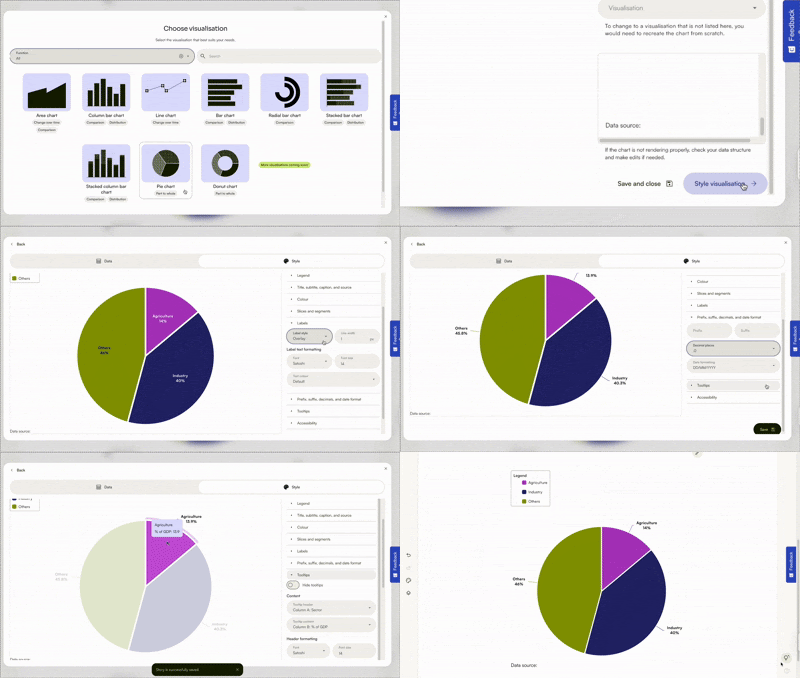
Use the “Style visualisation” panel to customise your pie chart:
- Slices and segments – Add spaces between slices for clearer separation.
- Labels – Under Label style, choose Extended for better readability, or let Auto handle it for you.
- Prefix, suffix, decimals & date format – Add small details to make your chart more precise and polished. Small interactions help bring your chart to life and keep readers interested.
- Tooltips – Show or hide interactive labels when someone hovers over your chart.
- Accessibility – Add alt text so your chart works better with screen readers—and boosts SEO.
Ready to create?
- Open your story – after signing up, head to your workspace, and click Create new story to begin.
- Insert a visualisation block – click the (+) button to add a content block, or type / to open the slash menu. Then choose Create data visualisation.
A good pie chart does more than inform—it resonates. Ready to turn your data into stories people can feel? We can’t wait to see the stories you’ll tell.
Was this article helpful?
That’s Great!
Thank you for your feedback
Sorry! We couldn't be helpful
Thank you for your feedback
Feedback sent
We appreciate your effort and will try to fix the article