Once you have imported your data into Lapis, you can set up your visualisation.
✨ Not sure how to import your data into Lapis? Learn more in Import and edit datasets.Label and Values
Select the label
The label is a column of data that will act as one main axis of comparison. For example, in a dataset mapping changes over time, the label column would be 'Year'.
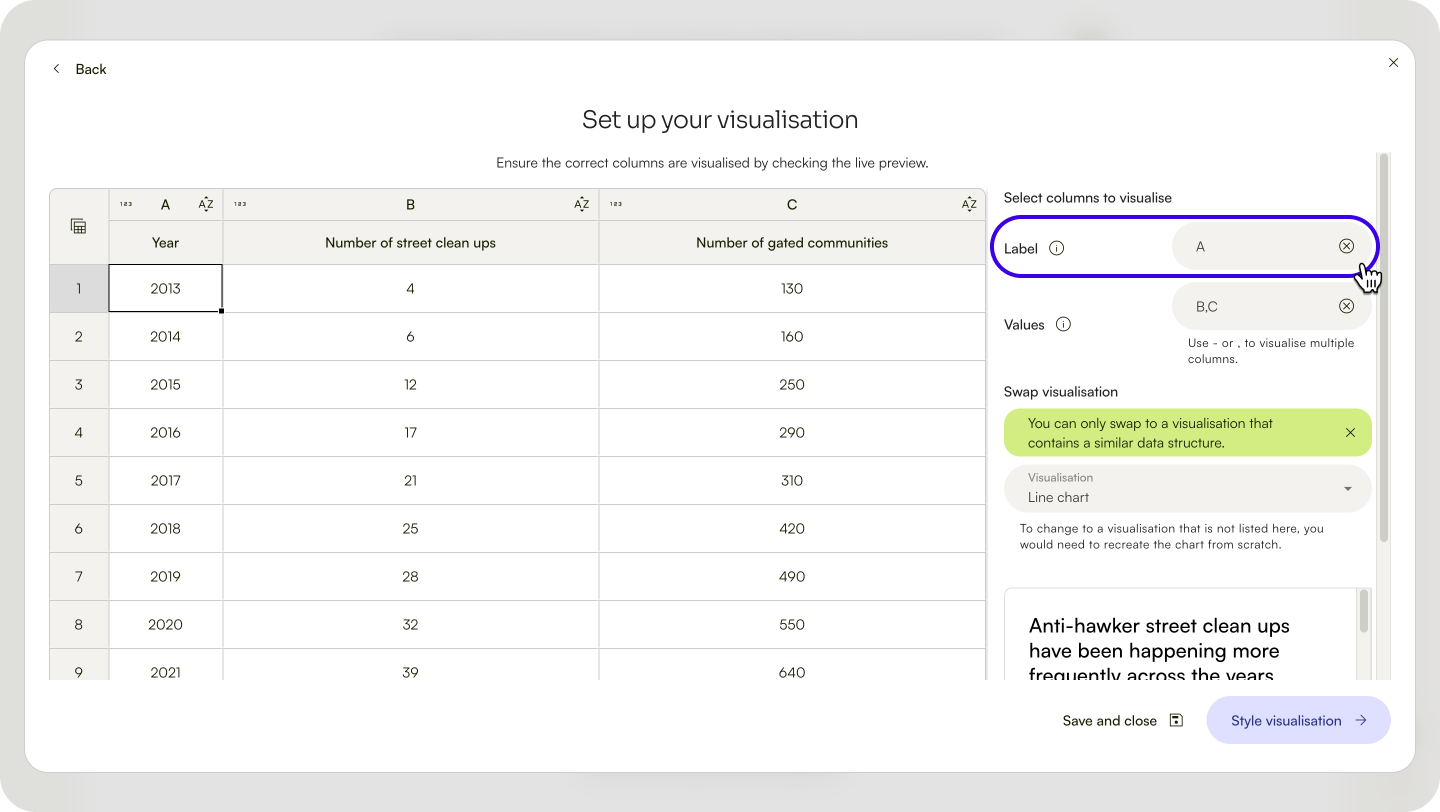
This would result in the data visualisation below.
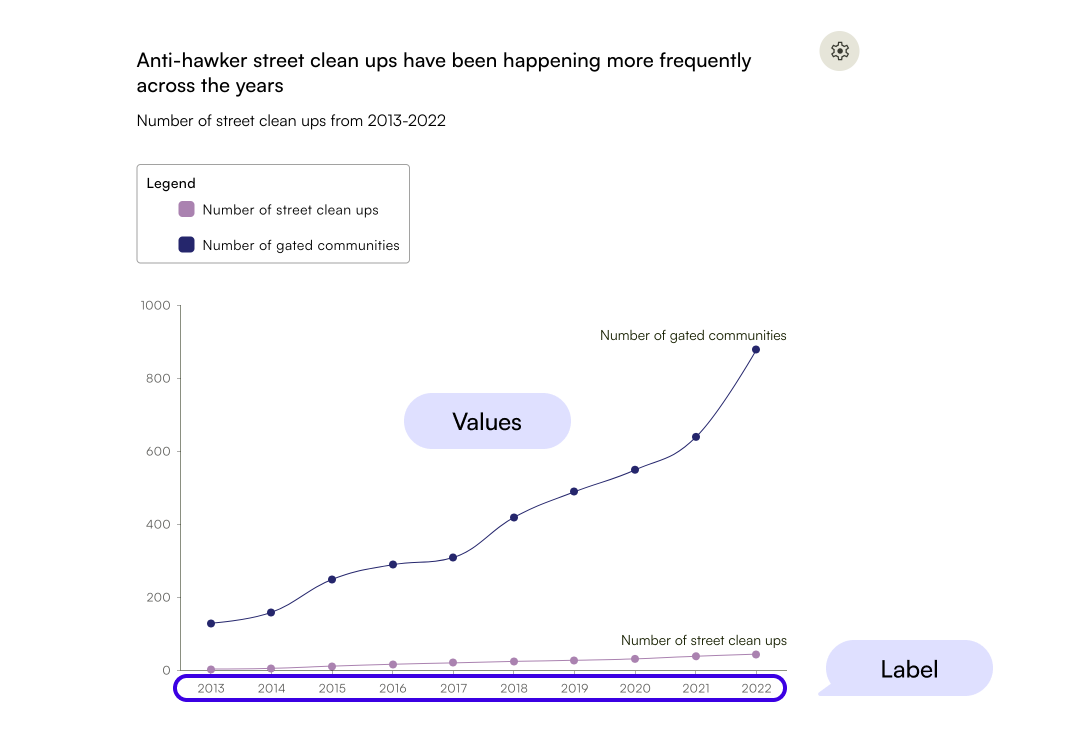
Set the values
The values are the columns of data that will be displayed in the visualisation. For example, in a dataset comparing country population by year, the columns listed under 'Values' will be population number and year.
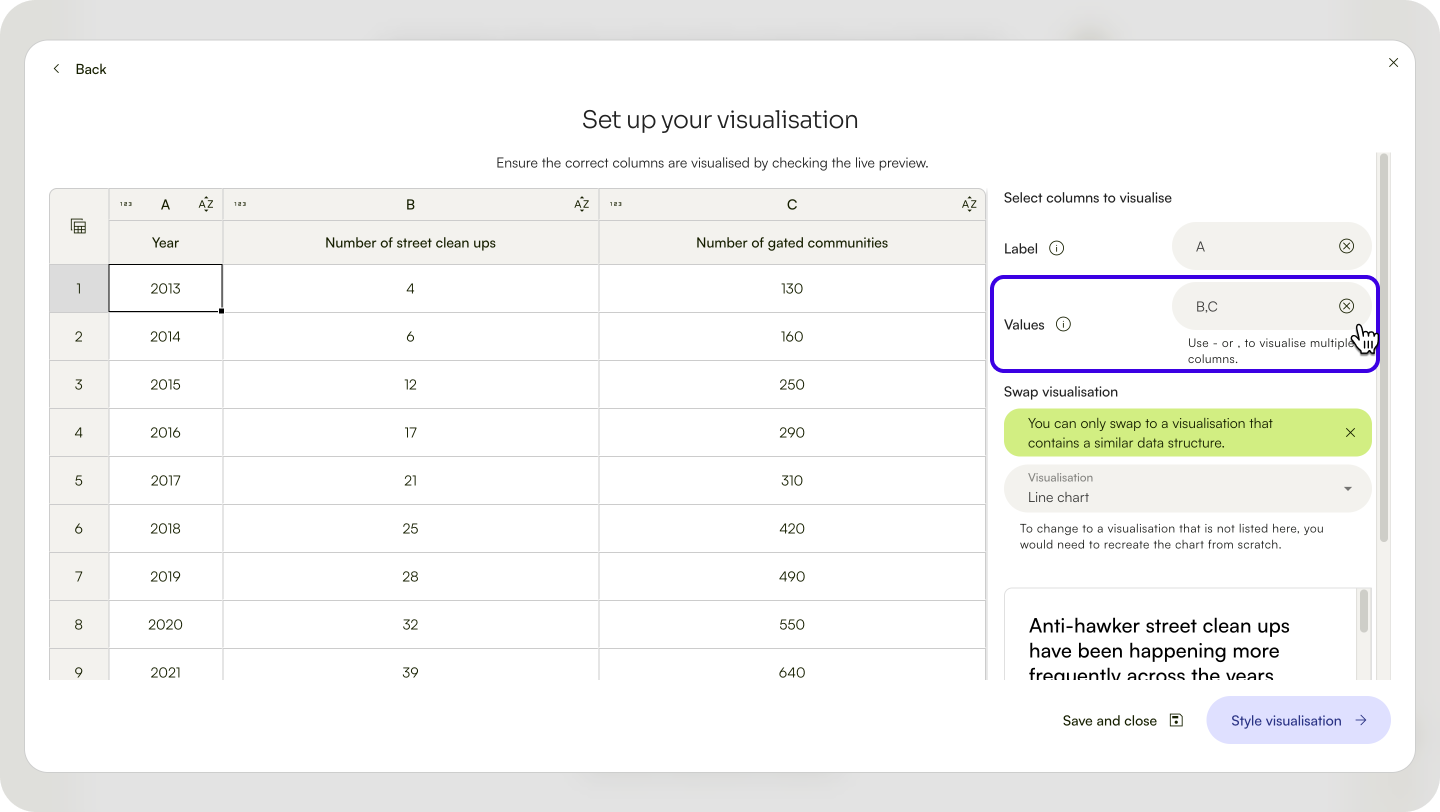
✨ Use '-' or',' to include multiple columns in your visualisation. E.g. 'B-D' or 'B,D,E'Swap visualisation type
- Click
VisualisationunderSwap visualisation. - Select another type of visualisation.
✨ View the live preview of your visualisation in the 'Set up your data visualisation' menu.Next, learn to style your data visualisation.
| Last article: Import and edit datasets | Next article: Style your data visualisation |
Lapis is built by Kontinentalist↗, a data storytelling studio in Singapore.
Was this article helpful?
That’s Great!
Thank you for your feedback
Sorry! We couldn't be helpful
Thank you for your feedback
Feedback sent
We appreciate your effort and will try to fix the article