Quick Links
- Duplicate a published story as a draft
- Edit a published story
- Update settings for a published story
- Unpublish a story
- Transfer ownership of a published story
- Delete a published story
After publishing, you can still duplicate and edit stories. Some publishing settings can also be updated.
Duplicate a published story as a draft
- In your Workspace, click the ‘Published’ tab to view all published stories.
- Click the
⋮button. - Select
Duplicate as draft.
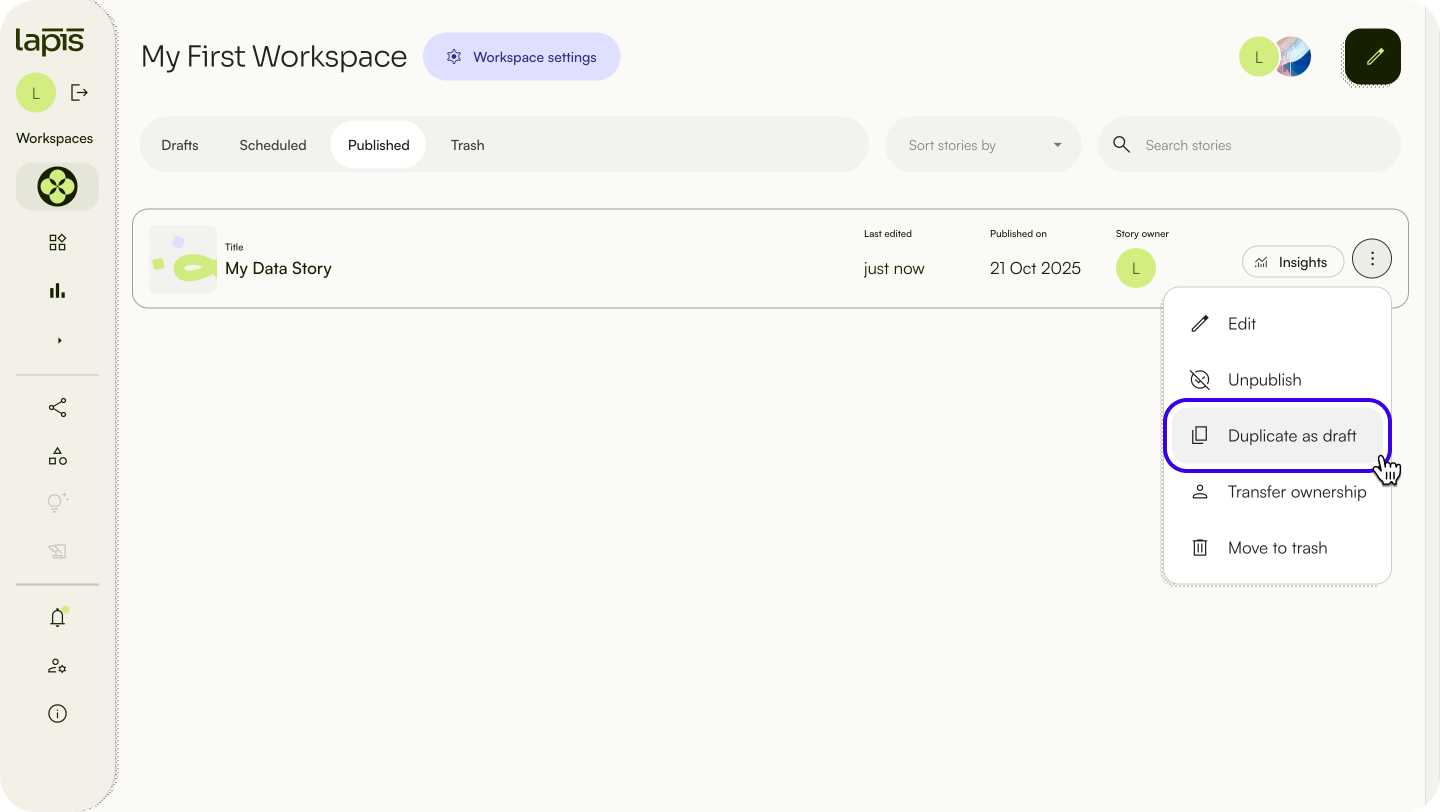
The duplicated draft can be found in the ‘Drafts’ tab in your Workspace.
Edit a published story
You can edit the content of a story after it has been published.
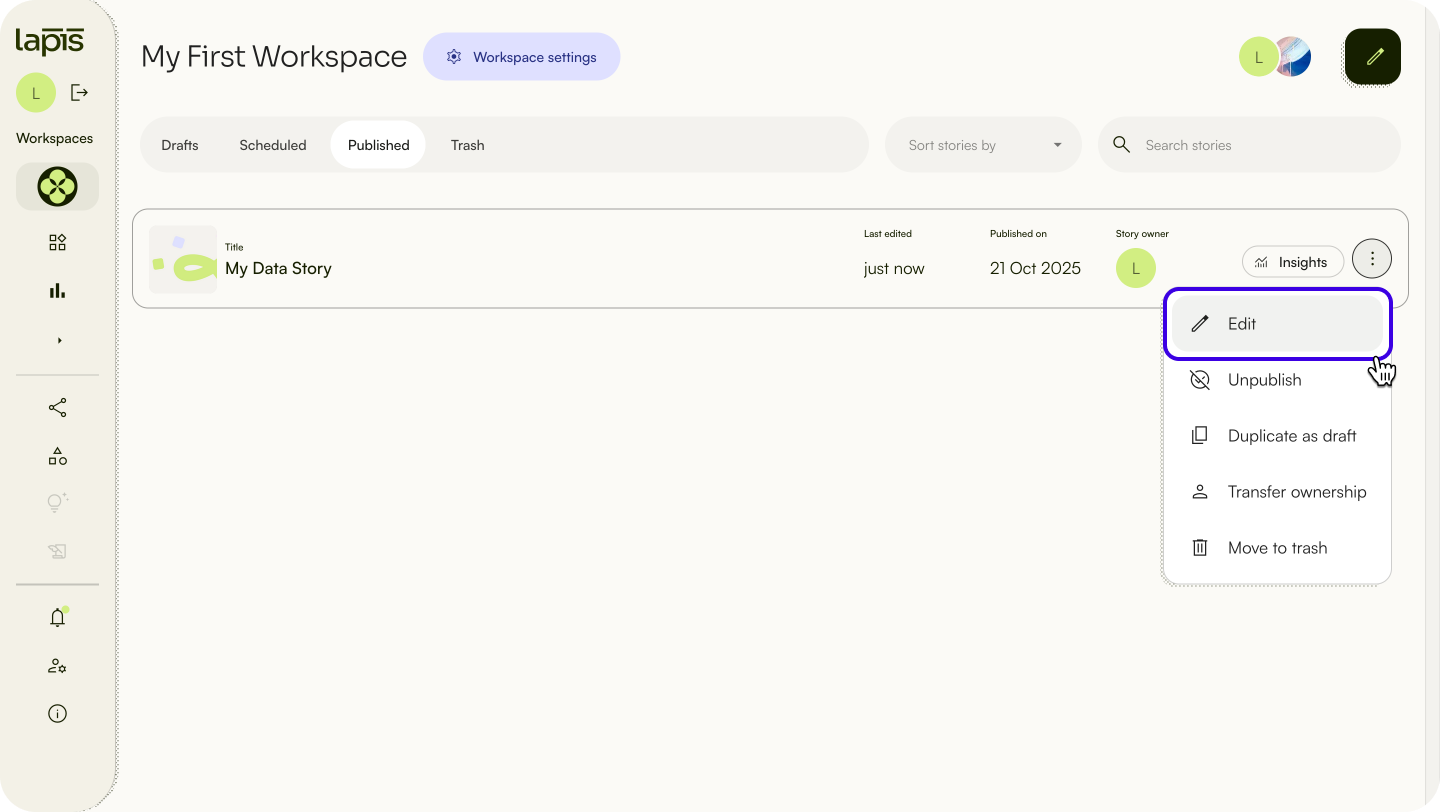
- In your Workspace, click the ‘Published’ tab to view all published stories.
- Click the
⋮button. - Select
Edit. - Edit the content of your story.
- Click
Update. - Confirm your publishing settings and click
Updateat the bottom of the page.
⚠️ Any changes you make will not be reflected in the live story until you manually update the story by clicking Update.⚠️ Pushing edits to the live story can only be done by story creators, Workspace owners and Workspace editors.Update settings for a published story
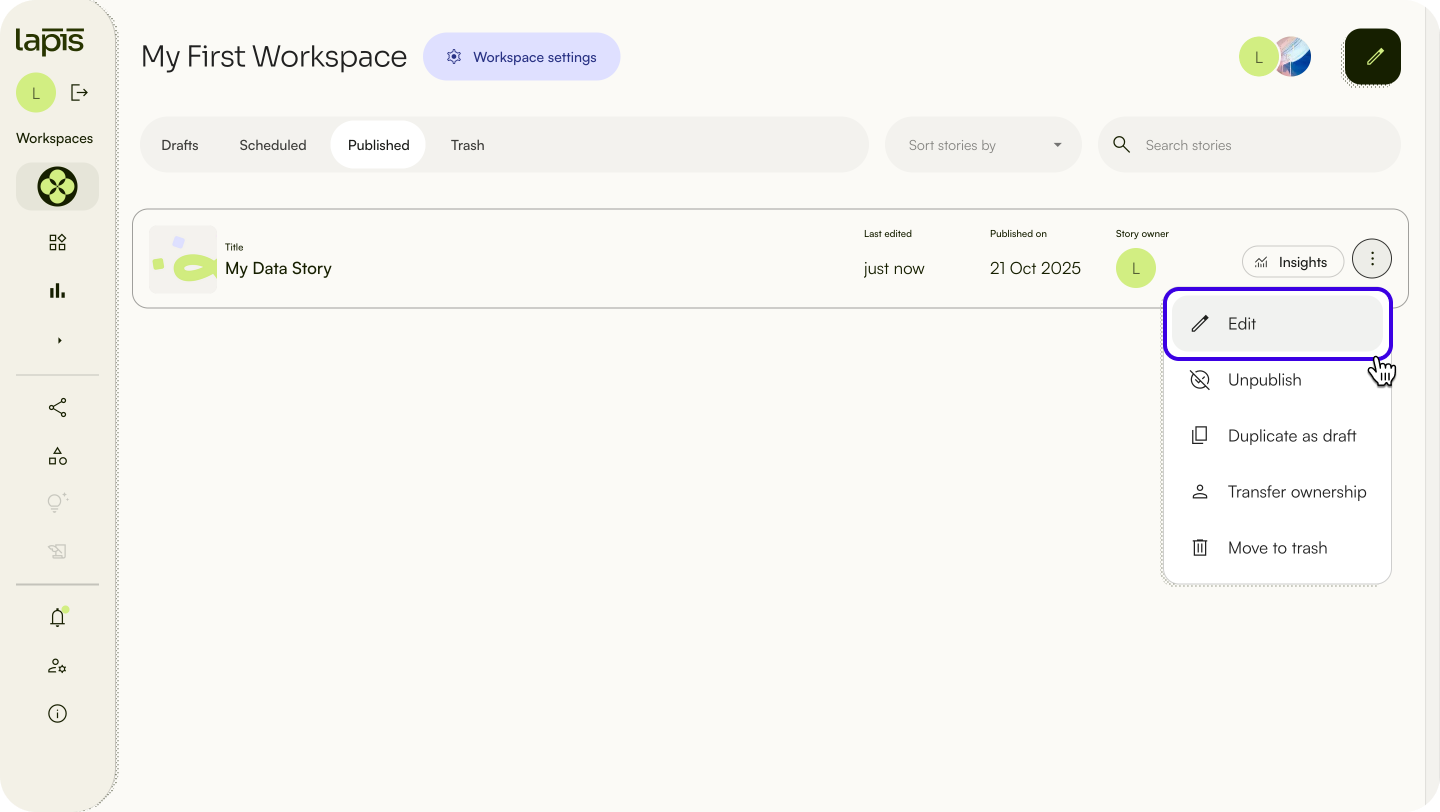
- In your Workspace, click the ‘Published’ tab to view all published stories.
- Click the
⋮button. - Select
Edit. - Click
Updateat the top right of the Storybuilder editor. - You can update:
- the publishing date, time and timezone.
- the topic and tags.
- the authors and collaborators.
- the synopsis of the story.
⚠️ The URL of a story cannot be edited after it has been published. To change the story URL, you must unpublish the story and rename it.Unpublish a story
You can unpublish a story after it’s been published. Some story settings can only be changed when a story is unpublished.
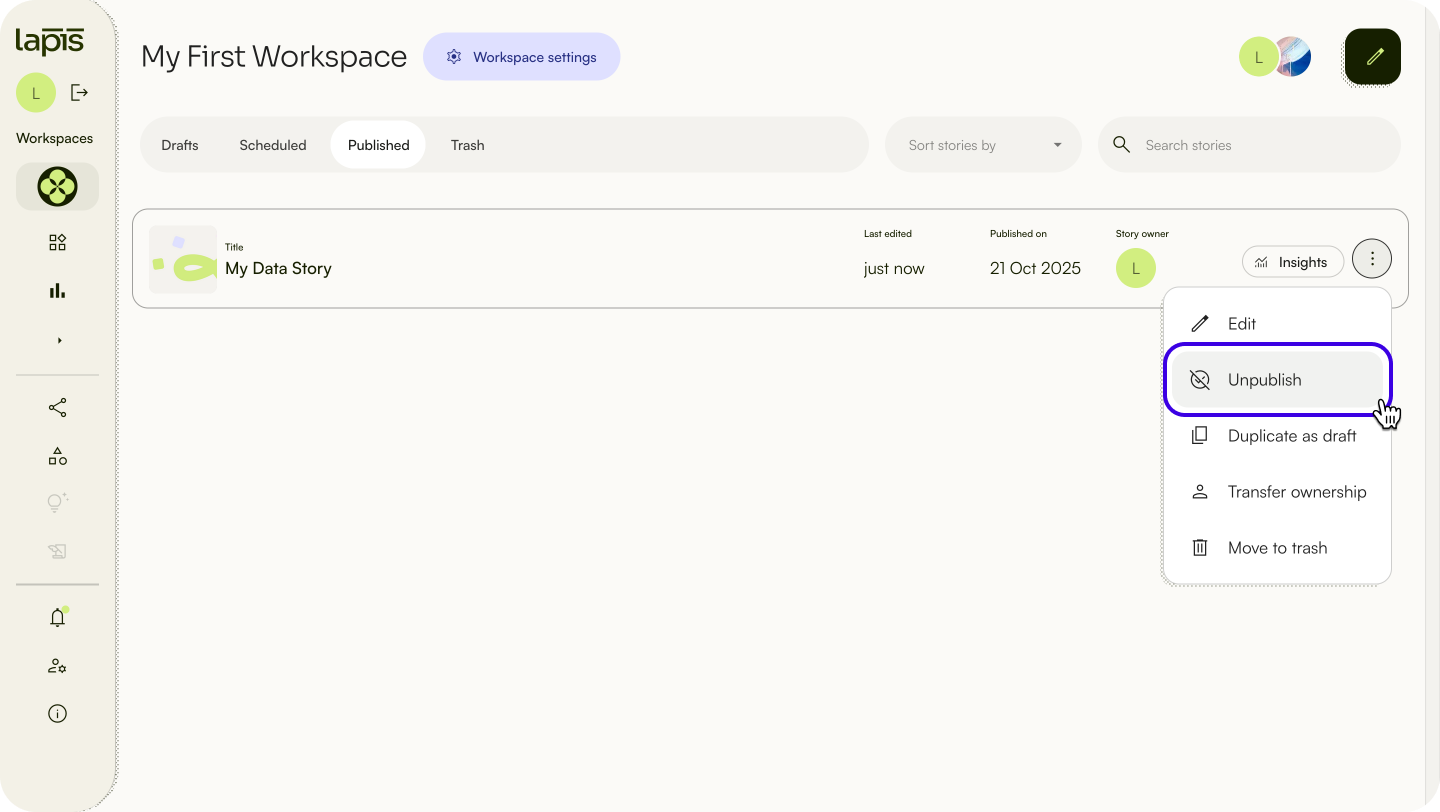
- In your Workspace, click the ‘Published’ tab to view all published stories.
- Click the
⋮button. - Select
Unpublish. - Select
Unpublishin the pop-up.
The unpublished story can be found in the ‘Drafts’ tab in your Workspace.
Transfer ownership of a published story
You can transfer the ownership of a published story to another user in the same Workspace.
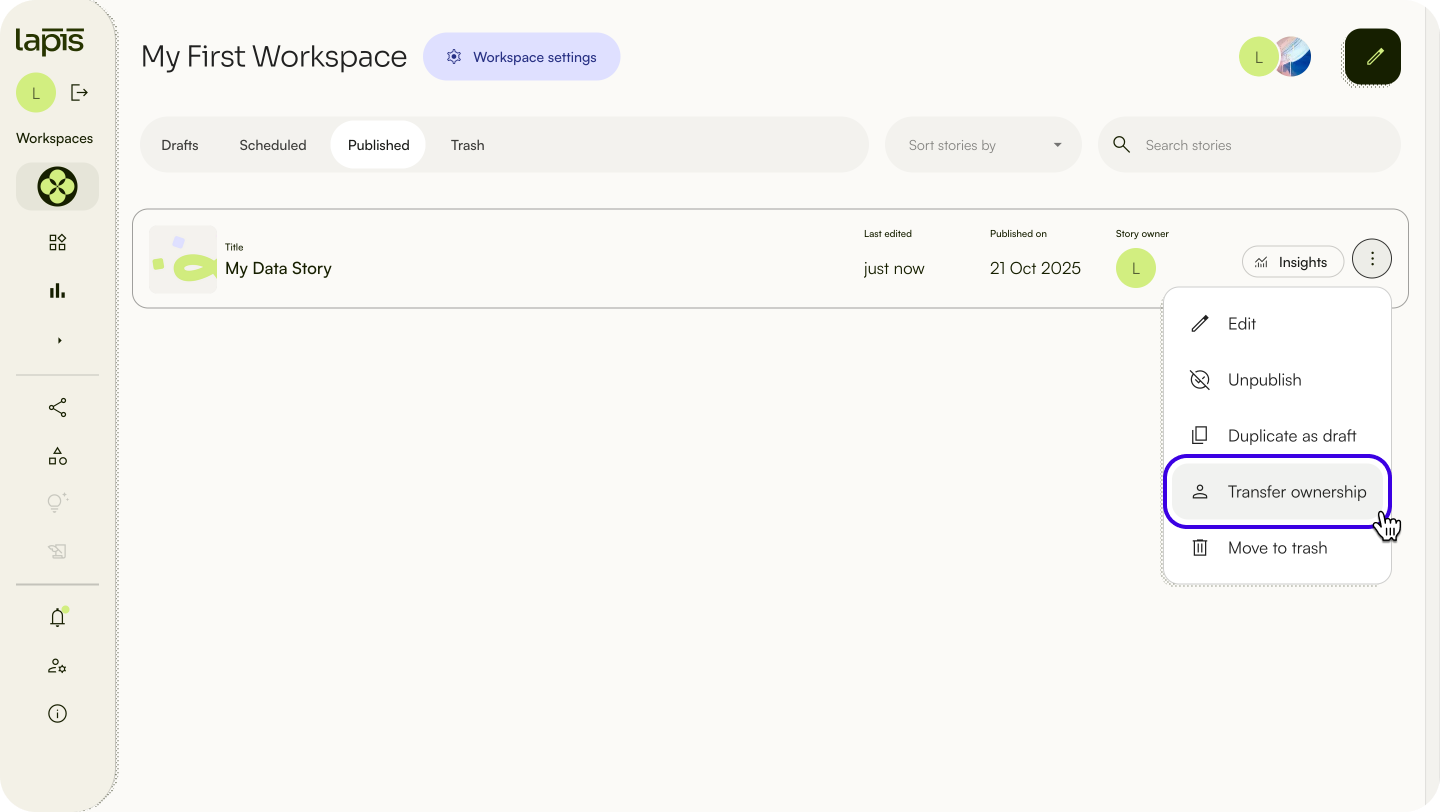
- In your Workspace, click the ‘Published’ tab to view all published stories.
- Click the
⋮button. - Select
Transfer ownership. - Type the name of a user in your Workspace, or click to view the list of users.
- Click
Transfer ownership.
Delete a published story
You can delete a published story.
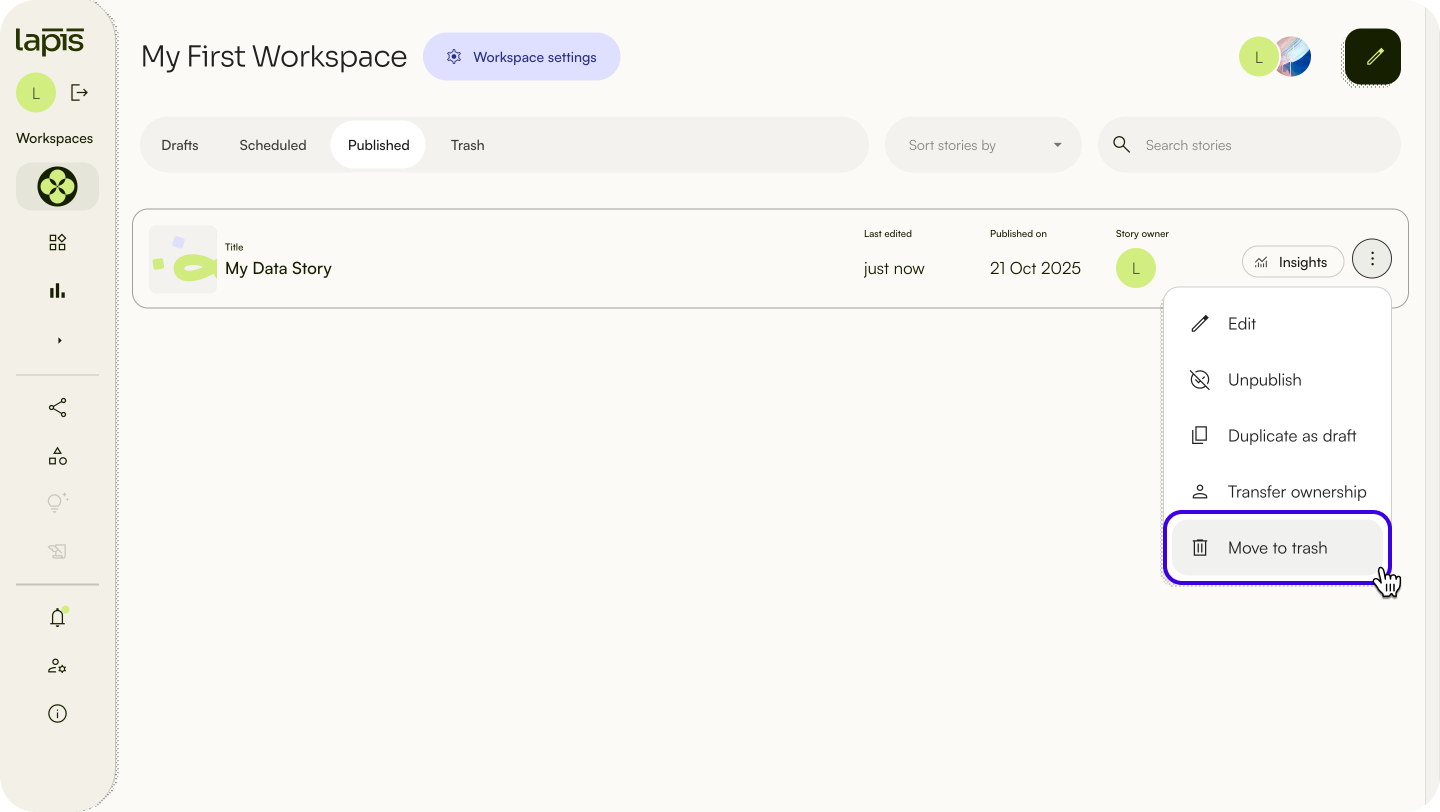
- In your Workspace, click the ‘Published’ tab to view all published stories.
- Click the
⋮button next to the story. - Select
Move to trash.
| Last article: Publish stories on Lapis | Next article: Embed external visualisations in Lapis |
Lapis is built by Kontinentalist↗, a data storytelling studio in Singapore.
Was this article helpful?
That’s Great!
Thank you for your feedback
Sorry! We couldn't be helpful
Thank you for your feedback
Feedback sent
We appreciate your effort and will try to fix the article