You can publish your data stories on Lapis, and customise publishing settings for individual stories.
Publish stories
Click Publish at the top right of the Storybuilder page.
⚠️ Can't publish your story? Only the story owner, Workspace owner or Workspace editors can publish a story.Customise publishing settings
In Lapis, you can customise the URL for your data story, set the publication date and time, and select a topic and tags to improve SEO.
Custom URL
Each story's default URL follows the story's title. You can choose to change your story's URL.
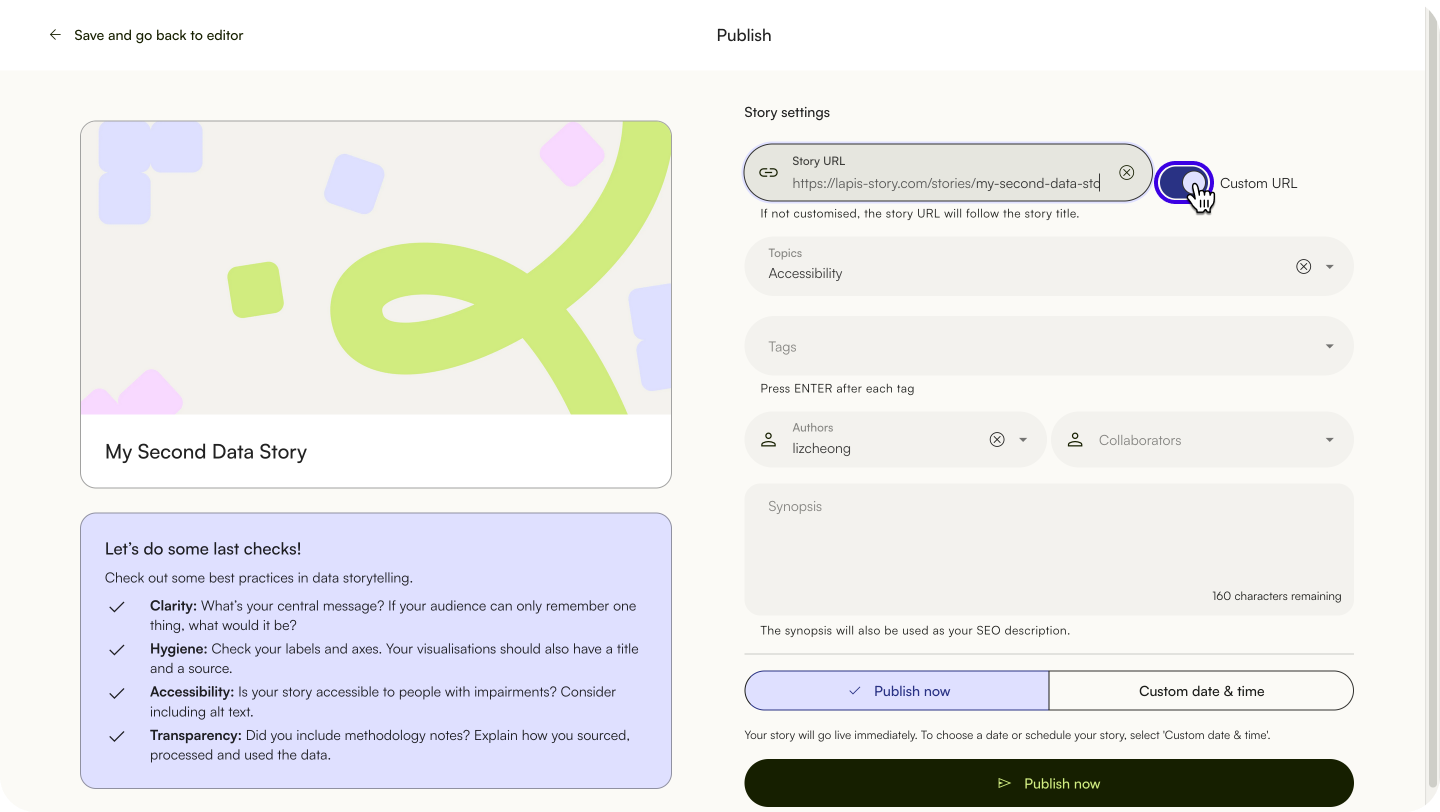
- Click
Custom URL. - Enter your custom URL. This could be the title of your story or the publication issue.
⚠️ Can't save your custom URL? The URL might be taken by another story, or you might have left the field empty.Set publish date, time, and timezone
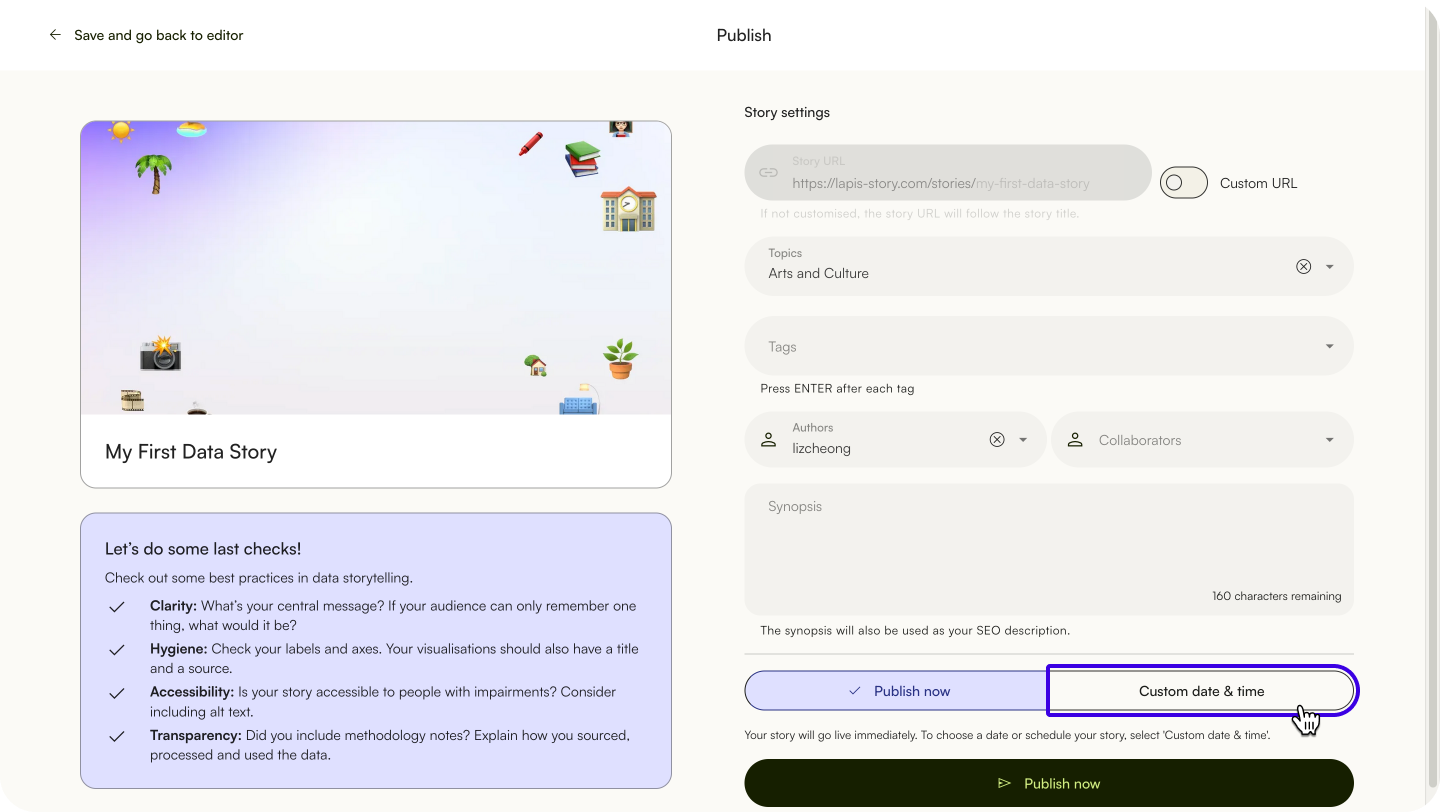
- Click 'Publish' to open the 'Publish' menu.
- To publish it immediately, click
Publish now.
You can schedule your Lapis story to publish at a specific date and time.
- Click 'Publish' to open the 'Publish' menu.
- Click 'Custom date & time' to expand the 'Scheduling' section.
- Select the publishing date, time and time zone for your story.
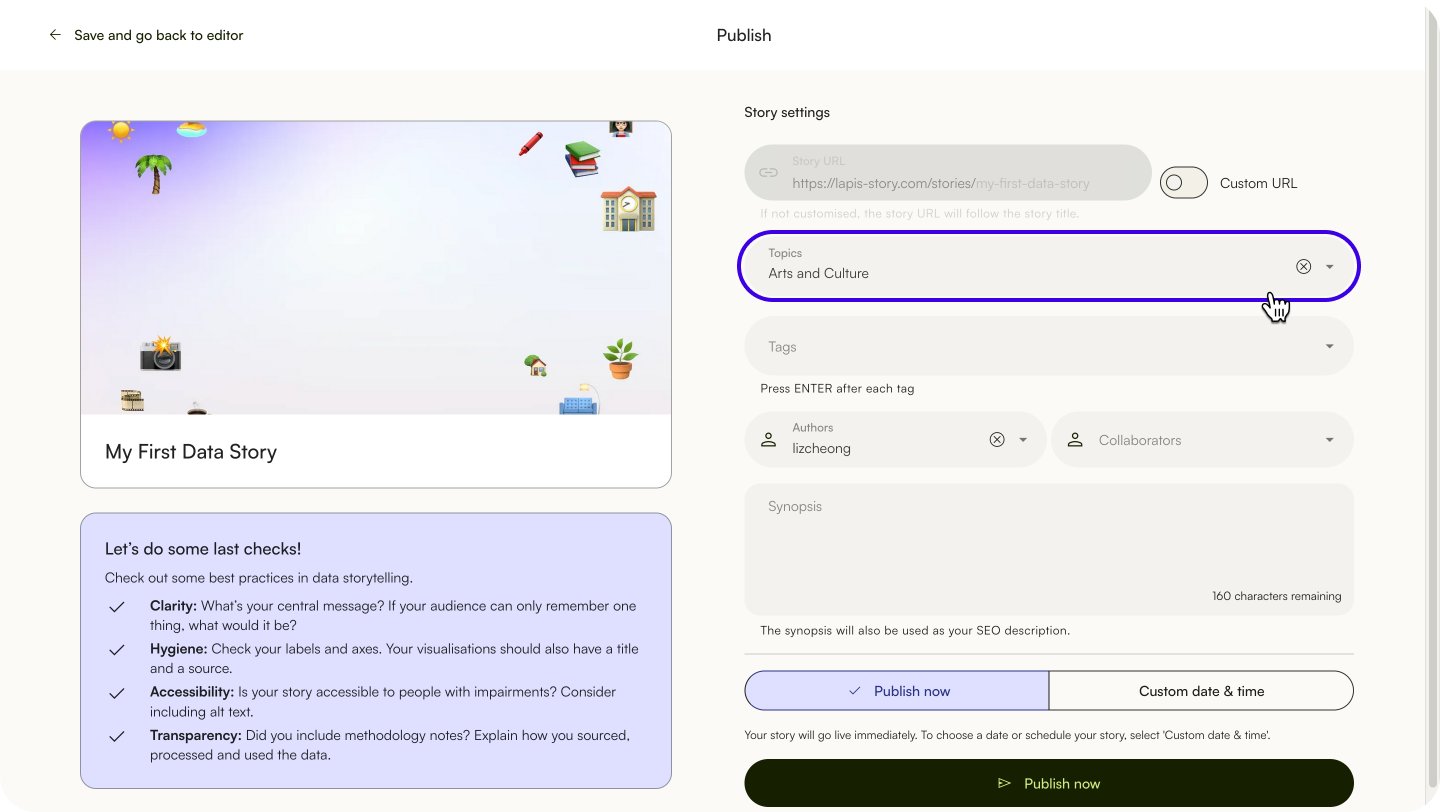
Select topics
Select your story's topic(s) in Topics. Selecting a topic is necessary for the story to be published.
Add tags for stories
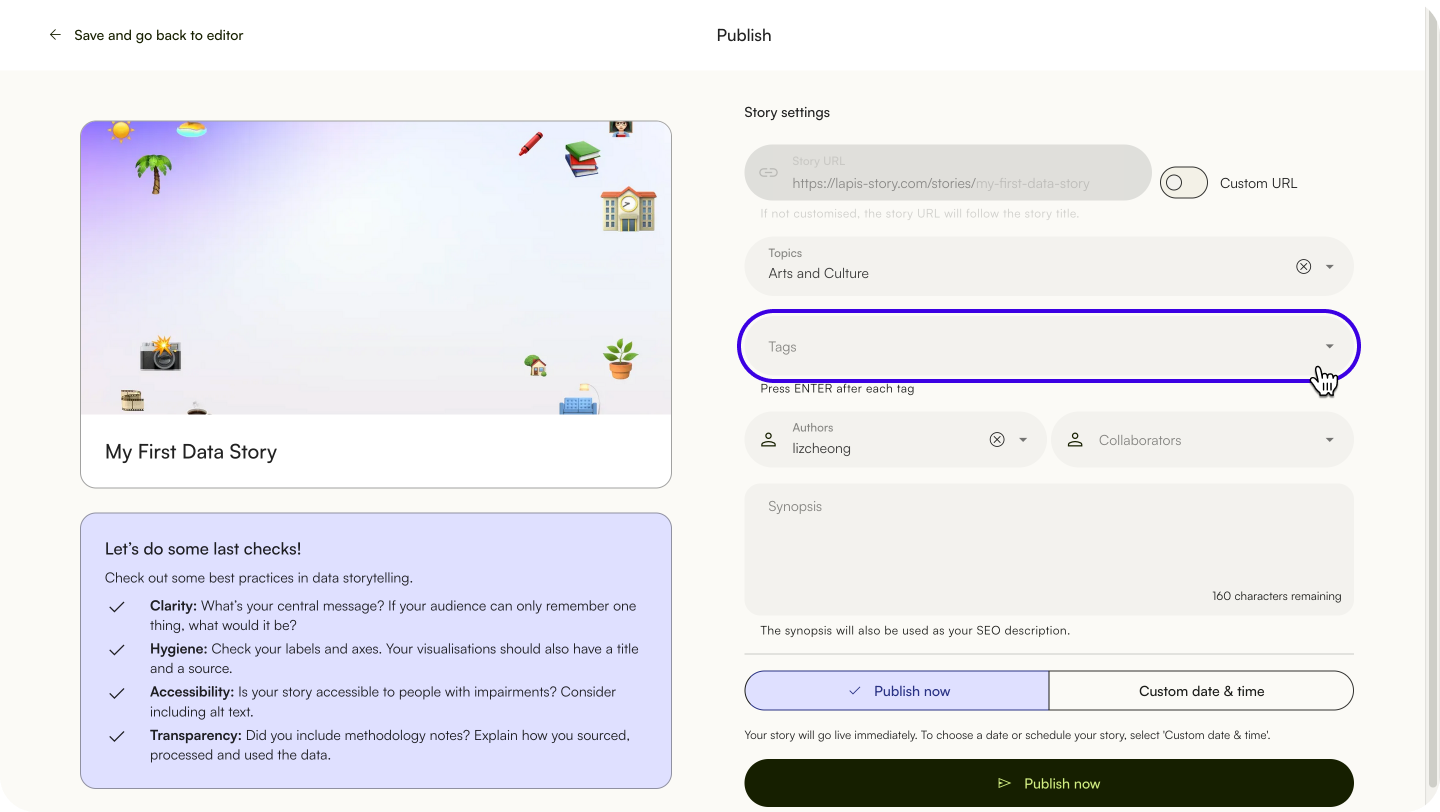
Type tags in Tags. These could be defining features of your story or relevant contextual information, like location, subject or persons involved. Adding tags can improve your story’s SEO. You can add any tags you want.
Select authors and contributors
You can select story authors and contributors to appear in the byline.
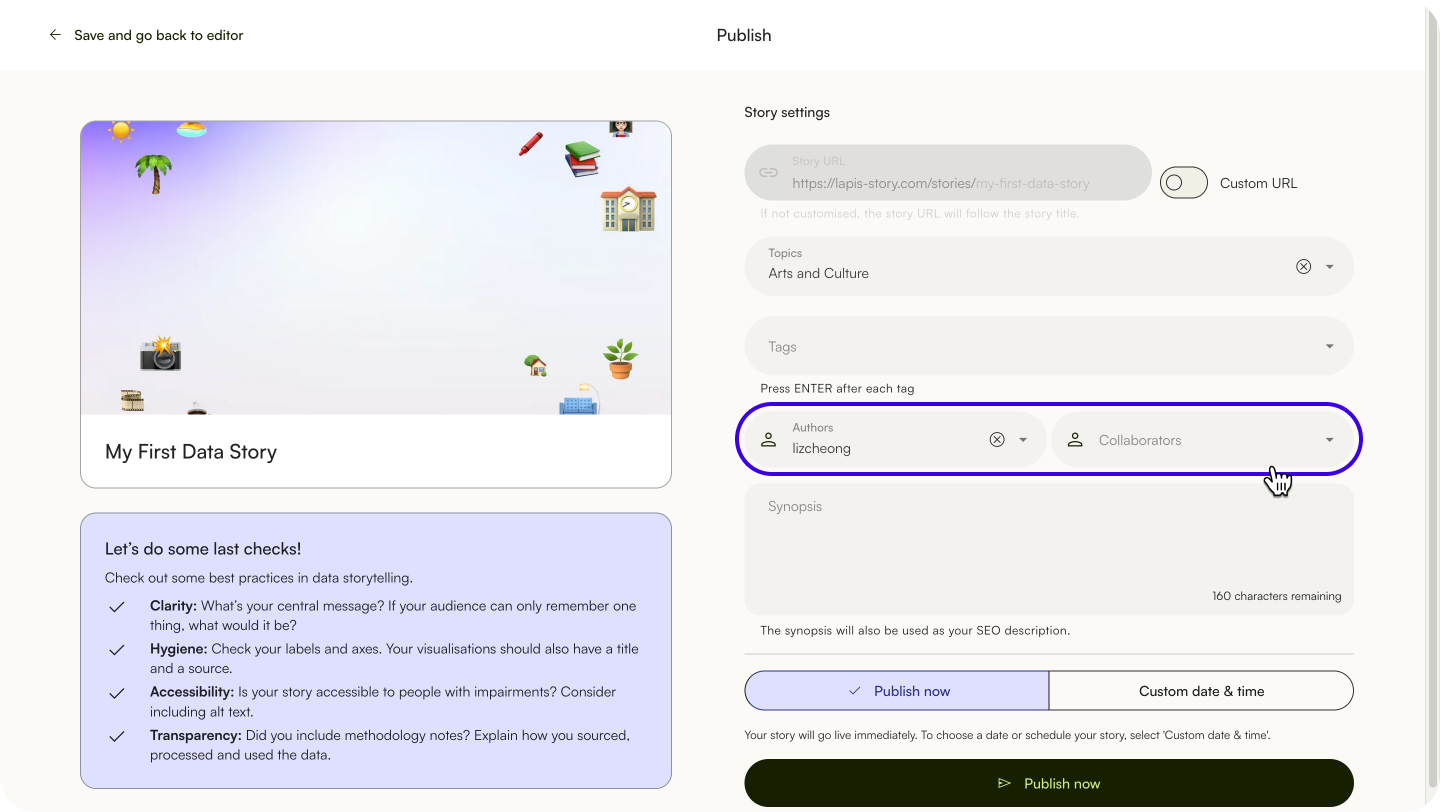
Select author(s) and contributor(s) in the 'Publish' menu.
Add synopsis
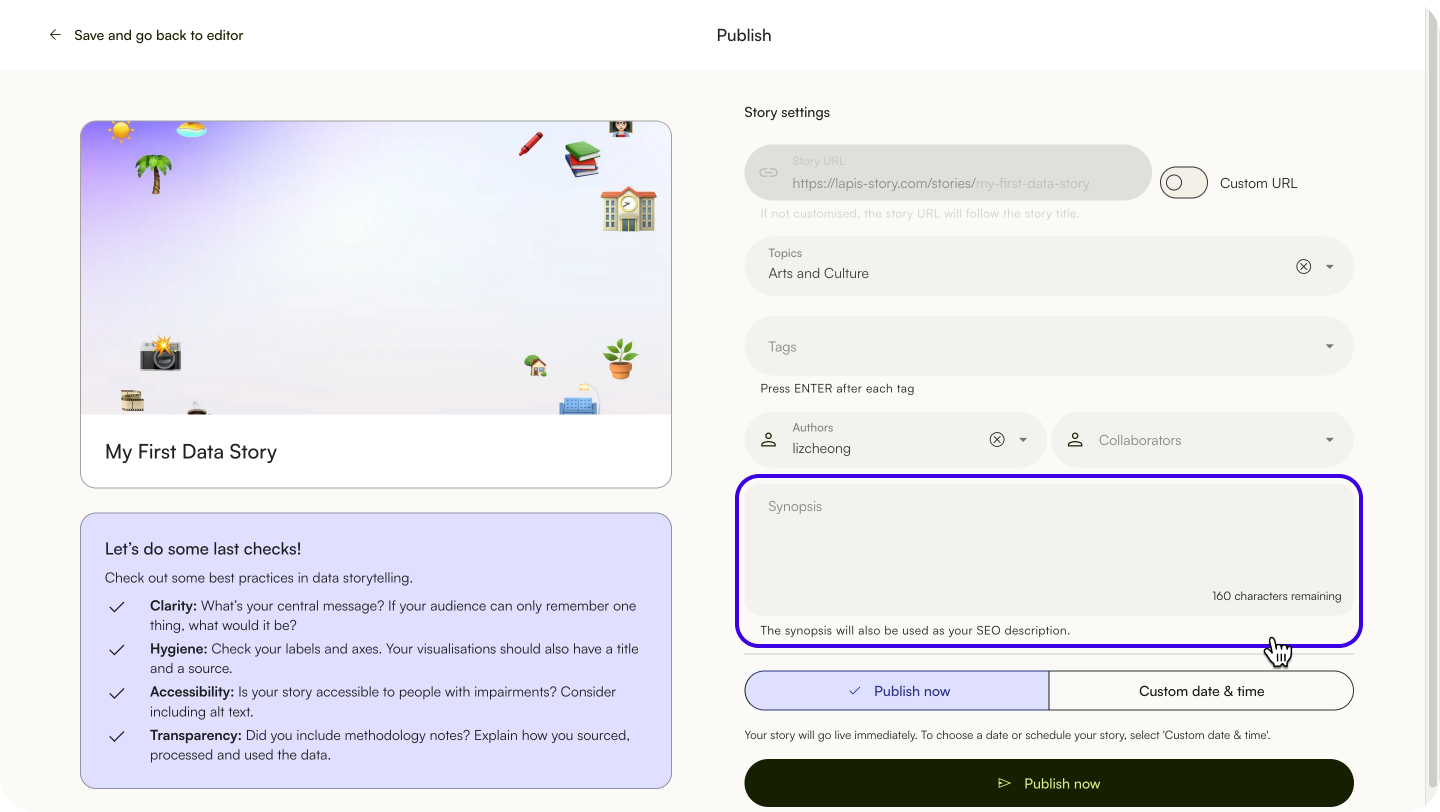
Adding a synopsis lets your readers know what your story is about. It provides a brief introduction to your story. This synopsis will also appear in link previews, when sharing on social media and as part of the search engine results.
Share a published story link
To share the link for a story you've just published, click the Copy link button.
To share the link for an existing story, copy and paste the story's URL from the address bar.
Share a story on social media
To share your story to Facebook, X or LinkedIn, click the corresponding social media icon below the search bar.
| Last article: Publishing | Next article: Duplicate, edit, unpublish and update settings of published stories |
Lapis is built by Kontinentalist↗, a data storytelling studio in Singapore.
Was this article helpful?
That’s Great!
Thank you for your feedback
Sorry! We couldn't be helpful
Thank you for your feedback
Feedback sent
We appreciate your effort and will try to fix the article