Why do we need templates?
Templates can help you to save time and energy to build stories from scratch. Lapis provides two types of templates—full story templates and content block templates—with pre-designed structured stories.
You can explore and customise these templates for your own needs. Alternatively, build your own templates or save your existing stories and content blocks as templates.
If you prefer to build stories from a blank canvas, you can also click Always start from blank canvas under Create story preference.
Navigate to Templates
To start using templates, select Lapis Templates on the sidebar.
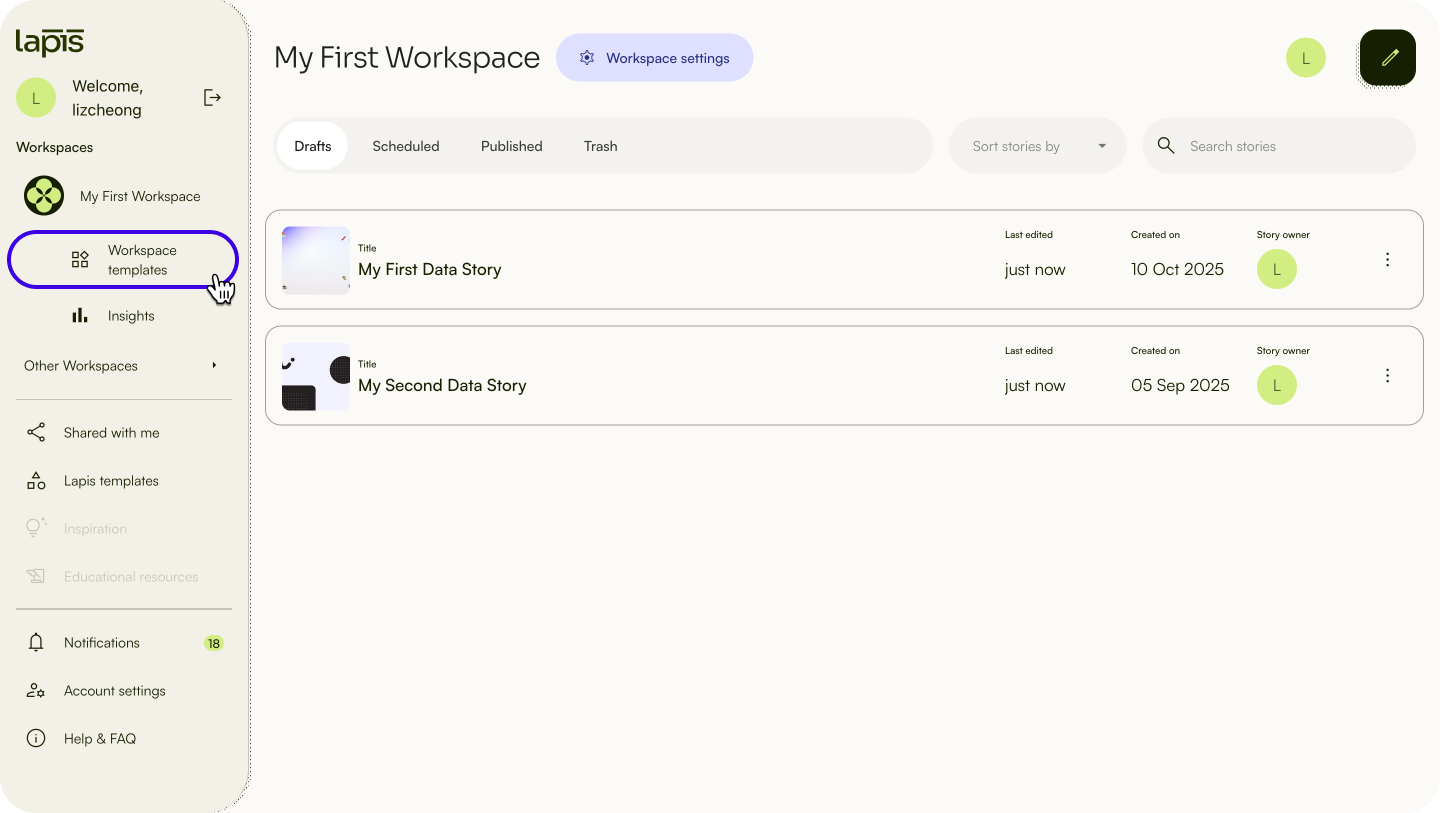
✨ Can't find Templates? Expand your sidebar by clicking the arrow at the top right of the sidebar.Types of templates
Lapis provides two types of templates.
- Story templates: A full story framework and layout that includes text, design, images, data visualisations, and other elements. You can replace or modify specific content elements to suit your needs. Save time by starting with a template or take inspiration from their structure.
- Content block templates: Everything in Lapis' Storybuilder is organised in blocks, and these blocks can also be saved into templates. Reuse content blocks to keep styling consistent and save time.
Using templates
Search for a template
To search for a template, navigate to the Templates view and click Search templates on the upper right.
You can search for templates by title or keyword.
To search for a template, click on the
Lapis Templatestab on the sidebar.Type the template's title or keyword into the search bar at the upper right.
Sort and filter templates
To sort your templates, navigate to the Templates view and click Sort by on the upper right. You can sort templates by time and popularity.
Start by experimenting with Lapis's existing story templates, then save your favourite customised versions as personal templates for future projects.
Preview templates
Click on a template to preview it and see what it looks like when published.
Use full story templates
- Navigate to the sidebar.
- Click
Use templatesin template cards. - Click
Go to draft, then select the template to edit.
Use content block templates
You can use Lapis's content block templates even if you're building a story from scratch on your own or modifying an existing template.
- To do so, navigate to the Templates tab and click
Use templateson your selected template. - Select the story you want to embed the content block template in and click
Add template. - Click
Go to storyand edit the template in the story.
Edit templates
- To edit a template, click
the menu button (next to the template and select⋮)Edit template. - Edit the template.
- Click
Save the template.
⚠️ You cannot directly edit Lapis templates, but you can make changes to your own copy after embedding a template into Workspaces or stories.Delete templates
You can delete your templates at any time.
- To delete a template, click
the menu button (next to your chosen template.⋮) - Click
Move to trash.
Retrieve content block templates from the trash
You can retrieve templates from the trash folder as long as they were moved there before 60 days.
- To retrieve a template from the trash, navigate to Trash by clicking
Trashin the header. - Click
the menu button (on template cards.⋮) - Select
Retrieve from trash.
⚠️ All items in Trash will be permanently deleted after 60 days. This action cannot be undone.Delete a template permanently
- To delete a template permanently, navigate to Trash by clicking
Trashin the header. - Click
the menu button (and select⋮)Delete permanently.
Create a new content block template
Making your own content block templates can save you time when creating recurring content.
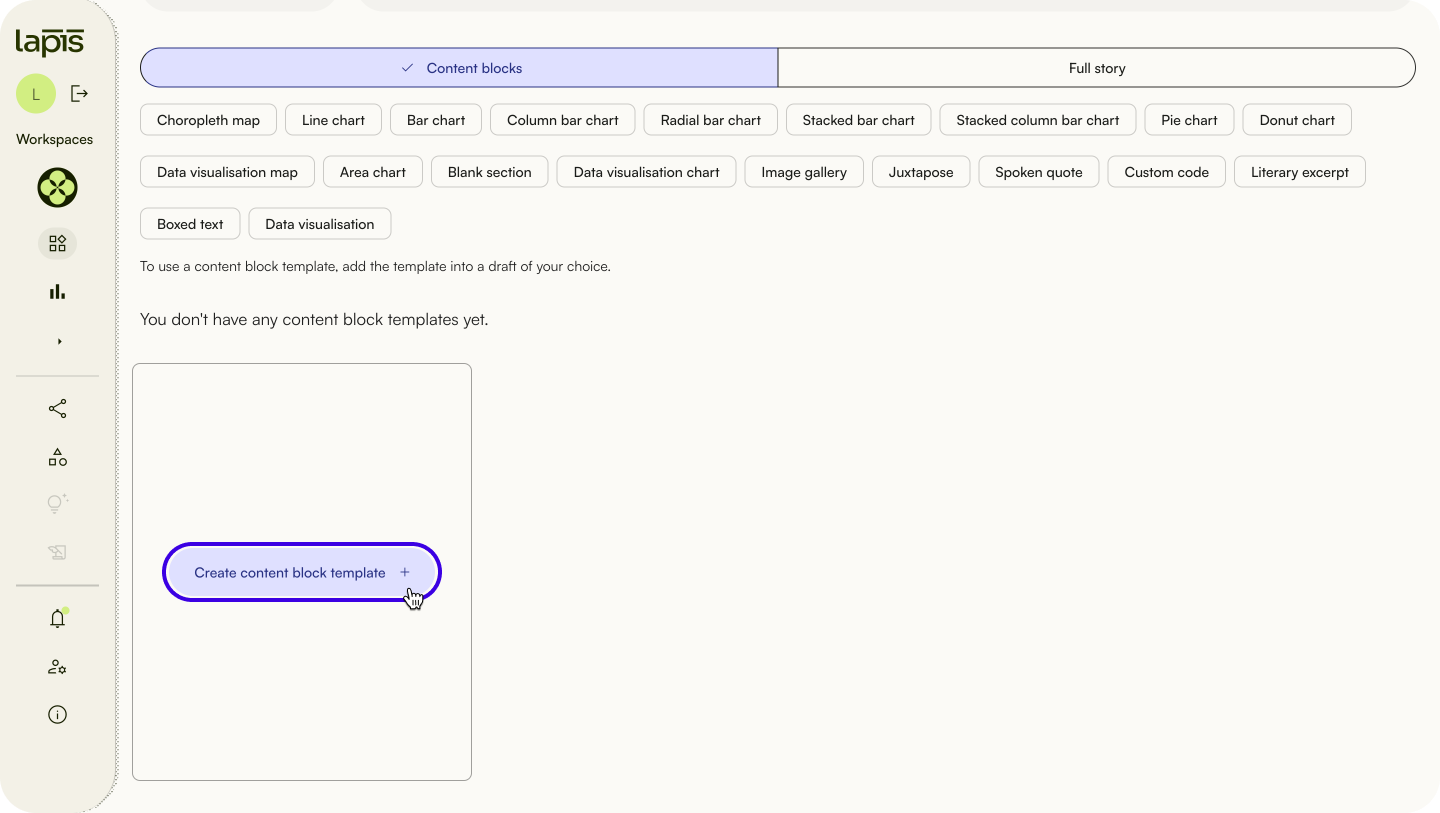
- To create a new content block template, navigate to the
content blockson Workspace Templates. - Click
Create content templates +or click the pencil icon at the upper right. - Select a content block type.
- Edit the content block template.
- Click the pencil icon at the top to name the template.
- Click
Save the templateand exit.
Create a new story template
Setting up story templates can save you time in when creating recurring content, and makes it easy to standardise visuals and branding across stories.
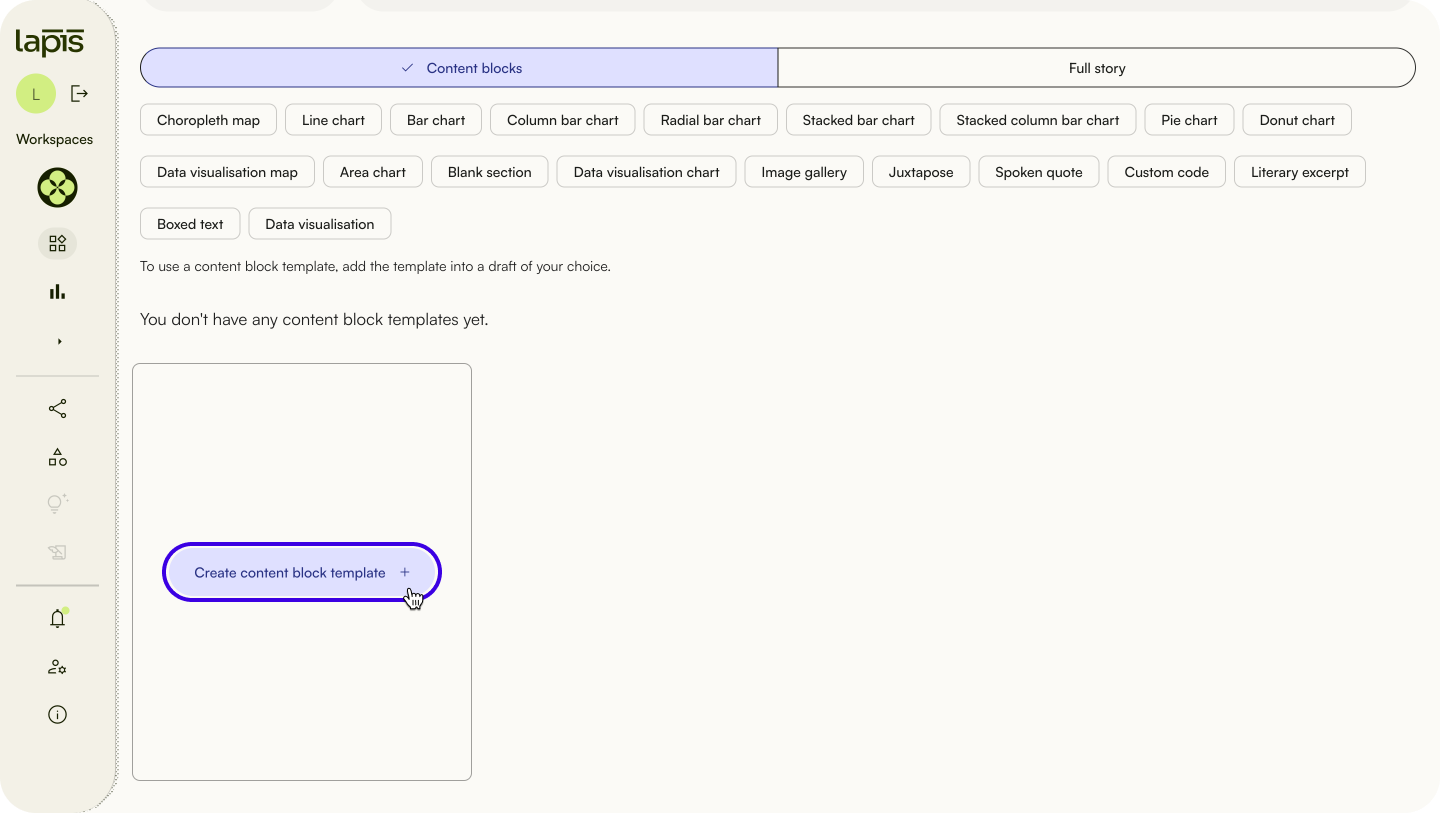
- To create a new story template, navigate to the
full storyon Workspace Templates. - Click
Create content templates +or click the pencil icon at the upper right. - Create and edit a full story template. You can insert brand visuals, calls-to-action or content you'll be using across all stories.
- Click the pencil icon to name the template.
- Click
Save the templateand exit.
✨ You can also add drafts or published stories to story templates.Was this article helpful?
That’s Great!
Thank you for your feedback
Sorry! We couldn't be helpful
Thank you for your feedback
Feedback sent
We appreciate your effort and will try to fix the article