Quick Links
- Storybuilder layout
- Storybuilder sidebar
- 'Rearrange elements' menu
- Redo/undo
- Storybuilder header
- Version control
- Story preview
Storybuilder layout
Storybuilder consists of three parts: the sidebar, the header, and the canvas.
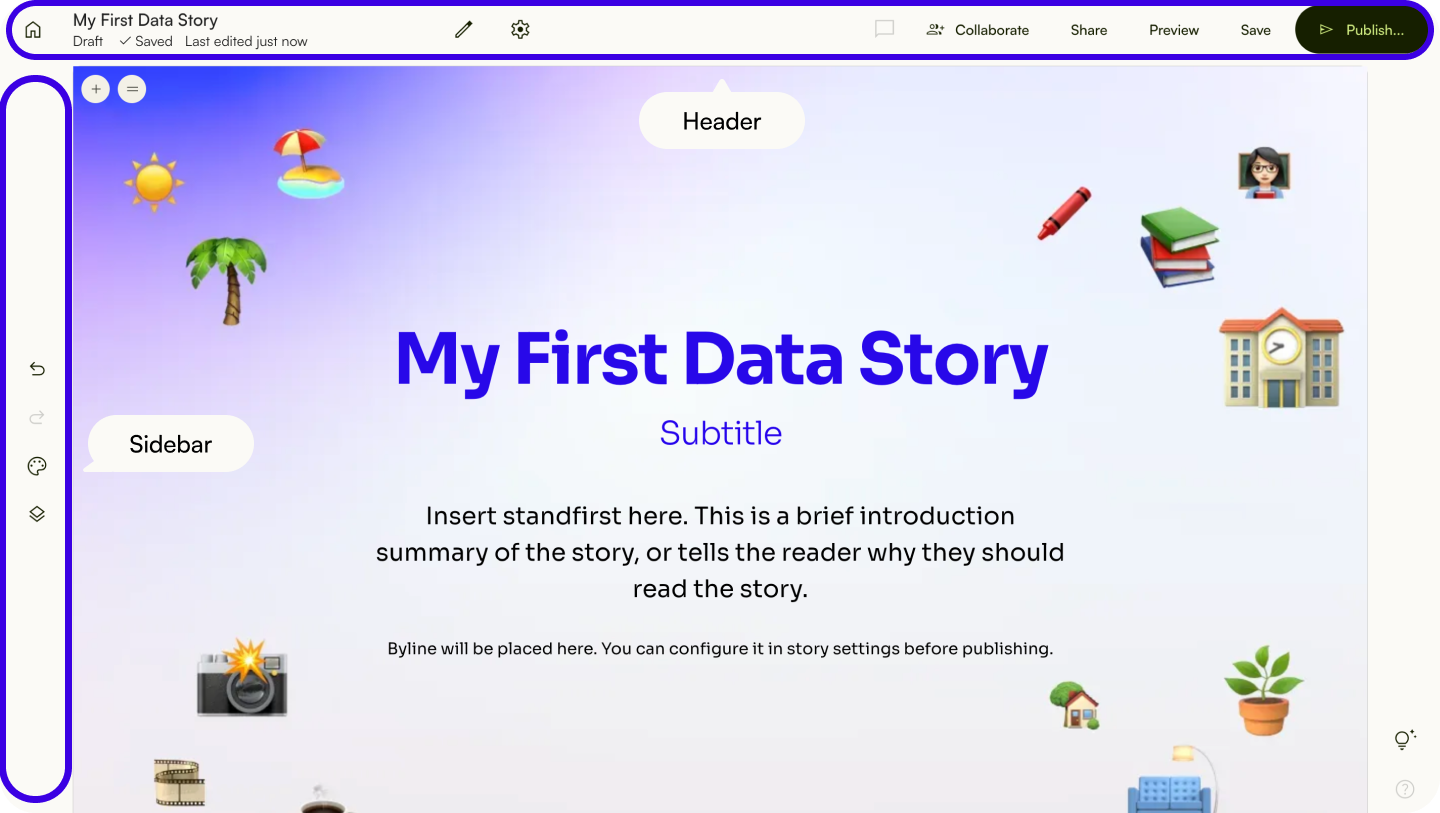
Sidebar
The sidebar in Storybuilder is where you can set the story theme, rearrange elements, and undo or redo your latest changes.
Header
The header in Storybuilder is where you can change your story settings, preview and publish your story.
Canvas
The canvas in Storybuilder is where you can build your story using content blocks.
Storybuilder sidebar
Set the story theme
The story theme establishes the basic visual elements for your story. Here, you can change the background colour, accent colour, and text colour for your story.
To set the story theme, click the palette icon in the sidebar.
In the story theme menu, you can:
- Change the background colour.
- Add accent colour.
c. Change text colour.
d. Change text font.
✨ The accent colour will appear as the default colour for elements such as buttons and text links. Customise the colour for specific buttons and text links by clicking on the elements and changing the colour in pop-up menu.✨ The settings here will be applied to all content blocks, but can be manually overridden in the content block settings.
'Rearrange elements' menu
TheStorybuilder’s 'Rearrange elements' menu in the Storybuilder makes it easy to structure all the content in your Storybuilder.
Open the 'Rearrange elements' menu
- To open the 'Rearrange elements' menu, click on the layer icon or the corresponding
Rearrange elementsbutton.
✨ The order of elements in the 'Rearrange elements' menu is an overview of your story structure. Changes made to the order of elements in the 'Rearrange elements' menu or the Storybuilder will be reflected in both.Rename a content block
- Click the pencil icon next to the content block name in the menu you want to rename.
- Enter the new name.
Hide/show content block
- Click the eye icon next to the content block name in the menu to hide it. Click the eye icon again to show it.
Copy or duplicate a content block
- Open the 'Rearrange elements' menu.
- Click the copy icon next to the content block name in the menu to copy it.
Or
- Click the menu button (
⋮) next to the content block name. - Select
Duplicate.
Direct to a content block on the Storybuilder canvas
- Click the menu button (
⋮) next to the content block name in the menu. - Select
Go to content block.
Get a URL of a content block
- Click the menu button (
⋮) next to the content block name in the menu. - Select
Copy content block URL.
Move a content block
Click and drag the content block to move it.
Or
- Click the menu button (
⋮) next to the content block name in the menu. - Select
Move uporMove down.
Redo/undo
Undo
To undo an action, click the undo icon on the sidebar.
Keyboard shortcut: command + Z (Mac) or Ctrl + Z (Windows).
Redo
To redo an action, click the redo icon on the sidebar.
Keyboard shortcut: shift + command + Z (Mac) or Ctrl + Y (Windows).
✨ Read more about shortcuts in Lapis in “Keyboard shortcuts.”Storybuilder header
Name a story
Click the pencil icon on the header.
Edit the title.
Select
Saveor pressEnter.
Save a story
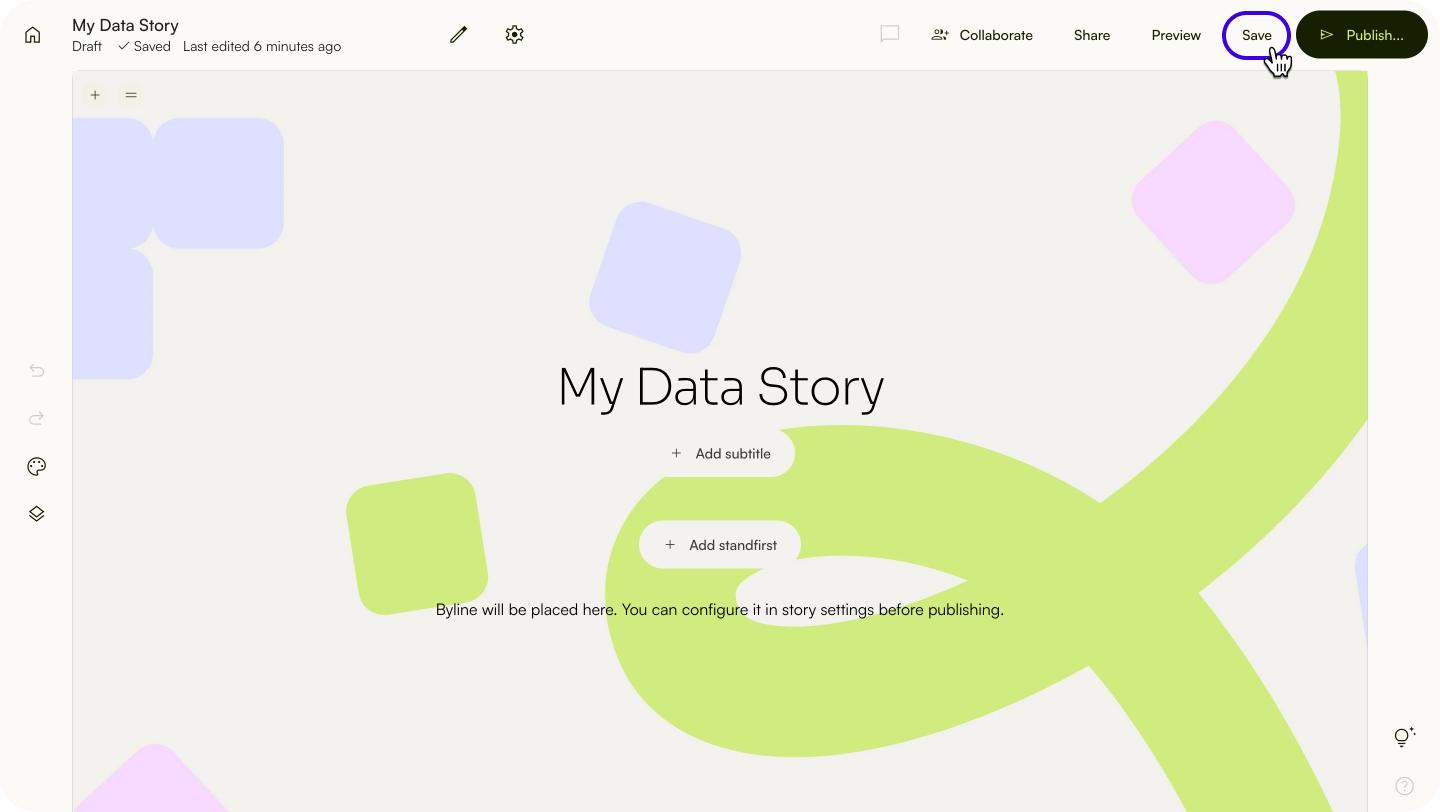
- Select
Saveon the top menu bar.
✨ Your story is automatically saved after you make changes to it. You don't have to save it manually.Duplicate a story
- Click the settings icon on the top menu bar.
- Select
Duplicate story. - Name the new story.
- Choose if you want to share with the same guests and copy comments.
- Click
Duplicate.
Your duplicate will appear in your drafts when it is ready. You will also receive an email notification.
Add to Workspace templates
- Click the settings icon.
- Select
Add to Workspace templates. - Name the template’s name.
- Click
Add to templates.
This story will appear in “Workspace Templates” as a separate file. Further updates to this story will be saved in story drafts but will not be reflected in the template that is created.
✨ You can also add published stories to templates, or create a template from scratch. You can learn more about how to organise templates from “Templates.”Move a story to other Workspaces
- Click the settings icon.
- Select
Move story. - Select a destination Workspace.
- Click
Move story.
You can only move stories to another Workspace that you also own. Once moved, your current Workspace members will lose access to this story.
Transfer a story’s ownership
- Click the settings icon.
- Select
Transfer ownership. - Select a member to whom you want to transfer the story.
- Click
Transfer ownershipto confirm the transfer.
⚠️ Non-story owners cannot transfer the story, please contact the story owner to transfer the story. Story owners cannot transfer the story to someone who is not in the Workspace.Export a story
- Click the settings icon.
- Select
Export as.
Version control
View previous versions
- To view the previous versions of your story, click the settings icon.
- Select
Version control.
Restore a previous version
- In the Version control view, select a previous version to restore.
- Click
Restore. - When prompted, click
Restoreto confirm.
Save a previous version as a new file
- In the Version control view, select a previous version to save.
- Click
Save as new file. - Click
Duplicateto confirm.
Move a story to trash
- Click the settings icon.
- Select
Move to trash.
Are you sure you want to move this story to trash? Once moved, you can still retrieve it within 60 days. Guests will lose access to this story until you retrieve it.
Invite guests to a story
You can invite guests to view or edit your story.
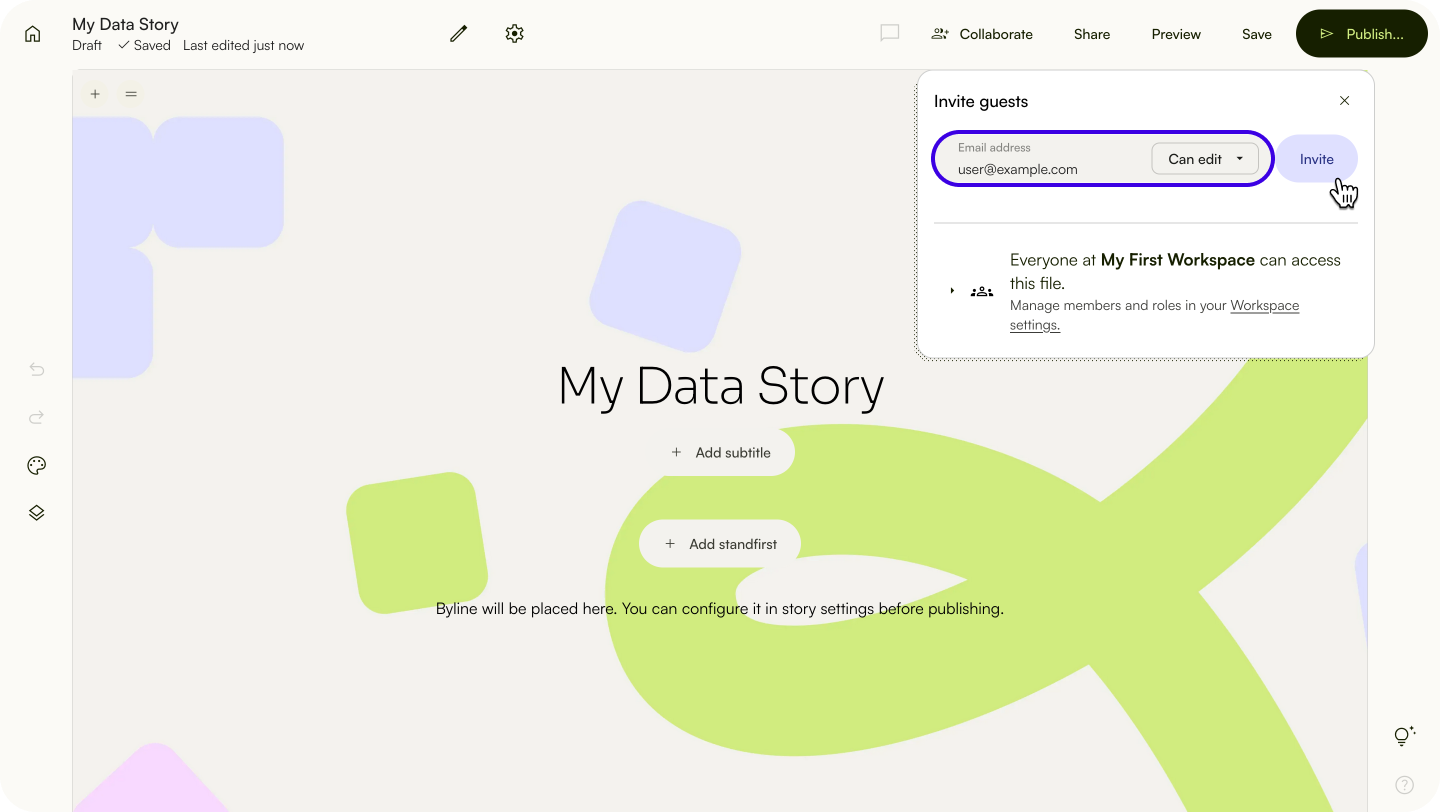
- To invite guests to your story, click
Collaborate. - Type in the user’s email address.
- Select the user’s permissions.
- Can view: The user will only be able to view the story.
- Can edit: The user will be able to edit the story.
Cancel guest invitations
You can rescind a guest invitation to your story.
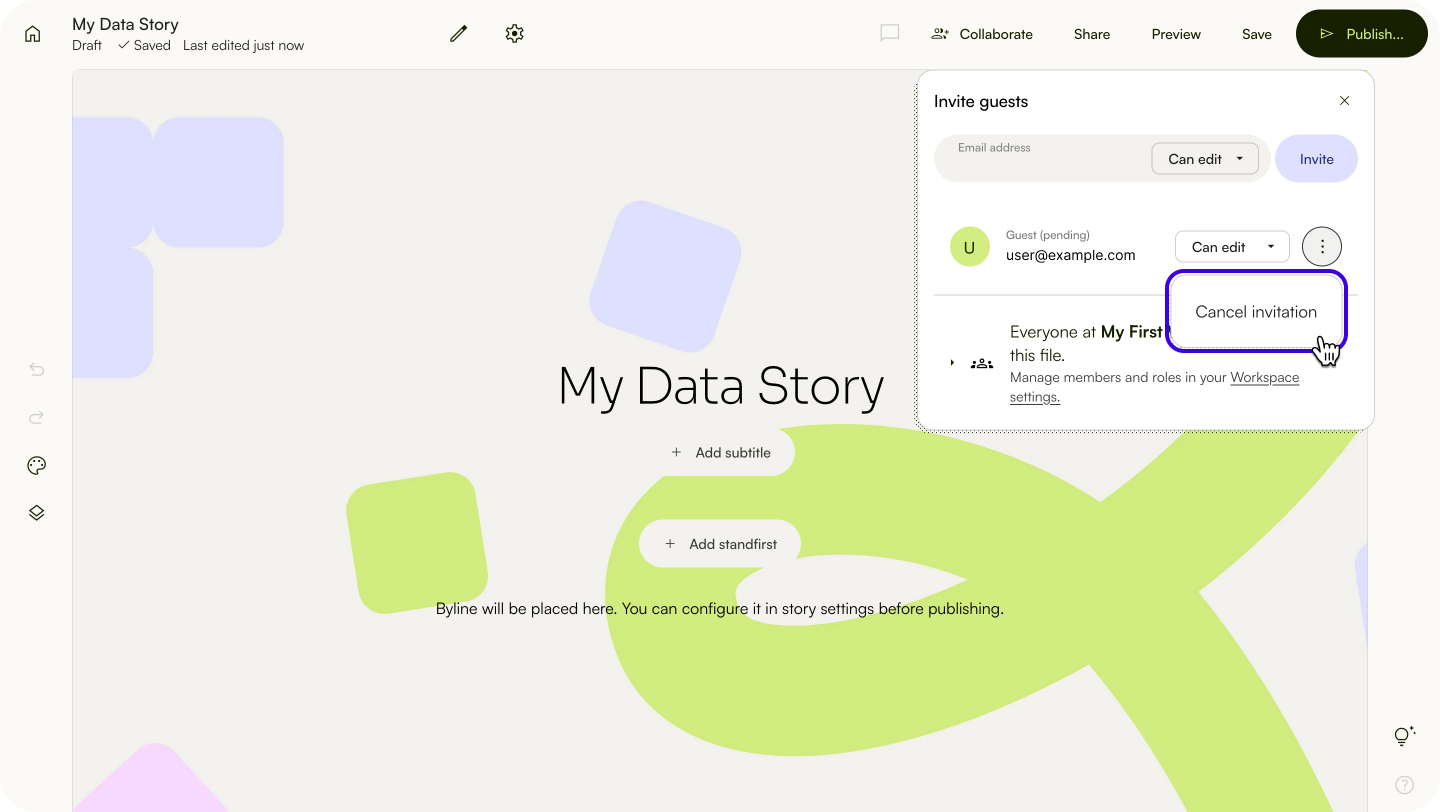
- To cancel a guest invitation, click
Collaborate. - Select the menu button to the right of the email address.
- Click
Cancel invitation.
Exit to Workspace
Click the home icon on the upper left of the header.
Story preview
Preview your story
- Click
Previewto enter the preview mode. - Choose either the desktop view, mobile phone view or tablet view.
Share a preview link
Click
Sharein the header.Click
Copy URL.
⚠️ Always generate a preview link URL to share. Never share the Storybuilder URL, it may contain sensitive information.Exit preview and return to Storybuilder
Click Exit preview to exit your preview and return to Storybuilder.
Publish
Click Publish on the header. Read more about publish settings in “Publish.”
Everything on Storybuilder is a content block that you can move, drag, and convert to other content. You can learn more from What are content blocks.
| Last article: Create a data story | Next article: Set up the header of the story |
Lapis is built by Kontinentalist↗, a data storytelling studio in Singapore.
Was this article helpful?
That’s Great!
Thank you for your feedback
Sorry! We couldn't be helpful
Thank you for your feedback
Feedback sent
We appreciate your effort and will try to fix the article