Quick Links
- Header formats
- Add, remove, replace, and position a cover image
- Style title, subtitle, standfirst, and byline on the header
The story header includes a title, a subtitle, a byline, a standfirst and a cover image.
Header formats
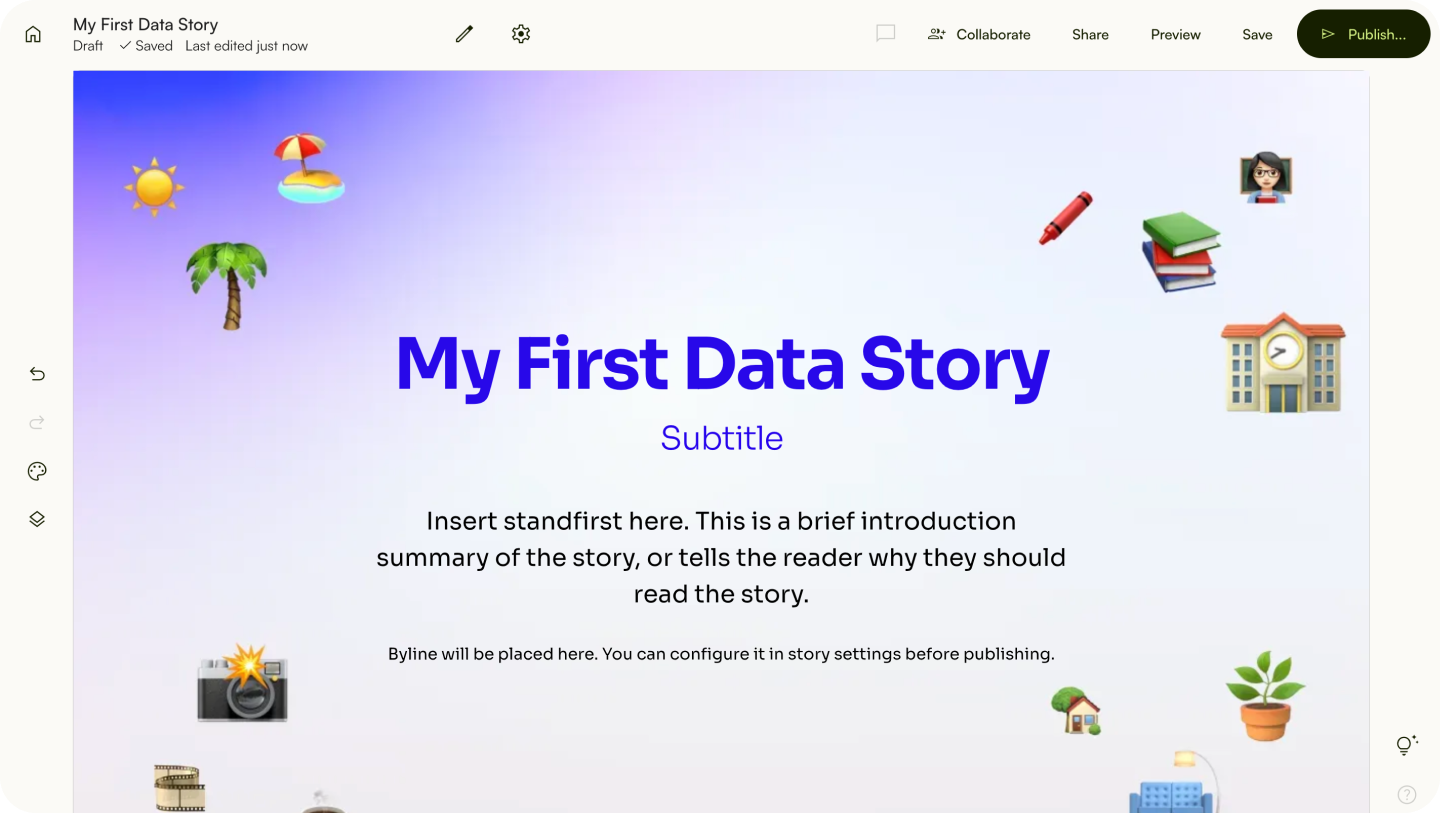
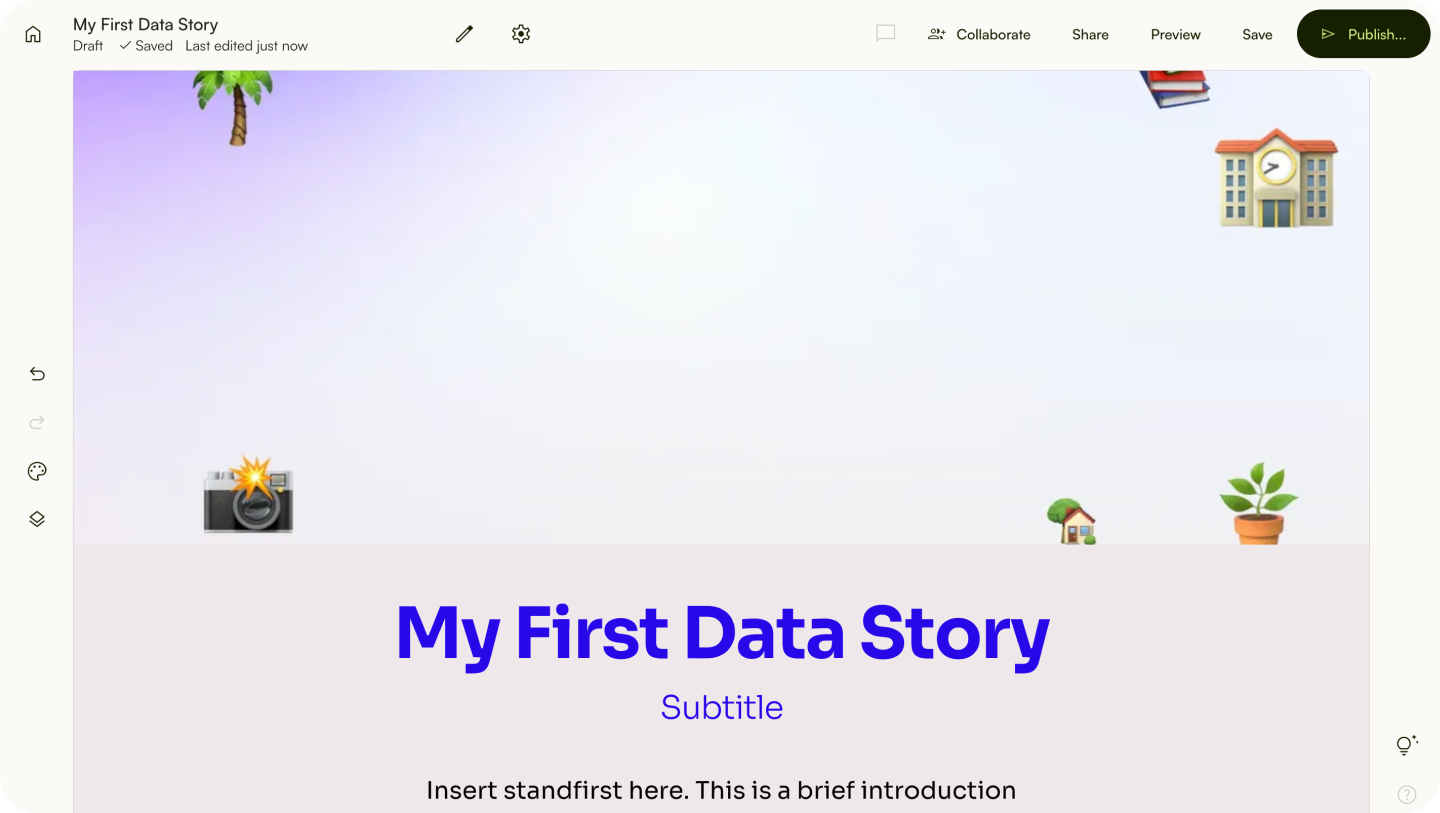
Lapis provides two header formats: a standard header and a full-width header.
Standard header
The title, subtitle and standfirst will be stacked vertically in front of the cover image.
Full-width header
The cover image will be displayed first, followed by the title, subtitle and standfirst.
Add, remove, replace, and position a cover image
Add an image
- Click
Upload media.
⚠️ Can't upload a cover image? Check if the file is valid.Remove an image
- Hover over the header.
- Click the trash icon at the bottom right of the header.
Replace an image
- Hover over the header.
- Click the settings icon at the bottom right of the header.
- Click on
Header format. - Click
Replace image.
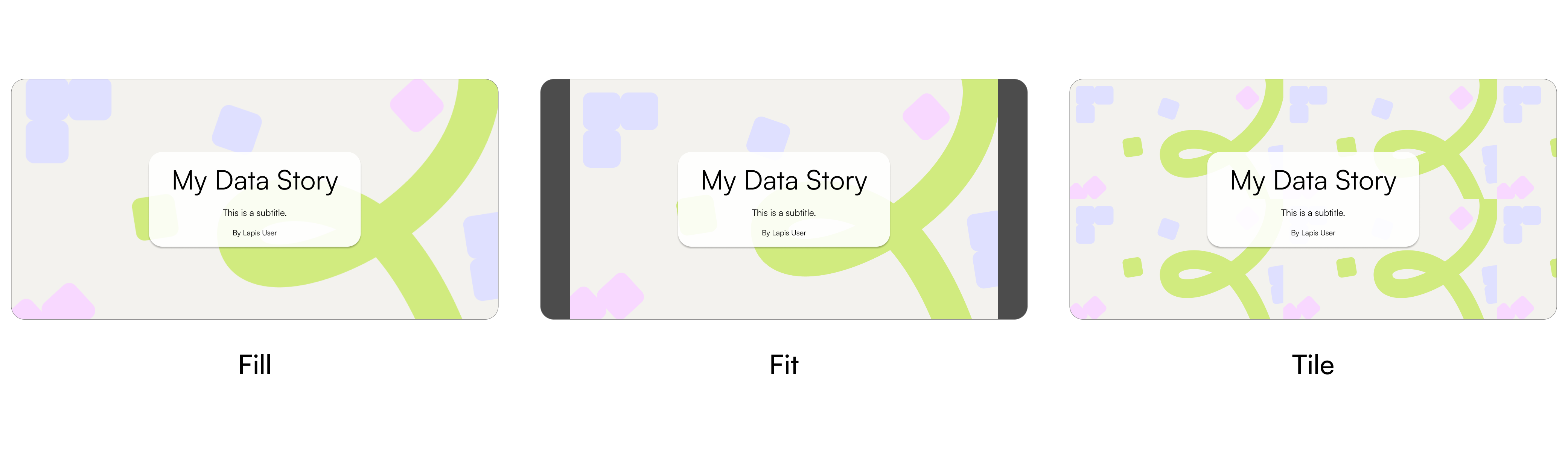
Change an image fit
- Hover over the header.
- Click the gear icon at the bottom right of the header.
- Click on
Image settings. - Click
Image fit.
- Fill: The cover image will fill the entire header section. Overflowing content will not be visible.
- Fit: The entire image will be fit into the header section, while preserving its aspect ratio.
- Tile: The image will repeat to cover the header section.
Change an image position
- Hover over the header.
- Click the settings icon at the bottom right of the header.
- Click on
Image settings. - Click
Image position.
Style title, subtitle, standfirst, and byline on the header
Style text
- Double-click text (title, subtitle, standfirst, byline).
- Style the text in the pop-up menu.
✨ Configure the byline in the story setting before publishing. Style the byline by double-clicking the byline in the header.Move the header
- Click
=on the upper left of the header. - Select
Move uporMove down.
Or
- Click
Rearrange elementson the sidebar. - Drag the header to anywhere you want.
Switch between standard header and full-width header
- Click the switch icon at the bottom right of the header.
| Last article: Using Storybuilder | Next article: Basic content writing & editing |
Lapis is built by Kontinentalist↗, a data storytelling studio in Singapore.
Was this article helpful?
That’s Great!
Thank you for your feedback
Sorry! We couldn't be helpful
Thank you for your feedback
Feedback sent
We appreciate your effort and will try to fix the article