In this tutorial, you will learn about how to write, edit, and style text in Lapis.
Text editing
You can use content blocks to add text to your data story. Learn more about content blocks here.
Text styling
Lapis is equipped with all the text styling features you've come to expect from any word processor, including changing font, colour or size, or using highlight, bold or italics.
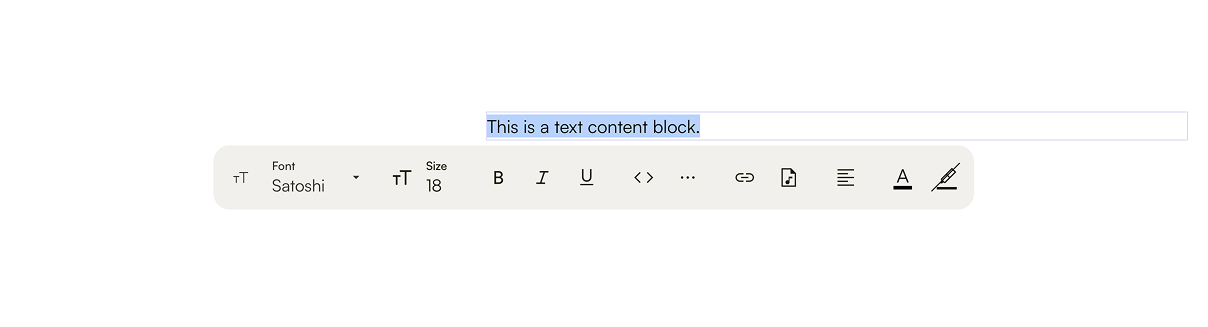
View the text styling menu
To view the text styling menu, highlight the text you want to style.
Bold text
- Select the text you want to style.
- Click
Bon the text styling menu.
Italicise text
- Select the text you want to style.
- Click
Ion the text styling menu.
Underline text
- Select the text you want to style.
- Click
Uon the text styling menu.
Strikethrough text
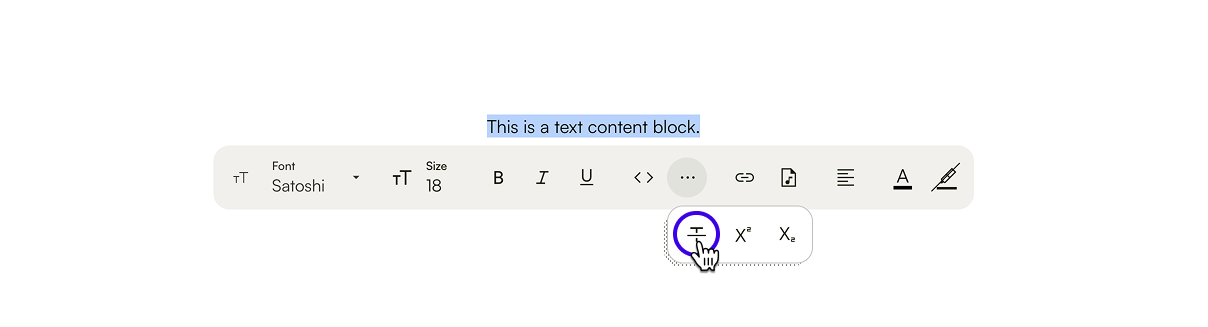
- Select the text you want to style.
- Click the
View morebutton (⋯) on the text styling menu. - Click the struck-through
Ton the ‘More options’ menu.
Add a header content block
- Add a new content block by clicking the
+button. - Click
Add content block aboveorAdd content block below. - Click the
=button next to the content block. - Hover over
Convert to. - Click ‘Heading 1’ or ‘Heading 2’.
Change font family
- Select the text you want to style.
- Click on the font dropdown.
- Select a new font family.
Change font size
- Select the text you want to style.
- Click on the font size dropdown.
- Select a new font size or type in your new font size.
Add superscript
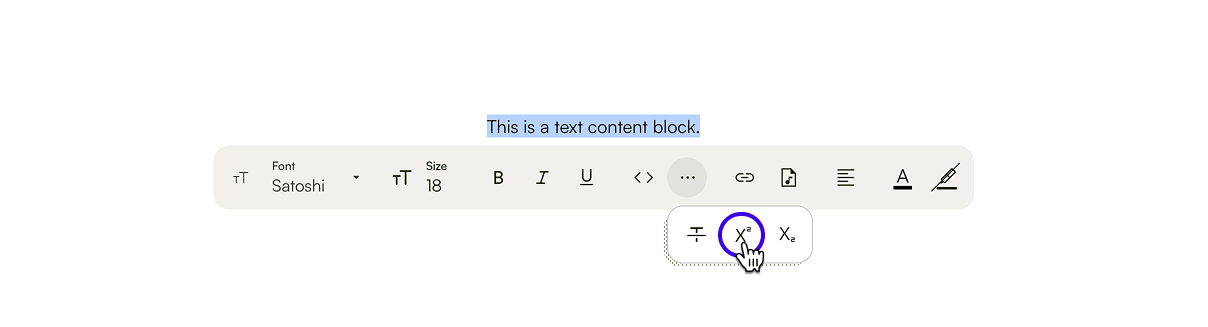
- Select the text you want to style.
- Click the
View morebutton (⋯) on the text styling menu. - Click the superscript button (
X).
Add subscript
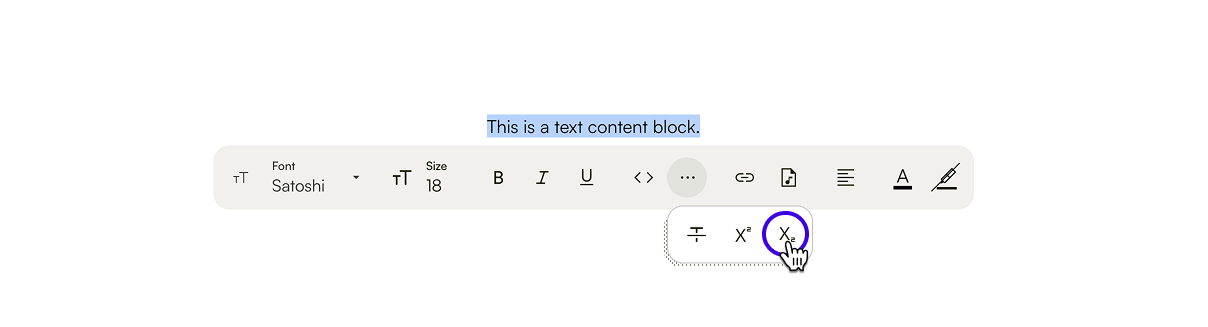
- Select the text you want to style.
- Click the
View morebutton (⋯) on the text styling menu. - Click the subscript button (
X).
Add link
- Select the text you want to embed the link in.
- Click on the link icon.
- Type in or paste the target link.
Add audio
- Select the display text you want to embed the audio in.
- This could be the title or a description of the audio.
- Click on the audio icon.
- Under ‘Source’, upload your audio or link to the audio.
- Optional: Provide a transcript or romanisation for users that are unable to listen ot the audio.
- Click
Save.
Change alignment
- Select text inside the content block you want to style.
- Click on the alignment icon until the content block styling matches the desired alignment.
Change font colour
- Select the text you want to style.
- Click on the font colour icon.
- Select the target text colour.
Add text highlight
- Select the text you want to style.
- Click on the text highlight icon.
- Select the target highlight colour.
Next, explore what you can do with sections in Storybuilder.
| Last article: Set up the header of the story | Next article: Using sections |
Lapis is built by Kontinentalist↗, a data storytelling studio in Singapore.
Was this article helpful?
That’s Great!
Thank you for your feedback
Sorry! We couldn't be helpful
Thank you for your feedback
Feedback sent
We appreciate your effort and will try to fix the article