Quick Links
Add sections
You can use sections to structure your data story, improve pacing and make it easier to read.
Add sections using a slash command
- Press
/on your keyboard to add a new content block. - Select a section type.
Style sections
You can style and customise a section to suit your needs, including the size, background, and borders.
Style and customise the section
To open the 'Customise settings' menu, click the settings icon at the bottom right of the section.
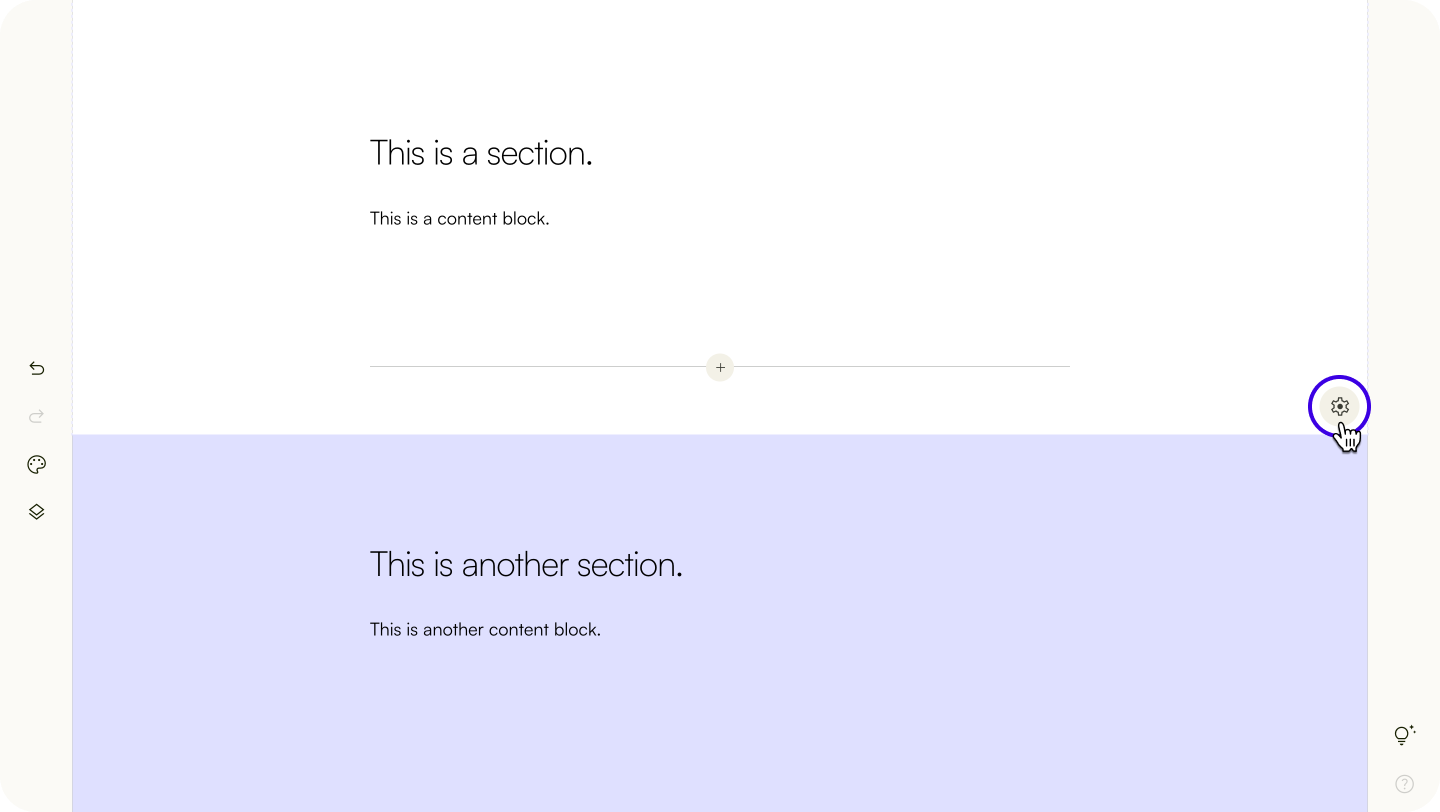
Change the size of a section
Select contained or a full-width size.
Change the background of a section
Select a background image, a solid colour, or no fill.
Change the fit of a background image
Select fill, fit, or tile in Image Fit.
Change the position of a background image
Select an option in Image Position.
Change the border of the section
Change the border’s radius
- Change border style
- Change line width
- Change border colour
- Change border side
✨ Don't see your border? If the border width is 0, will be invisible. Set a border width to style your border.Next, learn to use content blocks to build your data story.
| Last article: Basic text writing & editing | Next article: Using content blocks |
Lapis is built by Kontinentalist↗, a data storytelling studio in Singapore.
Was this article helpful?
That’s Great!
Thank you for your feedback
Sorry! We couldn't be helpful
Thank you for your feedback
Feedback sent
We appreciate your effort and will try to fix the article