TABLE OF CONTENTS
- Import data into Lapis
- Convert an .XLS file to CSV
- Edit data in Lapis
- Delete, replace, or save your dataset on Lapis
To create a data visualisation, import your dataset and edit it directly in Lapis.
Import data into Lapis
Press the slash key (
/).Select or type in
Data visualisation.Select
Create visualisation.Select a data visualisation.
Click
Upload dataset.
⚠️ Can't upload your file? Lapis supports .csv and .json files with up to 1000 data points.Convert an .XLS file to CSV
You can upload a CSV or JSON file to Lapis with up to 1000 data points. If your dataset is in the .XLSX format, you can change convert it to a CSV format in Microsoft Excel, Google Sheets, or using a third-party file converter.
Import a CSV file in Microsoft Excel
- To convert an XLSX file to CSV, open the XLSX file in Microsoft Excel.
- Go to 'File' and select 'Save as'.
- Select CSV as the file type to save as.
Once your file has been saved in the CSV format, you can import it into Lapis.
Download as a CSV file from Google Sheets
Go to File > Download > Common Separated Values (.csv).
- To convert an XLSX file to CSV in Google Sheets, import the XLSX file in Google Sheets.
- Go to 'File' and select 'Download' > 'Comma Separated Values (.csv)'
Once your file has been saved in the CSV format, you can import it into Lapis.
Third-party converters
While there are many third-party format converters online, these converters may store or sell your data and information. We do not recommend using third-party converters if possible.
Edit data in Lapis
You can make changes to your data in Lapis after uploading.
Change, edit, or update data
Double-click the target cell and type the new data/information.
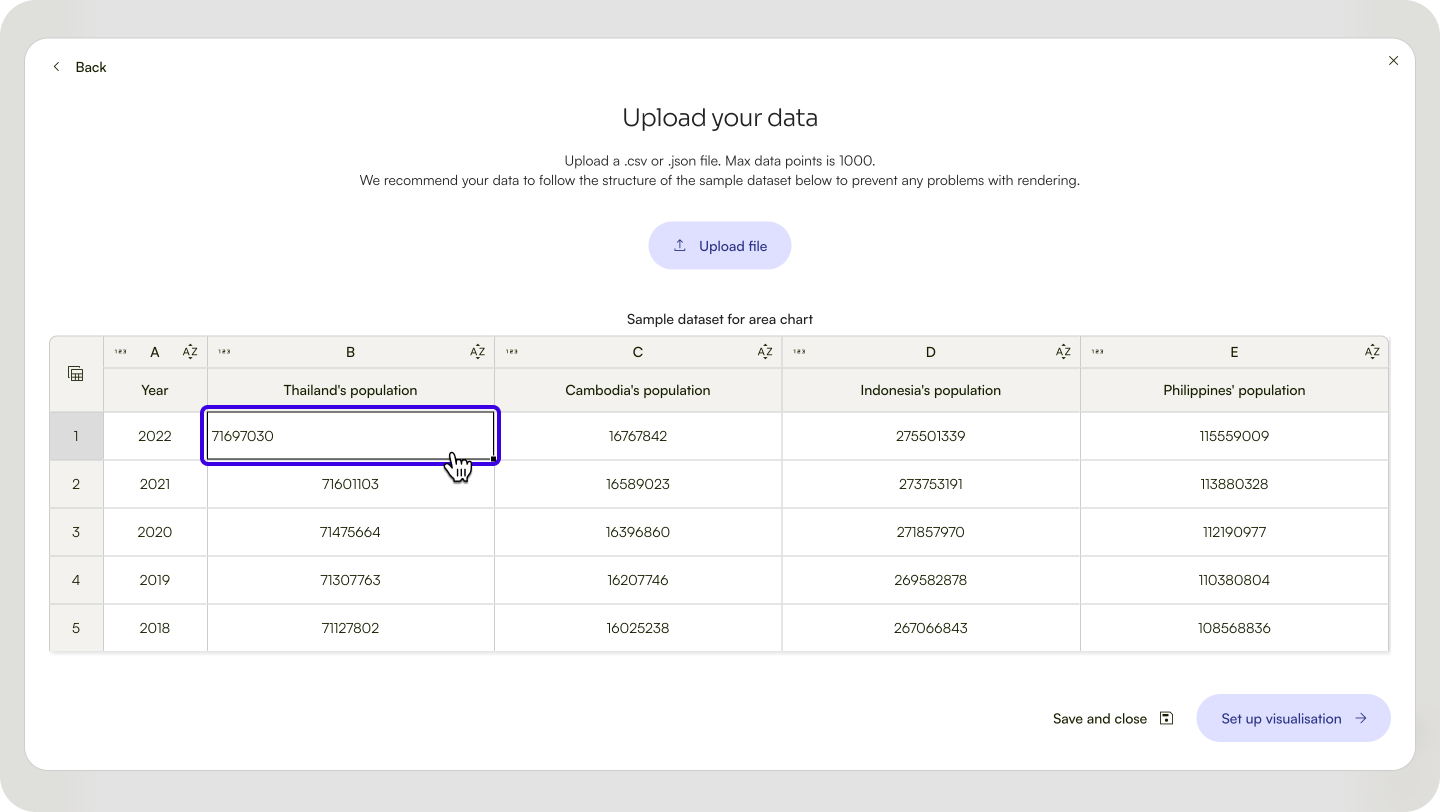
⚠️ You cannot directly change column names on Lapis. To change column names, update the names in your existing data file and upload it to Lapis again.Change data property
Lapis supports three types of data values: text, numbers and dates. Selecting the correct property can help you create data visualisations that are easy to understand.
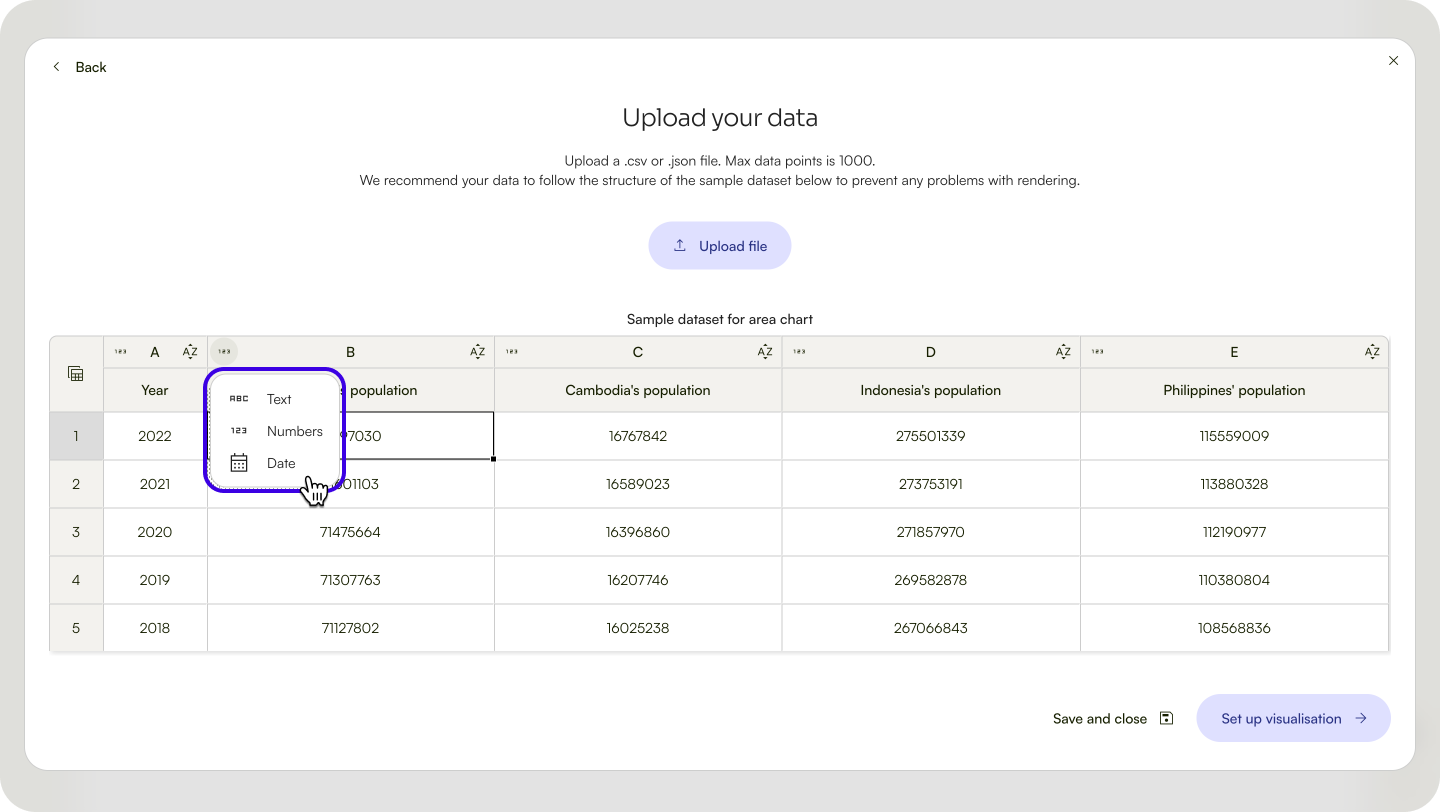
- Click the property icon to the left of the column.
- Choose from
Text,Date, andNumber.
Sort your data
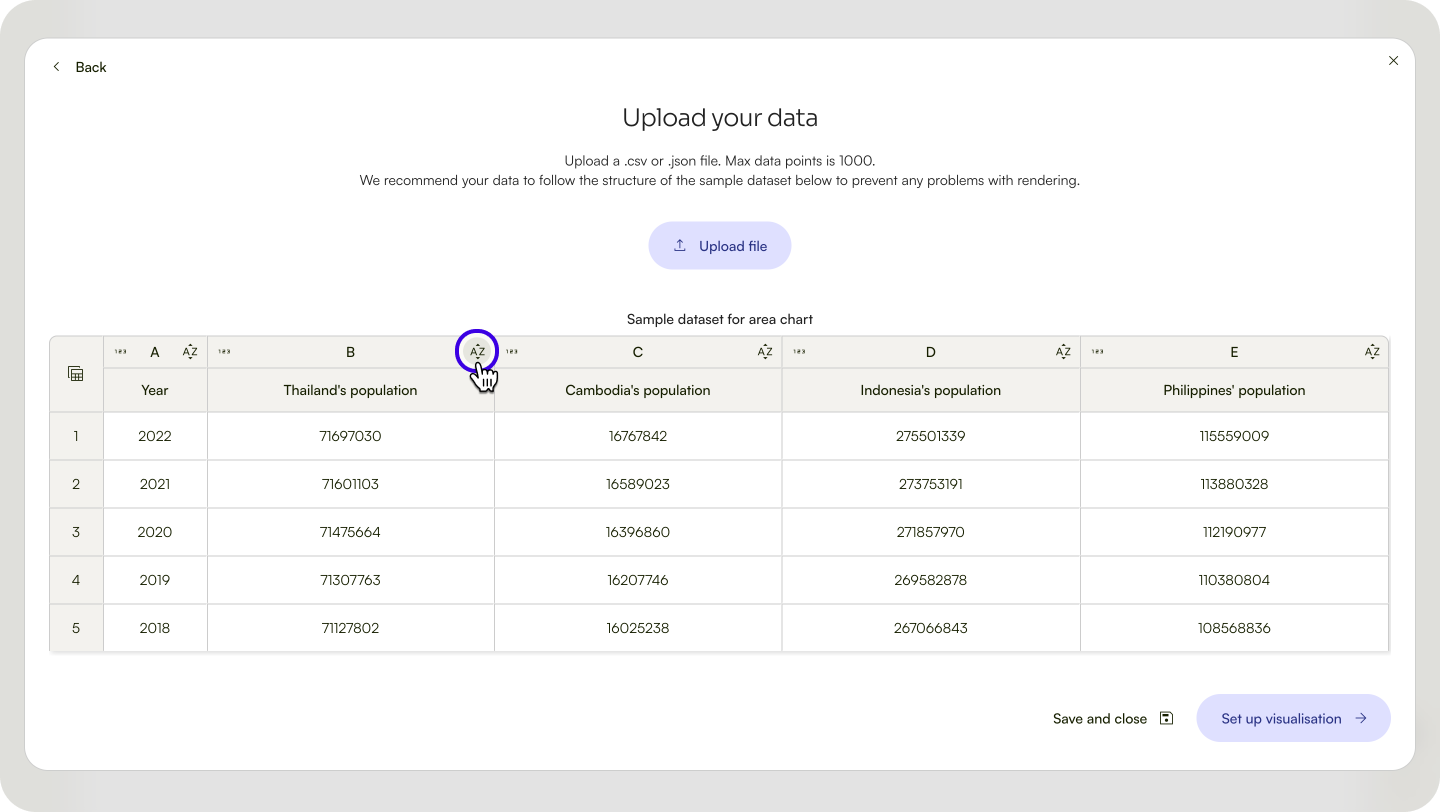
- To sort your data by a specific column, click the sorting icon to the right of the column. The column will be sorted by A-Z or low-high.
- Clicking the sorting icon will reverse the sorting criteria: your data will be sorted by Z-A, or high-low.
Delete, replace, or save your dataset on Lapis
Delete the dataset
To delete the dataset, click the trash icon to the right of the file name.
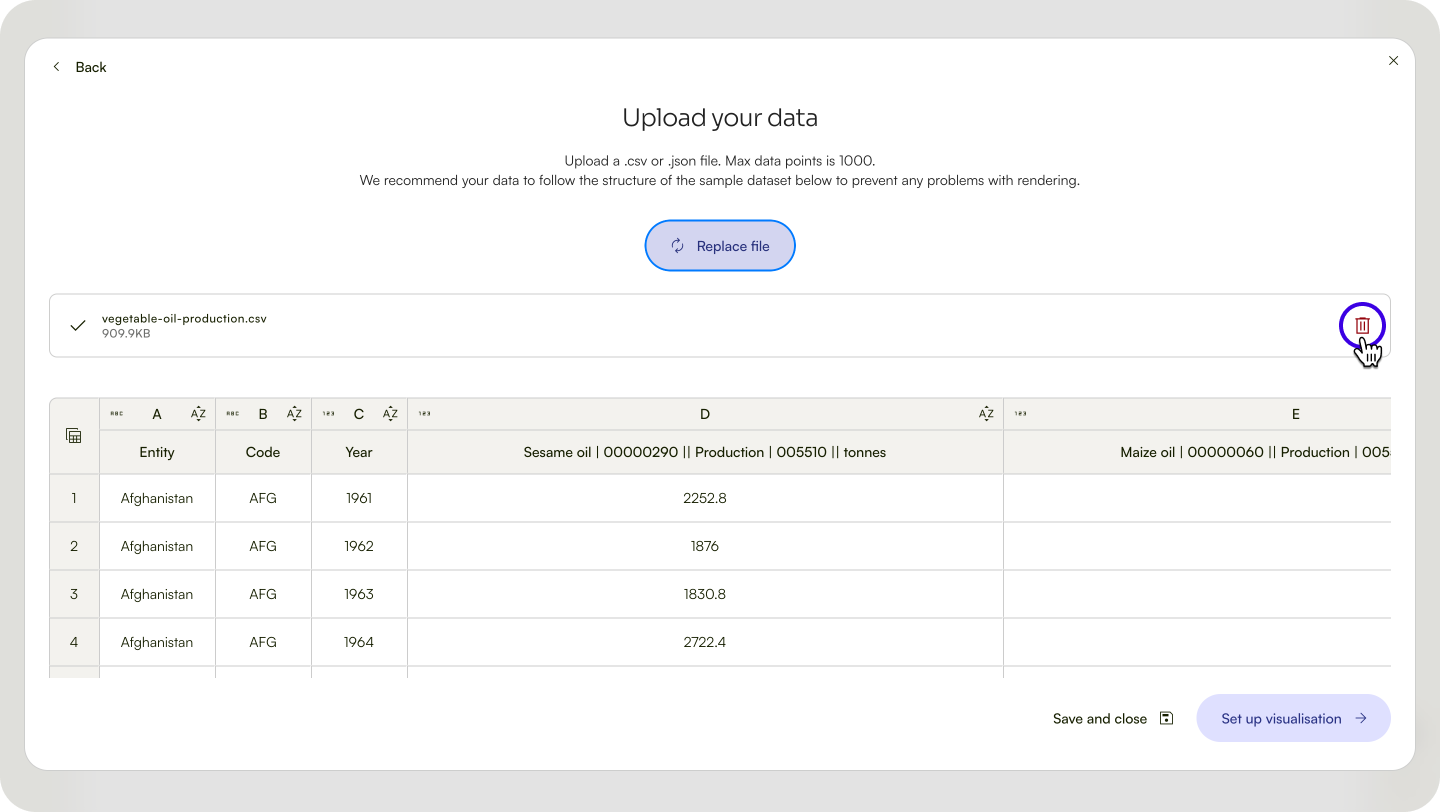
To go back to the visualisation type selection menu, click the 'Back' button at the top left.
Replace the dataset
Click Replace dataset and upload a new dataset.
Save and close the dataset editor
- Click
Save and close.
Next, learn how to set up your data visualisation.
| Last article: Create a data visualisation | Next article: Set up your visualisation |
Lapis is built by Kontinentalist↗, a data storytelling studio in Singapore.
Was this article helpful?
That’s Great!
Thank you for your feedback
Sorry! We couldn't be helpful
Thank you for your feedback
Feedback sent
We appreciate your effort and will try to fix the article