Quick Links
The left-hand sidebar in Lapis provides easy access to every feature in Lapis. Here's everything you need to know about sidebar.
Expand your sidebar
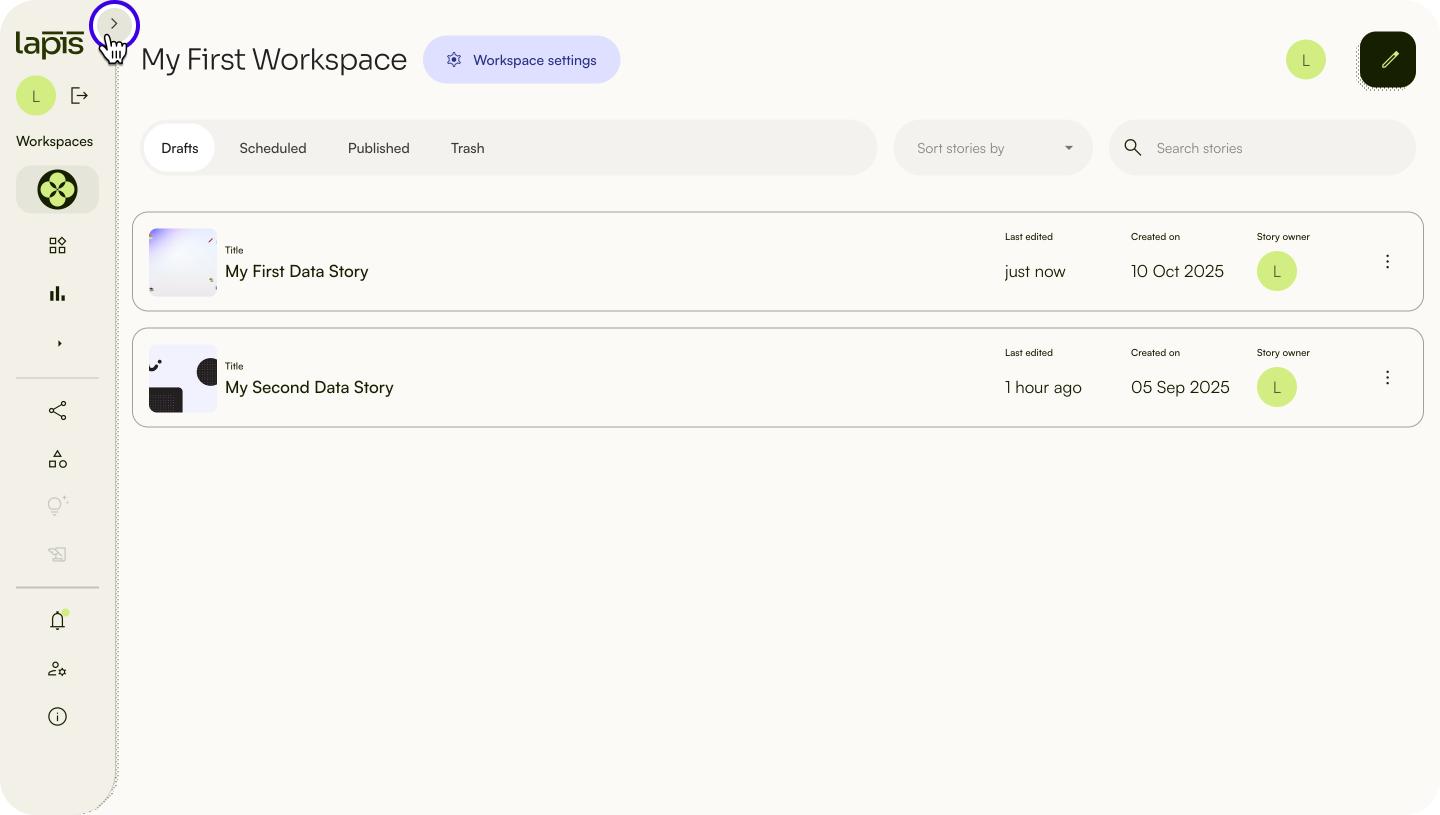
The sidebar is collapsed by default. To view all sidebar links, expand it by clicking the arrow icon on the top right corner of the sidebar.
Workspaces
From the sidebar, you can access your Workspaces or create a new one.
Create a new Workspace
You can create new Workspaces from the sidebar.
- Click
Create workspace +on the sidebar. - Name your Workspace.
Go to your current Workspace
To go to your current Workspace, click the profile picture of your Workspace. If you have multiple Workspaces, they can be identified by the profile image or logo you have set for it.
Switch to a different Workspace
You can switch to other active Workspaces from the sidebar.
- Click on the right-arrow icon or the button
Other Workspaces. - Select a Workspace.
Templates
Templates are a key feature of Lapis' Workspaces. You can access both Lapis templates and your own custom templates from the sidebar.
Templates can help you to save time and energy to build stories from scratch. Learn more about it in “Templates”.Browse Workspace templates
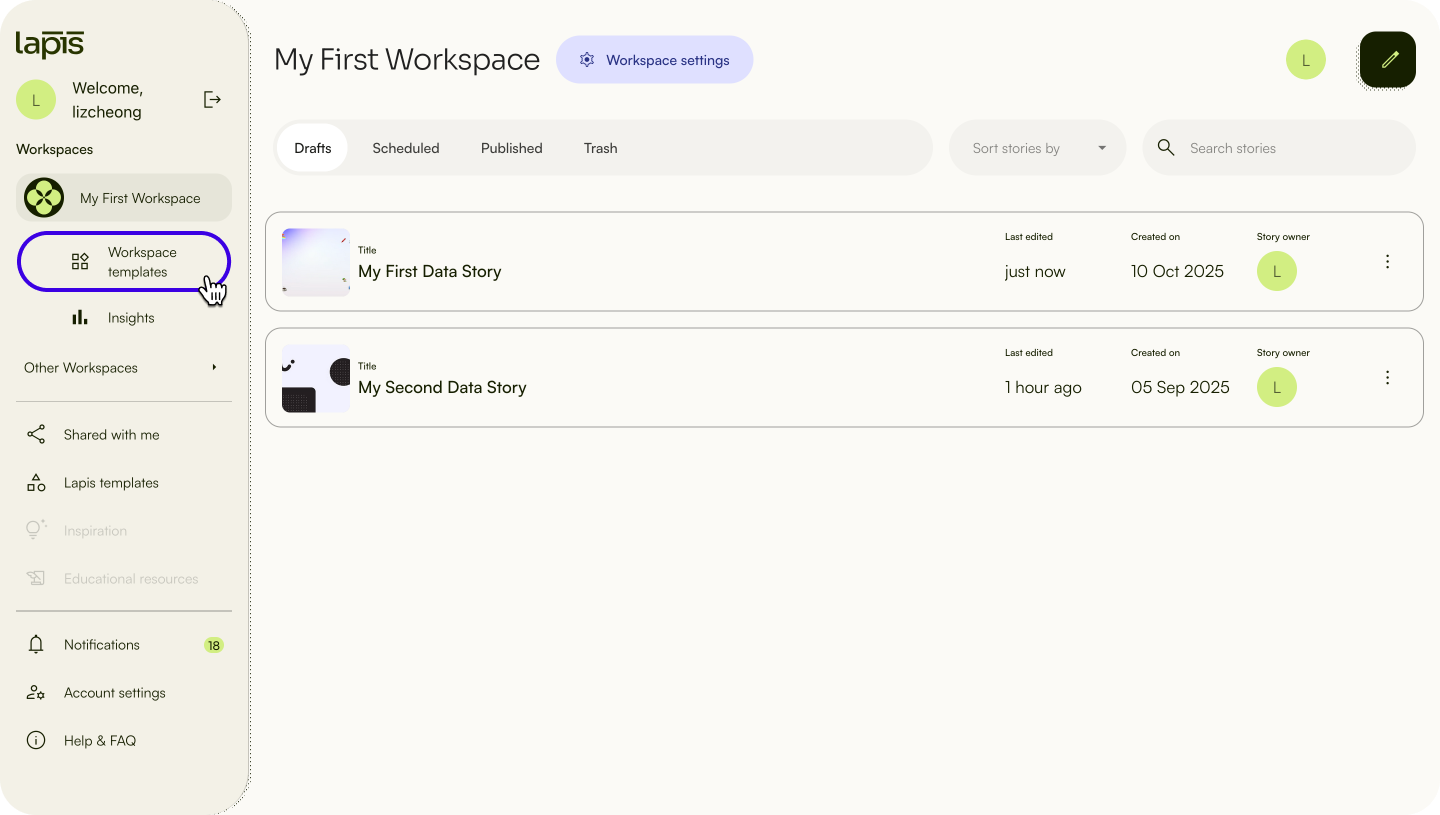
To view the content block or full story templates you've created, click Workspace Templates.
Browse Lapis templates
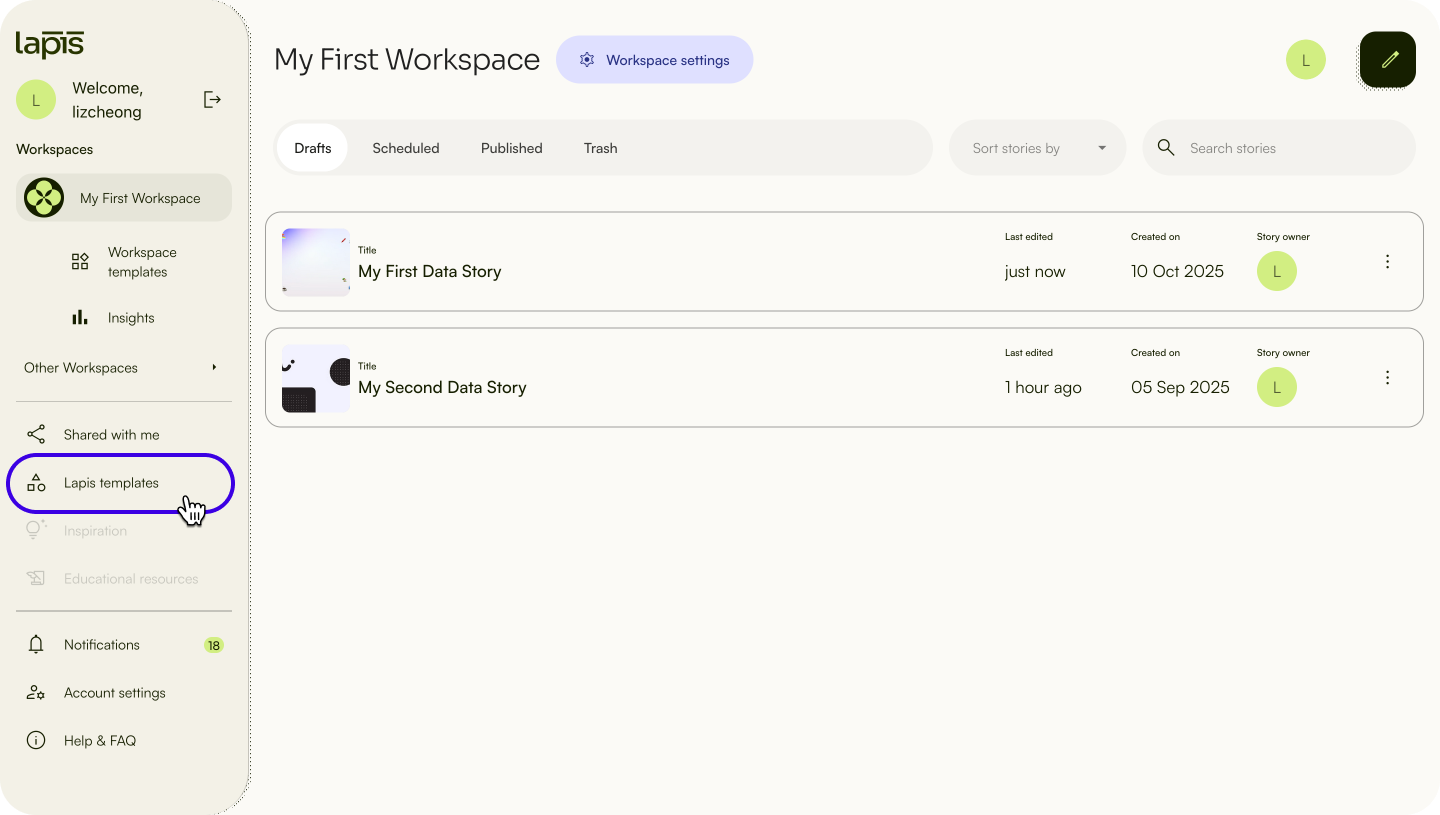
To use pre-built content block or full story templates created by the Lapis team, click Lapis Templates.
Shared with me
Collaboration is a big part of Lapis. If you're in multiple projects and Workspaces at once, you can find the projects and spaces that others have shared with you by clicking Shared with me on the sidebar.
In Lapis, you can collaborate with team members, share drafts and write together in the same space. Learn more about it in “Sharing & Collaboration”.Account settings
Manage all your essential and security details of your account in Account settings. You can navigate to it from the sidebar by clicking Account settings.
You can customise your account and set up other functions here. Learn more about it in “Account settings”.Log out
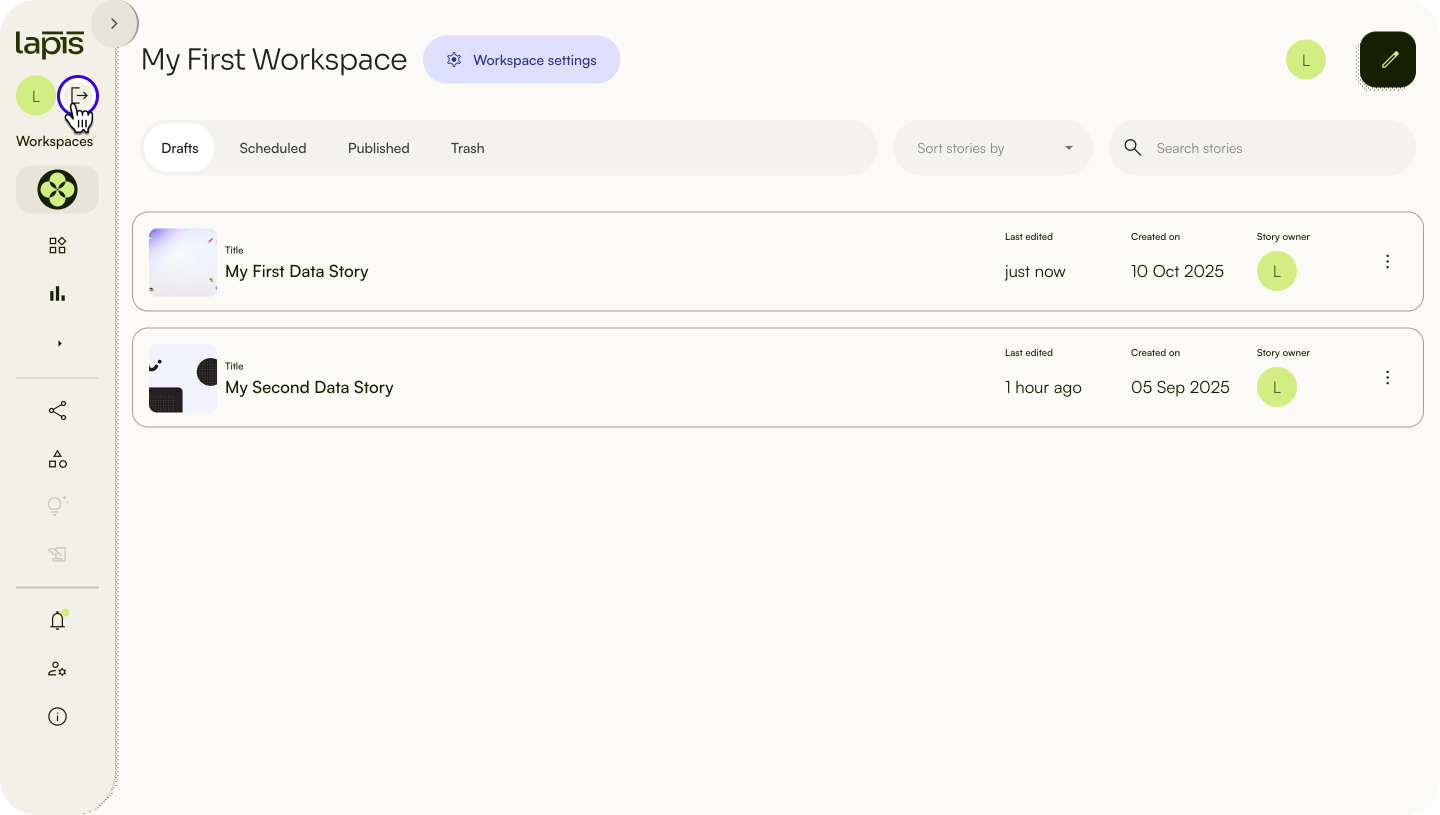
To Log out, select the exit icon next to your profile picture.
Next, learn how customise, edit, and delete your Workspace.
| Last article: Intro to Workspaces | Next article: Customise, edit, and delete your Workspace |
Lapis is built by Kontinentalist↗, a data storytelling studio in Singapore.
Was this article helpful?
That’s Great!
Thank you for your feedback
Sorry! We couldn't be helpful
Thank you for your feedback
Feedback sent
We appreciate your effort and will try to fix the article