Add custom code sections that support your story.
The custom code block lets you write and run HTML, CSS, and JavaScript directly inside a Lapis story. This could be an interactive section, a complex animation or an extensive data visualisation. Your code renders in an isolated sandbox, separate from the rest of the page.
This block is for users who are comfortable writing code. If you want to embed third-party tools, Lapis provides dedicated embed content blocks for those. Please use them instead of the custom code block.Adding a custom code block
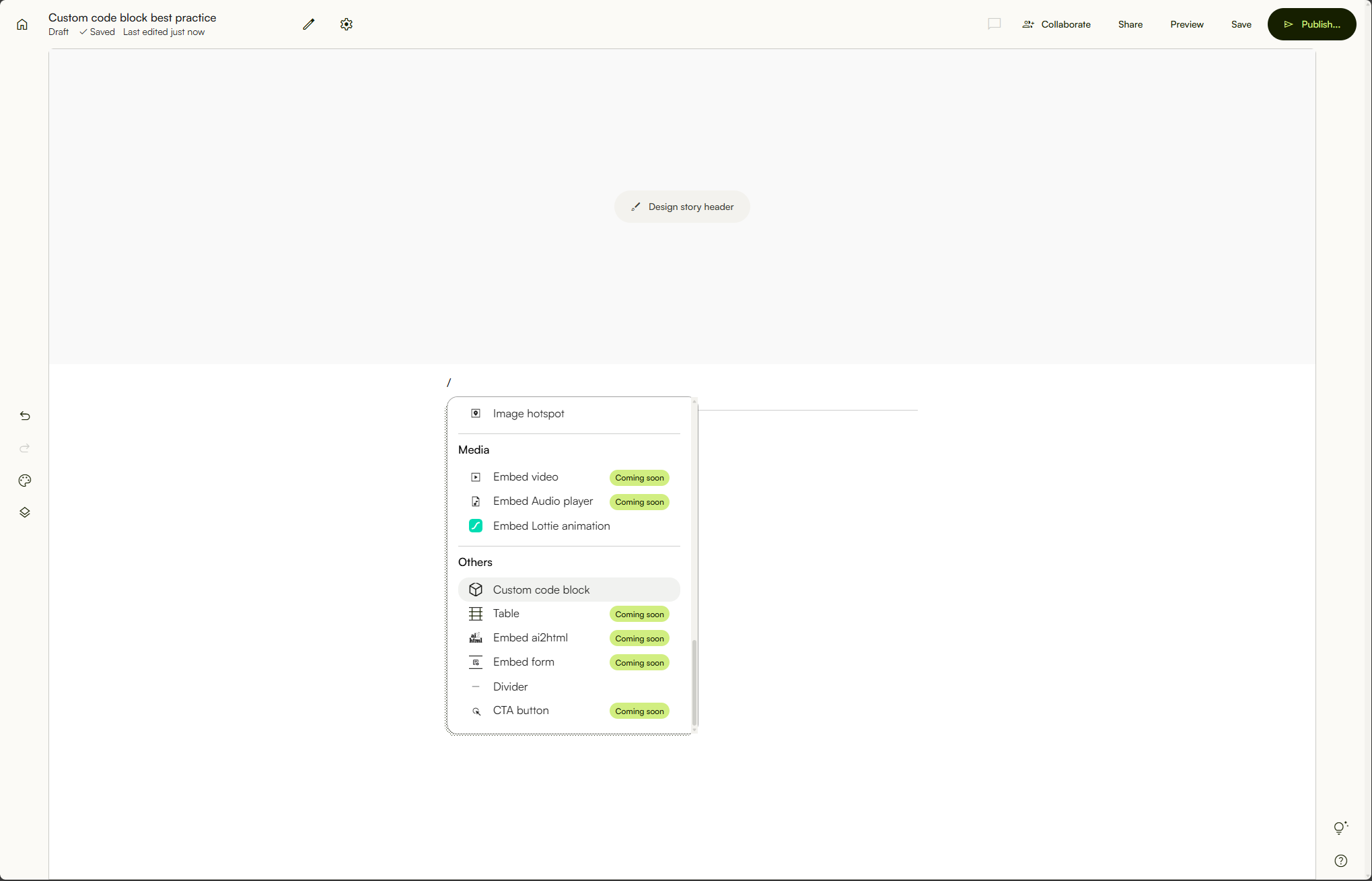
- In the story builder, type
/to open the block menu. - Scroll to Others and select Custom code block.
You'll land on a setup screen with two options.
- Upload files or folder — Drag and drop
.html,.css, or.jsfiles, a folder, or a zip archive. - Code manually in Lapis — Opens the code editor directly in the browser.
You can do both. Upload your files first, then edit the code in the editor on the next step.
The code editor
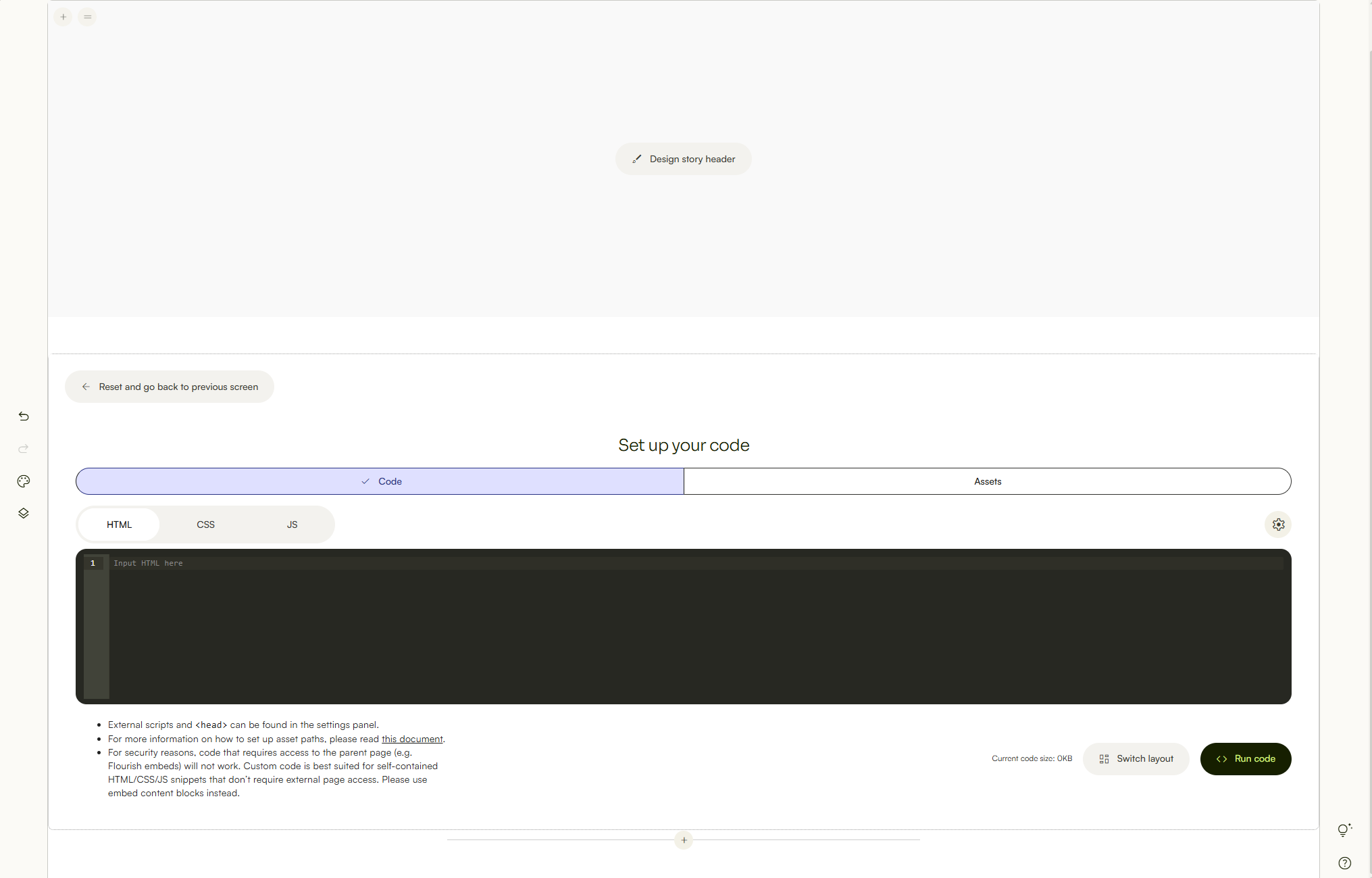
The editor has three tabs: HTML, CSS, and JS. Write your code in the relevant tab.
- Run code — Click this to render your code. The preview appears below the editor and does not update automatically. When readers view your published story, they only see the rendered output ~ the editor is not visible.
- Switch layout — Toggle between a tabbed view (one editor at a time, switch between HTML/CSS/JS using the tabs) and a split view (all three editors visible at once).
- Code size — Shown at the bottom right. Your combined HTML, CSS, and JS must stay under 100KB.
- Settings (gear icon) — Opens the Customise settings panel.
Customise settings
Clicking the gear icon opens a floating Customise settings panel with three fields:
- Title — Sets the title attribute on the iframe. Use this to describe what the block contains. It is not visible to readers but is used by screen readers and accessibility tools.
- Head — Add content that belongs in the document
<head>: meta tags, inline styles, or preload hints. - External scripts — Add script URLs to load libraries from a CDN (e.g. D3.js, Chart.js, Leaflet). Click + Add script to add more entries. Each entry has a delete button. Keep library code here rather than pasting it into the JS tab ~ it saves code space and keeps your logic readable.
Uploading assets
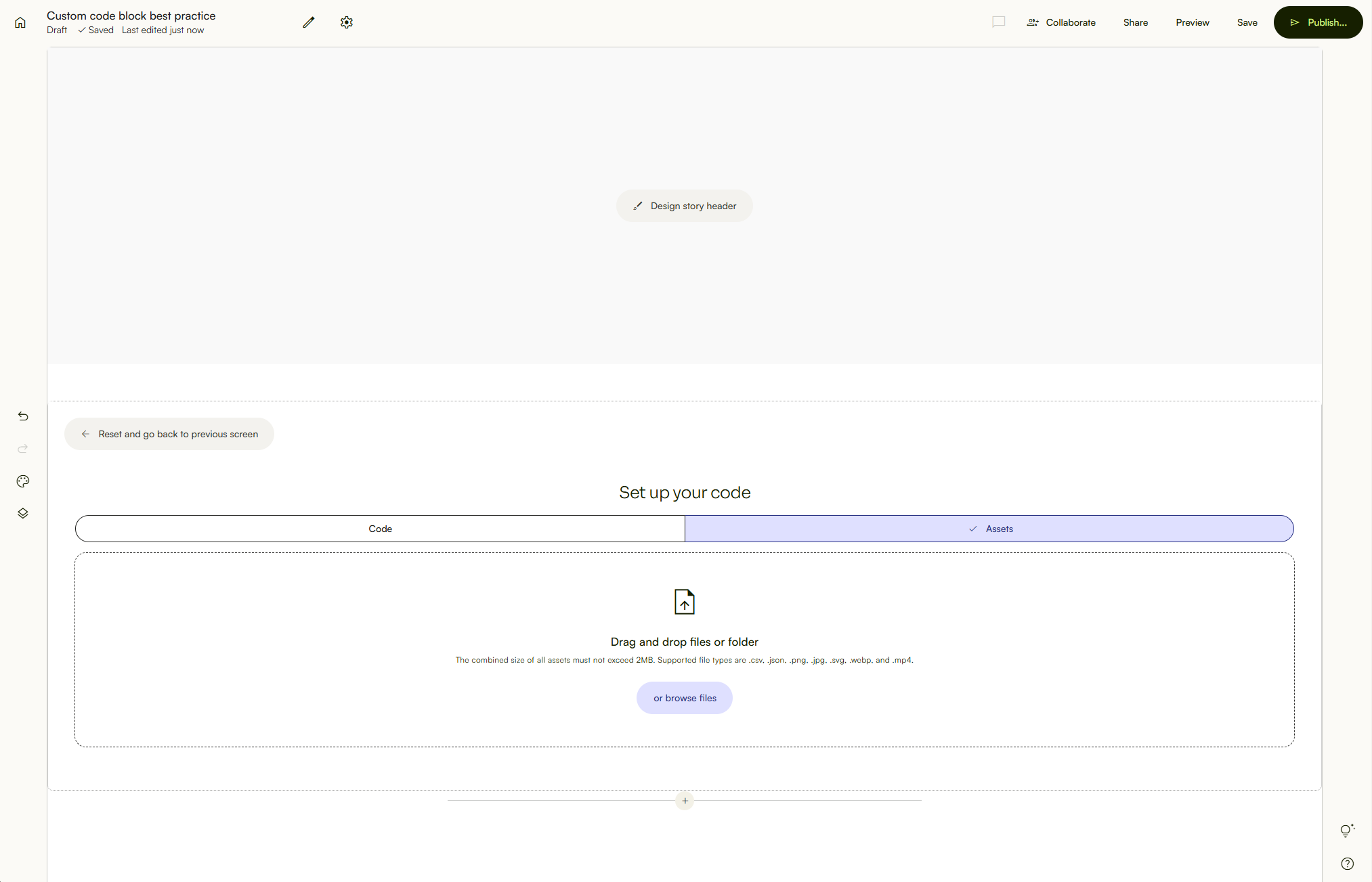
Switch to the Assets tab to upload supporting files your code references.
Supported types: .csv, .json, .png, .jpg, .svg, .webp, .mp4
Combined asset limit: 2MB
Once a file is uploaded, hover over it to reveal a link icon. Clicking it copies the full URL of that asset. Use that URL directly in your code:
<img src="https://your-copied-asset-url" alt="Chart" />
fetch("https://your-copied-asset-url").then(...)
When to use this block
The custom code block works best for self-contained code that does not depend on external services or the parent page. Good fits:
- Custom interactive charts built with a library like D3 or Chart.js
- Annotated SVG diagrams
- Styled data tables
- Simple animations or scroll interactions
- Any HTML/CSS/JS snippet that runs entirely on its own
When not to use this block
The custom code block runs in a sandboxed iframe. It cannot:
- Access the parent page, cookies, or local storage
- Run embed codes from tools that rely on their own script loaders
Embed codes copied from tools that require their own script environment will not work here. Use Lapis's dedicated embed content blocks for those.
Limitations
| Item | Limit |
|---|---|
| Code size (HTML + CSS + JS combined) | 100 KB |
| Assets (combined) | 2MB |
| Accepted code languages | HTML, CSS, JS |
| Accepted asset types | csv, .json, .png, .jpg, .svg, .webp, .mp4 |
Tutorial: building a bar chart with D3
This example builds a simple horizontal bar chart using D3.js. It covers all five inputs: Head, External scripts, HTML, CSS, and JS.
Head
Load Aboreto from Bunny Fonts by pasting this into the Head field in Customise settings.
<link href="<https://fonts.bunny.net/css?family=aboreto:400,600>" rel="stylesheet">
External scripts
Add D3 by pasting this URL into the External scripts field.
<https://cdn.jsdelivr.net/npm/d3@7>
HTML
A heading, a chart container, and a tooltip element.
<h2>Top Story Topics</h2>
<div id="chart"></div>
<div id="tooltip"></div>
CSS
Applies Aboreto loaded in Head, styles the bars, and positions the tooltip.
body {
font-family: 'Aboreto', display;
padding: 24px;
background: #f9f9f7;
color: #1a1a1a;
}

h2 { font-size: 17px; font-weight: 600; margin-bottom: 16px; }
.bar { fill: #5c7a4e; }
.bar:hover { fill: #3a5430; cursor: pointer; }
text { font-family: 'Aboreto', display; font-size: 8px; fill: #555; }
.domain { display: none; }

#tooltip {
position: fixed;
background: #1a1a1a;
color: #fff;
padding: 6px 10px;
border-radius: 4px;
font-size: 13px;
pointer-events: none;
opacity: 0;
transition: opacity 0.15s;
}
JS
Renders the chart and shows a tooltip on hover.
const data = [
{ label: "Climate", value: 38 },
{ label: "Politics", value: 29 },
{ label: "Economy", value: 21 },
{ label: "Health", value: 12 },
];

const w = 480, h = 160, m = { top: 8, right: 20, bottom: 24, left: 70 };

const svg = d3.select("#chart").append("svg")
.attr("viewBox", `0 0 ${w} ${h}`)
.attr("width", "100%");

const x = d3.scaleLinear().domain([0, 40]).range([m.left, w - m.right]);
const y = d3.scaleBand().domain(data.map(d => d.label))
.range([m.top, h - m.bottom]).padding(0.3);

const tooltip = d3.select("#tooltip");

svg.selectAll("rect").data(data).join("rect")
.attr("class", "bar")
.attr("x", m.left).attr("y", d => y(d.label))
.attr("width", d => x(d.value) - m.left)
.attr("height", y.bandwidth())
.on("mousemove", (event, d) => {
tooltip.style("opacity", 1)
.style("left", `${event.clientX + 12}px`)
.style("top", `${event.clientY - 32}px`)
.text(`${d.label}: ${d.value}%`);
})
.on("mouseleave", () => tooltip.style("opacity", 0));

svg.append("g").attr("transform", `translate(${m.left},0)`)
.call(d3.axisLeft(y).tickSize(0).tickPadding(8));

svg.append("g").attr("transform", `translate(0,${h - m.bottom})`)
.call(d3.axisBottom(x).ticks(4));
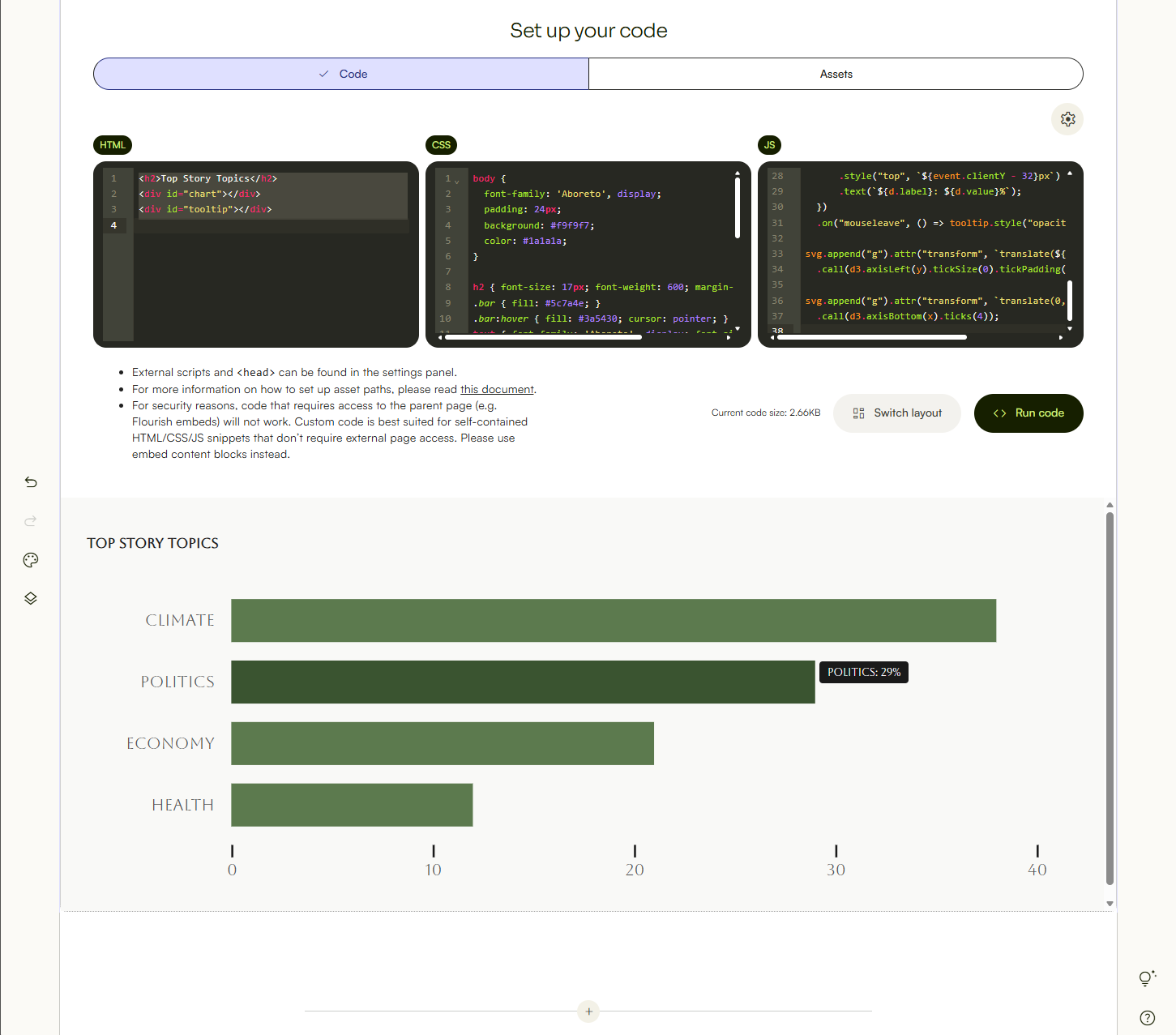
Once all five are set, click Run code. The chart renders below the editor in Aboreto, and hovering a bar shows a tooltip with the value.
Best practices
- Keep code self-contained. Write everything the block needs inside the block. Avoid fetching data from external APIs unless the API explicitly allows cross-origin requests from iframes.
- Load libraries via the external scripts panel. Add script URLs in the Customise settings panel rather than the JS tab. This saves code space and keeps your logic separate from dependencies.
- Use the copied asset URL. Upload files in the Assets tab, hover over the file to reveal the link icon, and copy the full URL. Use that URL to reference the asset in your code.
- Design for 100% width. The block defaults to full width. Avoid hardcoded pixel widths that assume a fixed viewport ~ your story will be read on different screen sizes.
- Click Run before publishing. The preview only updates when you run the code. Always run it after making changes to confirm the output before saving.
- Minify or move large data out of the code tabs. If you're approaching 100KB, minify your code or move large datasets to the Assets tab as
.csvor.jsonfiles instead of embedding them as strings in your JS.
Troubleshooting
- My code works locally but not in the block. The block runs in an isolated iframe with no access to the parent page. If your code reads cookies, session data, or
window.parent, it will not work here. Rewrite it to be self-contained. - An asset is not loading. Check that you're using the correct URL copied from the Assets tab. Hover over the uploaded file, click the link icon, and paste the copied URL into your code.
- A library or external script is not working. The block cannot run code that tries to access the parent page ~ such as reading cookies,
window.parent, or session data. Libraries that do this internally will fail. Flourish is a known example. If you're using Flourish, use Lapis's dedicated Flourish embed block instead, which works more natively. Self-contained libraries that don't access the parent page should work fine. - The preview does not look right. Click
Run codeafter every change. The preview only updates when you run it.
| Last article: Embed content blocks | Next article: Divider and CTA content blocks |
Lapis is built by Kontinentalist↗, a data storytelling studio in Singapore.
Was this article helpful?
That’s Great!
Thank you for your feedback
Sorry! We couldn't be helpful
Thank you for your feedback
Feedback sent
We appreciate your effort and will try to fix the article